
SVG to PNG Converter — Export Vector Art as Transparent PNG
Turn SVG code or .svg files into high-quality PNG images with transparency intact.
Preview the vector, edit the source if needed, choose the background, and download a raster PNG directly from your browser.
Convert SVG into a transparent PNG in one place
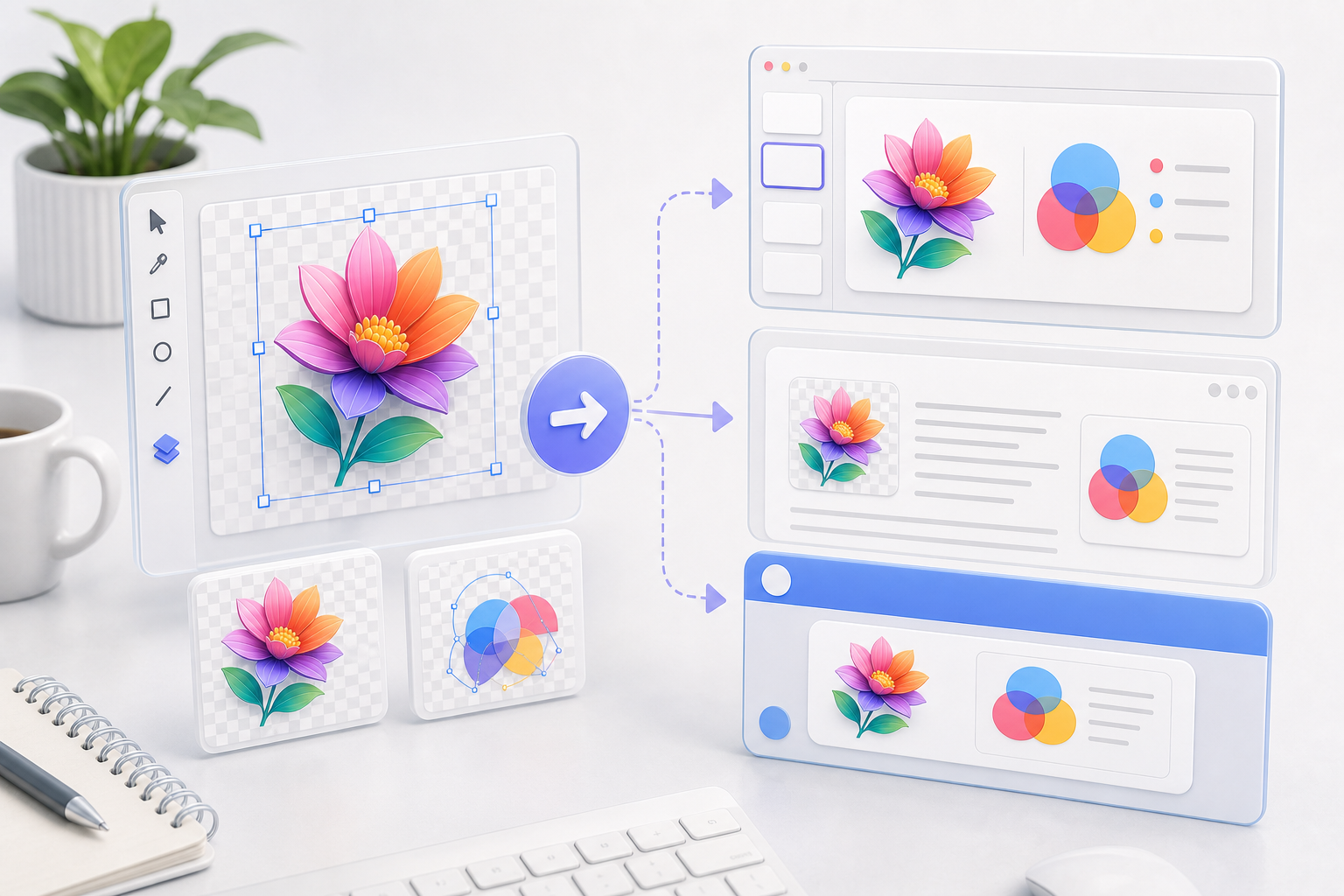
SVG is perfect for editable vectors, but many tools — Notion, Slack, Office, app icons, raster image editors — need a PNG with a real alpha channel. This page gives you a focused SVG to PNG workflow on top of the existing browser-based SVG studio: upload or paste, inspect the preview, then export.
Upload or Paste SVG
Drop an .svg file or paste raw SVG/XML source. The preview updates immediately so you can catch broken markup before exporting.
Live Preview Before Export
Zoom, pan, and switch preview backgrounds to confirm how strokes, gradients, and transparent areas will rasterize into the PNG.
PNG as the Primary Action
The studio opens with PNG as the main export target, while SVG, JPG, PDF, and ICO remain one click away in the dropdown.
Runs in Your Browser
Conversion uses local browser APIs. Your SVG does not upload to a server, which makes it suitable for private logos, icons, and internal diagrams.
Why convert SVG to PNG here?
A dedicated PNG converter removes the usual format friction: no design app, no command line, no separate viewer, and no privacy trade-off.
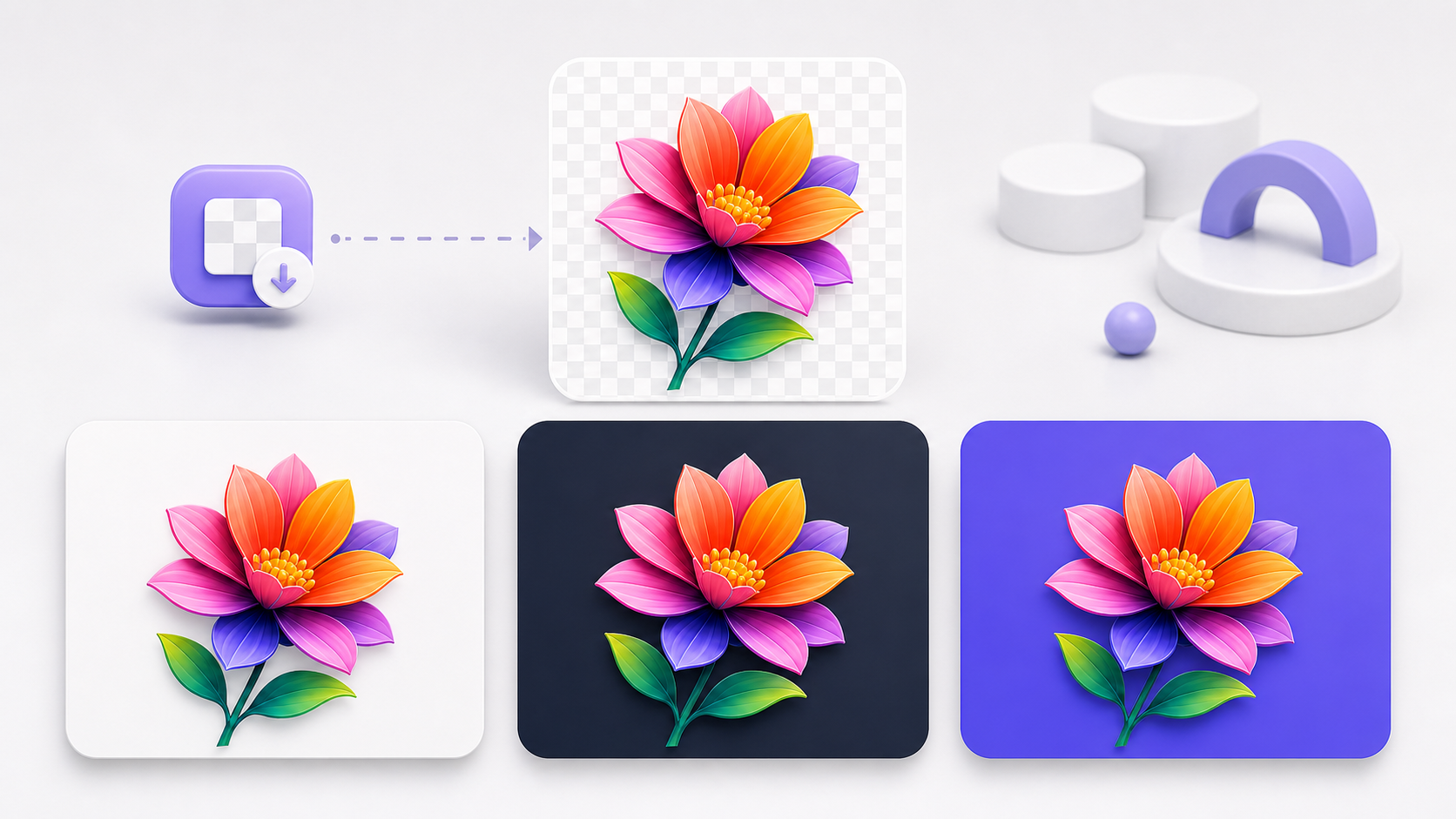
Keep transparency intact
Unlike JPG, PNG preserves the alpha channel. Transparent SVG areas stay transparent in the exported PNG, ready to drop onto any background.
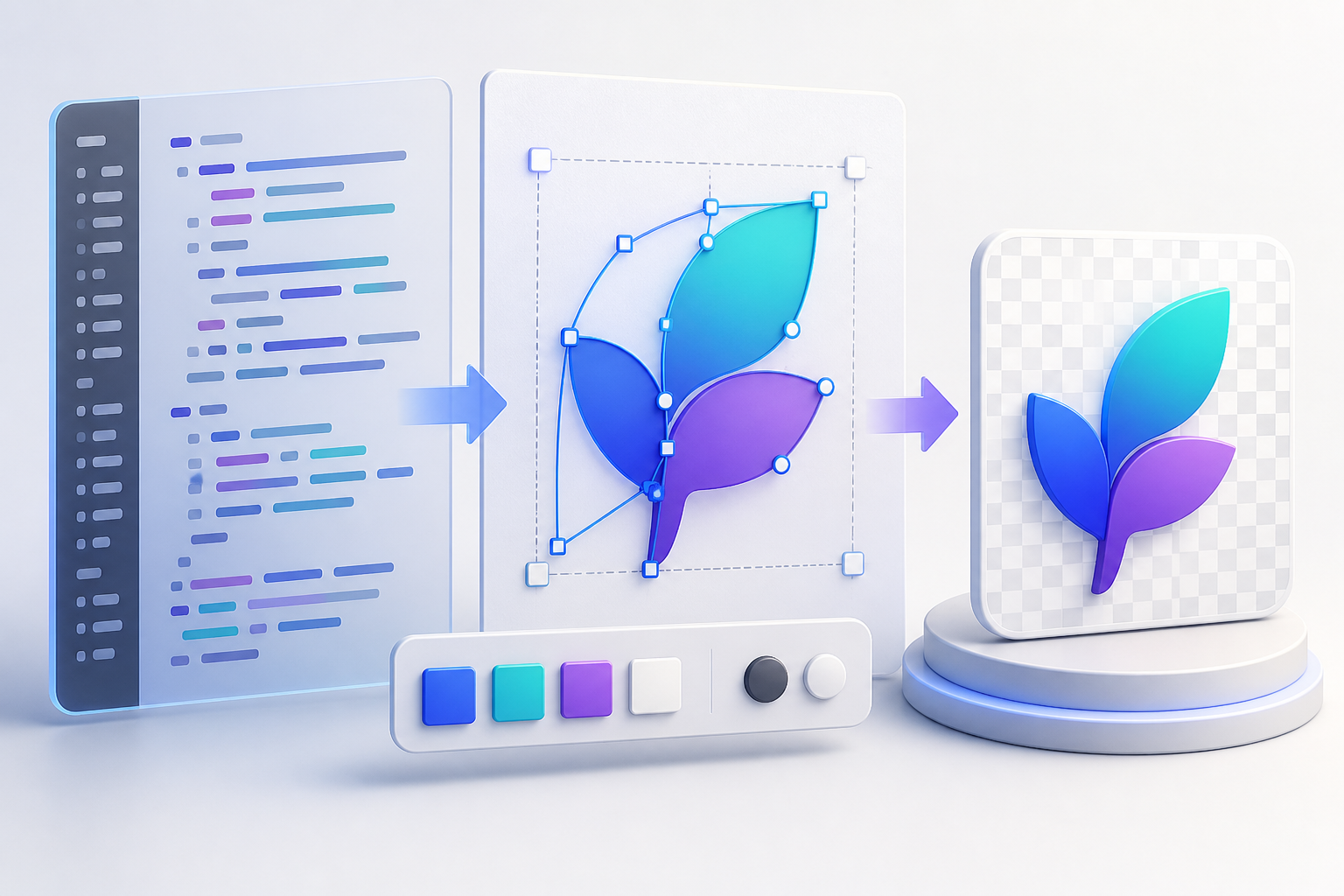
Fix source issues before rasterizing
If an SVG has an incorrect fill, oversized viewBox, or broken pasted markup, edit the source beside the preview instead of exporting a bad image and starting over elsewhere.
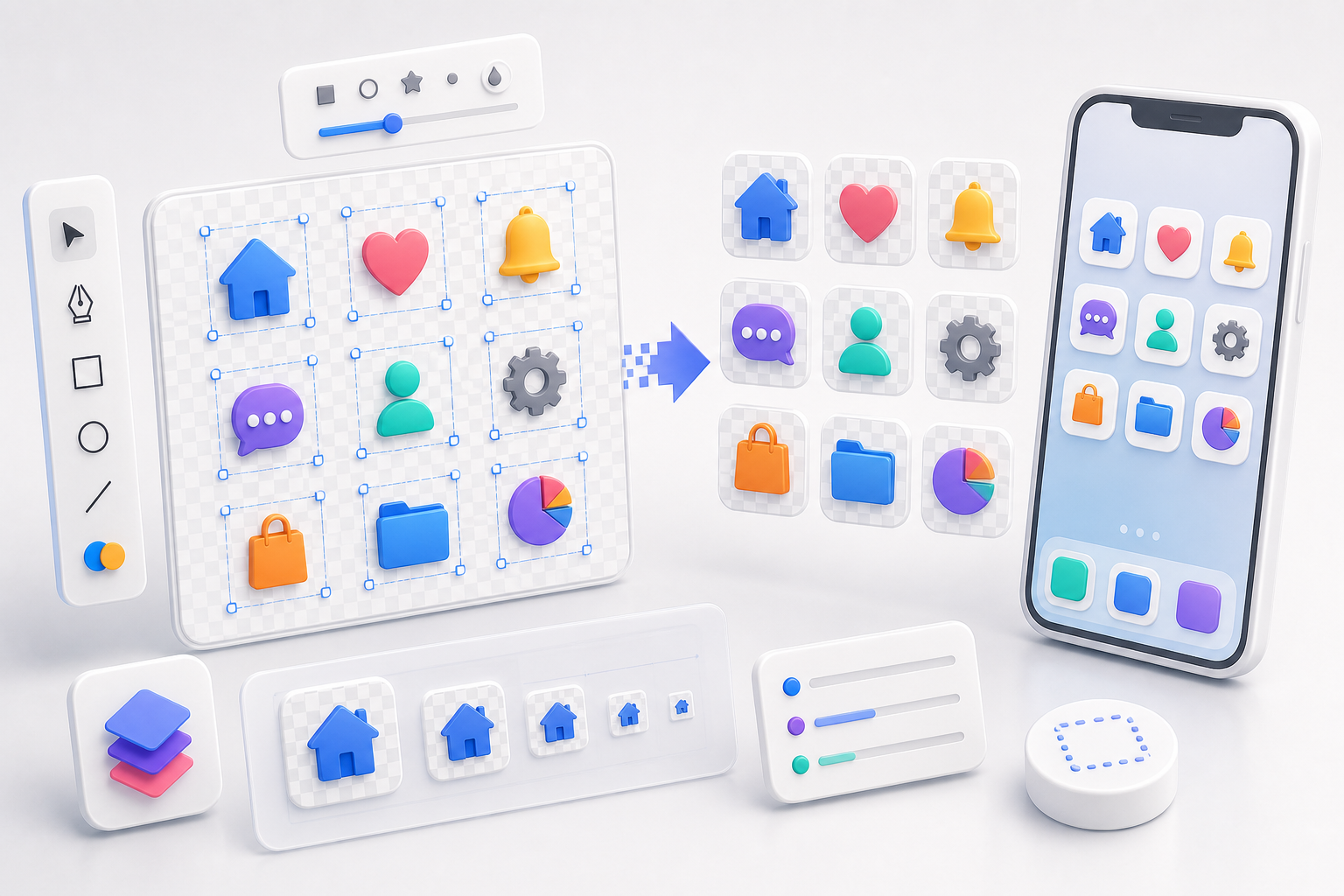
Export at the SVG's true resolution
The studio reads viewBox and width/height to pick a sensible raster size, capped to avoid huge canvases — so logos and icons stay sharp without bloating file size.
No signup, no quota, no upload queue
Because conversion happens client-side, you can use it repeatedly without waiting for cloud jobs or handing your artwork to a third-party converter.
Built for SVG to PNG conversion
The page is focused on the SVG to PNG job, while preserving the inspection and editing tools that make the full SVG Viewer useful.
PNG Primary Export Button
The main export control downloads PNG first, reducing clicks for users who landed here with a specific SVG to PNG task.
Alpha-channel preserved
Transparent SVG pixels become transparent PNG pixels. The checker background is only a preview aid — it is never baked into the output.
Source Editor with Formatting
Format or minify SVG source, repair attributes, and keep the rendered preview in sync as you edit.
Zoom, Pan, and Fit
Inspect small icons or large diagrams before export with cursor-anchored zoom, drag-to-pan, fit-to-window, and 100% reset.
Pick Mode for Debugging
Click an element in the preview to locate its source line, useful when an AI-generated or exported SVG contains hundreds of paths.
Multiple Backup Formats
Need a JPG, vector PDF, favicon ICO, or cleaned SVG instead? The same studio keeps those export options close by.
SVG to PNG — FAQ
Common questions about converting SVG files to PNG online. More questions? Email support@imagesv2.ai.
Yes. It runs in your browser with no signup, no credit card, and no daily limit.
No. Uploading, parsing, previewing, editing, and PNG export happen locally in your browser. Your SVG never leaves your machine.
Yes. Transparent areas in the SVG remain transparent in the PNG. The checker background only helps you preview those regions — it is not part of the output.
Yes. The studio includes a source editor with formatting, minification, live preview, and click-to-locate so you can fix the SVG before rasterizing it.
The converter uses the SVG's viewBox and width/height attributes to pick a raster size, capped at 8192 px per side and ~32 megapixels so the canvas stays usable in the browser.
Choose PNG when you need transparency, sharp edges on logos and icons, or lossless compression. Choose JPG when you need a smaller file for photo-like artwork and do not need transparency.
Yes. PNG is the primary action on this page, but the export menu still exposes SVG, JPG, PDF, and ICO options.
Convert your SVG to PNG now — or generate a brand-new SVG with AI
Paste SVG code, upload an .svg file, preview it, and export a transparent PNG directly in your browser. Don't have an SVG yet? Generate one with GPT Image 2 in under a minute.