
GPT Image 2 SVG — Generate Editable Vector Graphics with AI
GPT Image 2 SVG ends the era of AI image generation that leaves you with a dead PNG.
Type a prompt and GPT Image 2 SVG hands you a 4K PNG plus an editable SVG at the same time — shapes, text, and colors all stay editable in Figma, Illustrator, or right in your browser.
Free credits for new users — no credit card required
What is GPT Image 2 SVG?
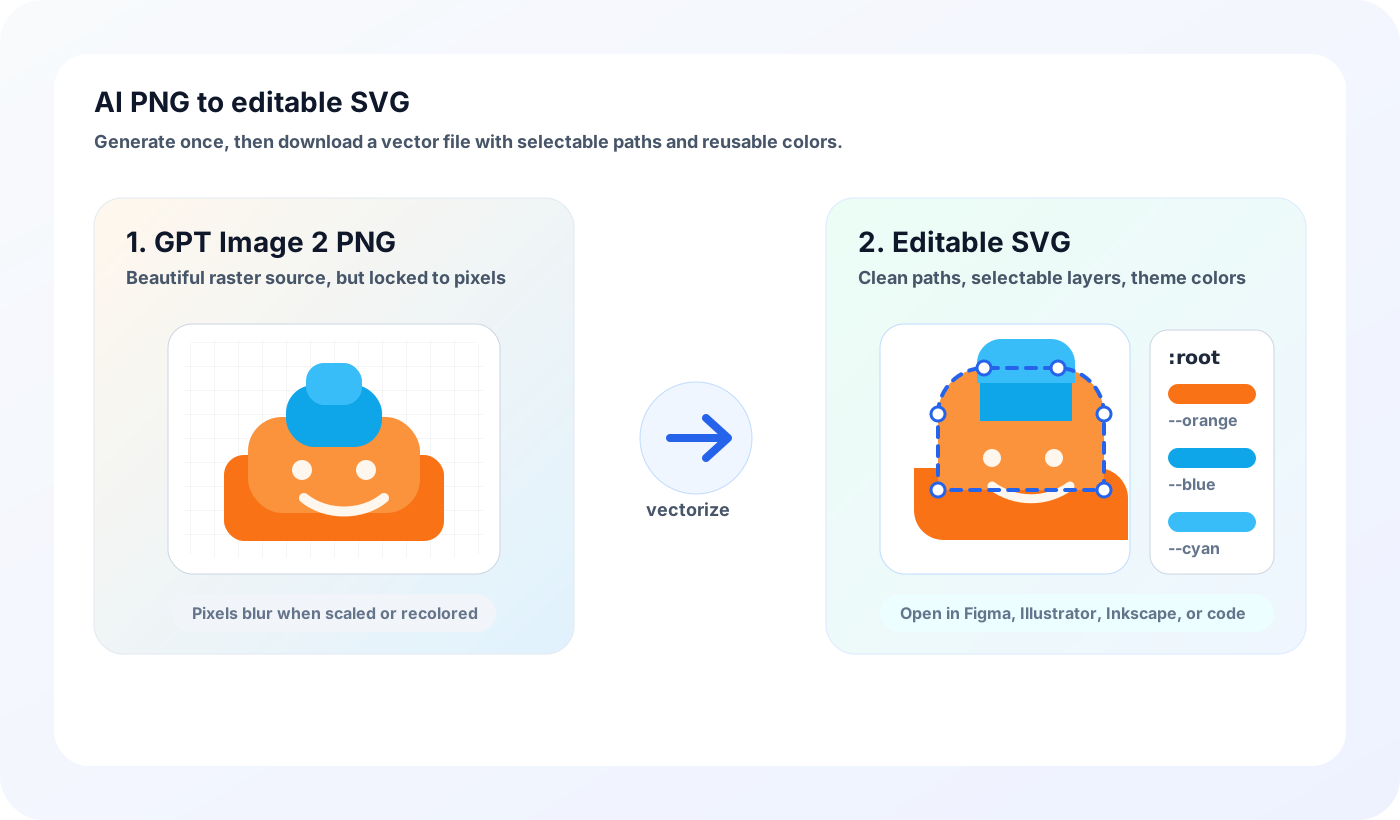
Most AI image tools hand you a flat PNG and leave you in Illustrator redrawing outlines before it's usable for a brand or website. GPT Image 2 SVG is different: type a prompt and download a clean, editable SVG straight away — open it in Figma, Illustrator, or Inkscape, change colors, swap text, scale it however you want, and drop it straight into your design or site.
Every Shape Is Editable
Shapes, colors, and text are all separate elements — select, recolor, delete, or reshape each one. The same GPT Image 2 SVG file works as a 16px favicon or a billboard print, sharp at any scale.
SVG in One Click, No Second Tool
No Illustrator redrawing, no third-party vectorizer — when the GPT Image 2 SVG generation is done, the SVG is sitting next to the PNG, ready to download.
Style Presets Hit the Sweet Spot
Icon, Flat Illustration, Line Art, Logo Mark — four built-in presets lock onto the styles that work best, so the very first GPT Image 2 SVG generation is usable instead of a slot machine.
Change One Color, Recolor the Whole Image
Main colors are organized for you — change one and the whole palette shifts. GPT Image 2 SVG means no more regenerating multiple versions for brand kits or dark-mode variants.
Why generate vectors with GPT Image 2 SVG?
Skip the manual tracing step. Skip Illustrator's Image Trace. Skip the third-party vectorizer subscription. GPT Image 2 SVG generates ready-to-edit vector assets in one shot.

Icons and UI graphics
Generate consistent icon sets, app glyphs, and UI illustrations as crisp SVG. Drop GPT Image 2 SVG output into Tailwind, shadcn/ui, or any design system without worrying about retina displays or dark mode.

Logo concepts and brand marks
Iterate on logo ideas with text prompts, download every variant as SVG, then refine in Figma or Illustrator. The vector format from GPT Image 2 SVG means infinite resizing for cards, signage, web, and print.

Flat illustrations for marketing
Hero illustrations, blog headers, landing page graphics — generate them in a flat style with GPT Image 2 SVG and download as SVG so designers can adjust colors to match the campaign without re-rendering.
Scalable web and print assets
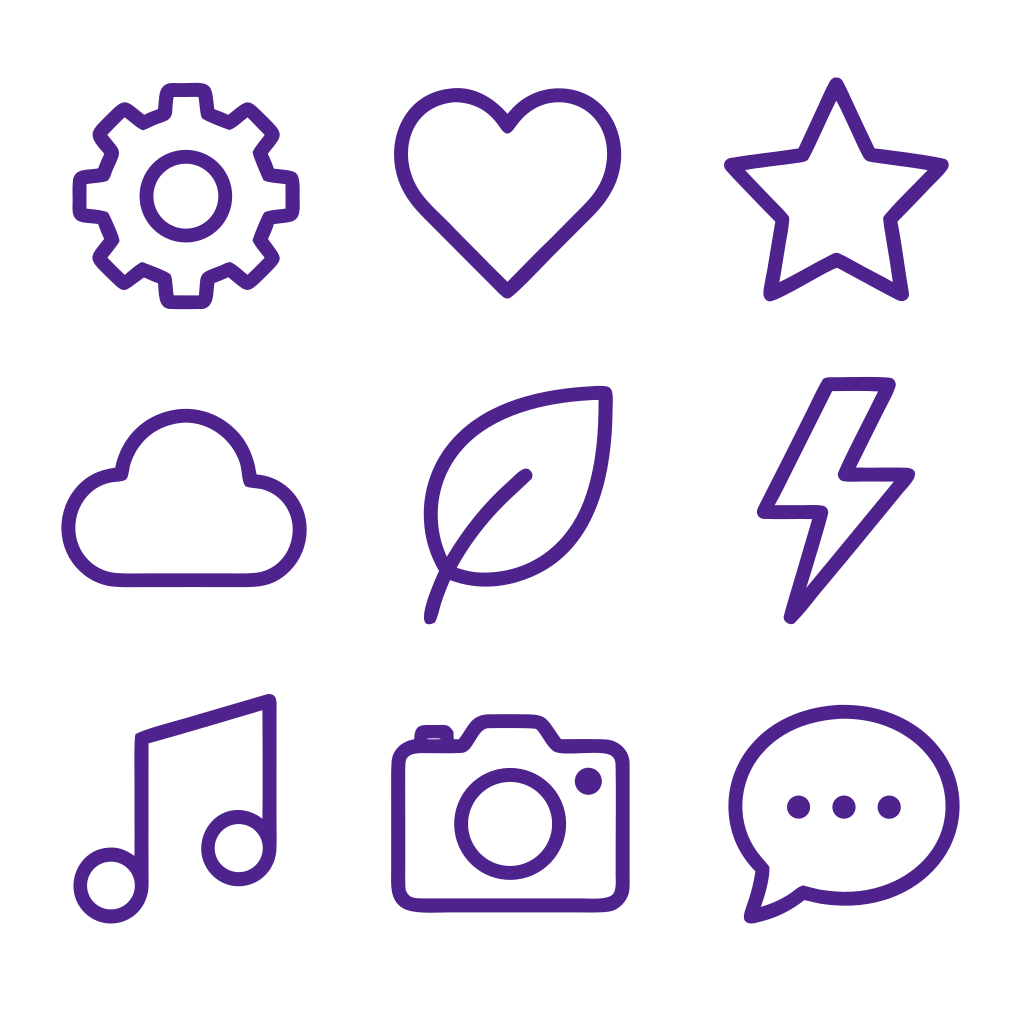
One GPT Image 2 SVG file works for a 16px favicon, a 1200px hero image, and a poster-sized print. No more exporting six PNG sizes or shipping fat retina assets.
GPT Image 2 SVG — everything you need in one place
From AI generation to SVG editing to dropping it into your project, GPT Image 2 SVG keeps it all in one place — no tool switching required.
Download Both SVG and PNG
Every GPT Image 2 SVG generation gives you a high-resolution PNG and an editable SVG. Grab either one, or both — credits only charge once.
4K Source, No Lost Detail
Up to 3840×2160 (4K) source images — which means the GPT Image 2 SVG comes out cleaner too, no jagged edges, no missing detail.
Multi-Language Text Stays Editable
English, Chinese, Japanese, Korean, and Arabic text renders accurately inside the image — and stays as real selectable text in the SVG, so you can edit or translate it after downloading.
Four Style Presets, Just Pick One
Icon, Flat Illustration, Line Art, Logo Mark — presets do the prompt writing for you, so the first GPT Image 2 SVG generation is already downloadable, no endless prompt tweaking.
Edit in Any Vector Tool
Standard SVG files from GPT Image 2 SVG — Figma, Illustrator, Inkscape, Affinity Designer all open them. No proprietary format lock-in: use us today, switch tools tomorrow.
GPT Image 2 SVG — FAQ
Common questions about generating editable SVG with GPT Image 2 SVG. More questions? Email support@imagesv2.ai.
Pick GPT Image 2 SVG when you need a graphic. Logos, brand marks, app and web icons, flat cartoon characters, stickers, simple illustrations — anything where the visual form matters and text is secondary works best here.
Don't use GPT Image 2 SVG for: (1) editable text posters or seamless geometric patterns — use the AI SVG Illustration Generator instead (poster titles stay editable, patterns tile seamlessly); (2) flowcharts, architecture diagrams, ER diagrams, sequence diagrams and other structural charts — use the AI SVG Diagram Generator (nodes and edges as the main characters).
SVG is a vector format: it scales without blurring, the file is small, and every color and piece of text can be edited. Almost every icon, logo, and illustration on the web is SVG — the big difference from PNG / JPG is that it's editable and infinitely scalable. The same SVG file can be a 16px favicon or scaled up to billboard print, sharp at every size.
GPT Image 2 on its own only gives you PNG / JPEG / WebP. GPT Image 2 SVG adds one extra step on top: the generated image is automatically turned into an editable SVG — paths, text, and colors all stay editable. So one prompt gives you both the PNG and the SVG.
Actually editable. Every GPT Image 2 SVG file keeps shapes as separate elements you can select, delete, or recolor one by one; text stays as real text you can select, copy, and translate; main colors are organized so changing one shifts the whole palette. Open it in Figma, Illustrator, or Inkscape after downloading — no extra conversion needed.
Icons, logos, and flat illustrations are the sweet spot for GPT Image 2 SVG — clean shapes, easy to edit, small files. Line art and simple cartoons also work well. Photorealistic images and complex paintings don't fit — the SVG would be huge and impossible to edit. Our style presets already point you in the right direction, so the very first generation is usable. Need a flowchart, sequence diagram, mindmap, or swim lane? Use the dedicated AI SVG Diagram Generator — every node label is real selectable text.
Yes — that's the whole point of GPT Image 2 SVG. Open it in Figma, Adobe Illustrator, Inkscape, or Affinity Designer. Change the theme color, edit the text, reshape, delete an element — all supported. SVG is a standard format, no tool lock-in — use us today, switch tools tomorrow.
After downloading the SVG, open the SVG Viewer to preview it right in the browser, tweak the source, make light edits, and export to PNG, JPG, PDF, or ICO — no tool switching needed.
A GPT Image 2 SVG generation costs a few extra credits beyond a PNG-only generation. The exact cost is shown above the generator before you click Generate. New users get free credits to try it — no credit card required.
Yes. The images and matching SVG files from GPT Image 2 SVG are yours and can be used commercially. The underlying OpenAI model applies — we recommend checking the latest OpenAI terms for details.
Doing it yourself means: generating in tool A, exporting, opening tool B, configuring trace settings, then cleaning up the result by hand — a full workflow. With GPT Image 2 SVG it's one click — when the generation finishes, the SVG is right next to the download button. And the style presets make sure the first generation is already clean, no endless retries.
Skip manual tracing — generate PNG + SVG with GPT Image 2 SVG
Free credits for new users, no credit card needed. With GPT Image 2 SVG, type a prompt, download PNG and SVG together, then recolor, swap text, and scale freely in Figma, Illustrator, or Inkscape.