
GPT Image 2 with Transparent Background — One Click, Real Alpha PNG
The transparent-background variant of our GPT Image 2 generator.
Type a prompt, hit Generate — what you download is a true RGBA PNG with soft alpha edges, ready for Photoshop, Figma, PowerPoint, and e-commerce listings.
Free credits for new users — no credit card required
How to Get a GPT Image 2 Transparent Background
Can you generate a transparent background with GPT Image 2?
Natively, no. The official OpenAI API only generates images with solid backgrounds. But you can use the imagesv2.ai one-step generator to automatically process the GPT Image 2 output and remove the background instantly — giving you a true transparent PNG with a real alpha channel.
Does GPT Image 2 Support Transparent Backgrounds Natively?
No. The OpenAI API returns images with solid backgrounds and no alpha channel. Here's exactly why — and every way to get a real transparent PNG.
The API has no "transparent" option left
gpt-image-2's background parameter only accepts auto or opaque. The transparent value that worked on gpt-image-1.5 was removed, so the API can't return an image with an alpha channel.
The model learned "transparent" = checkerboard
Ask for transparency in the prompt and gpt-image-2 paints a gray-and-white checkerboard into solid pixels. It looks transparent, but it's baked into the image — there's no real alpha channel.
The official docs say it's unsupported
OpenAI's API documentation states gpt-image-2 doesn't currently support native transparent backgrounds. It's a deliberate design choice, not a bug you can prompt your way around.
So what can you do? Drop back to gpt-image-1.5 (you lose gpt-image-2's quality), remove the background yourself in a second tool, shoot on a green screen and key it out with HSV thresholds, or subtract two renders pixel-by-pixel for an alpha mask. Or skip all of it — imagesv2.ai keeps gpt-image-2's quality and gives you a real alpha PNG in one click.
See it: from baked-in background to real transparent PNG
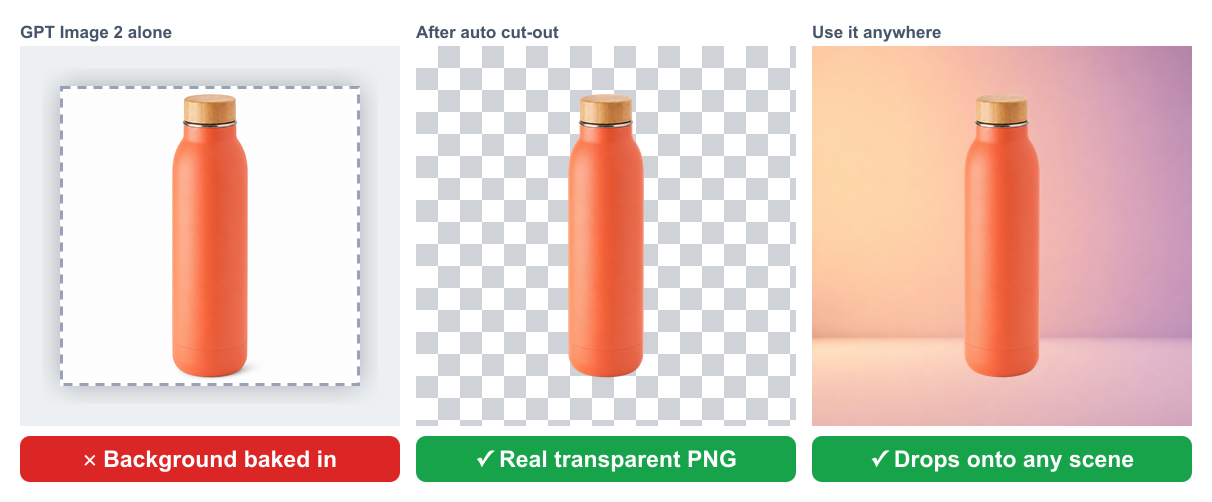
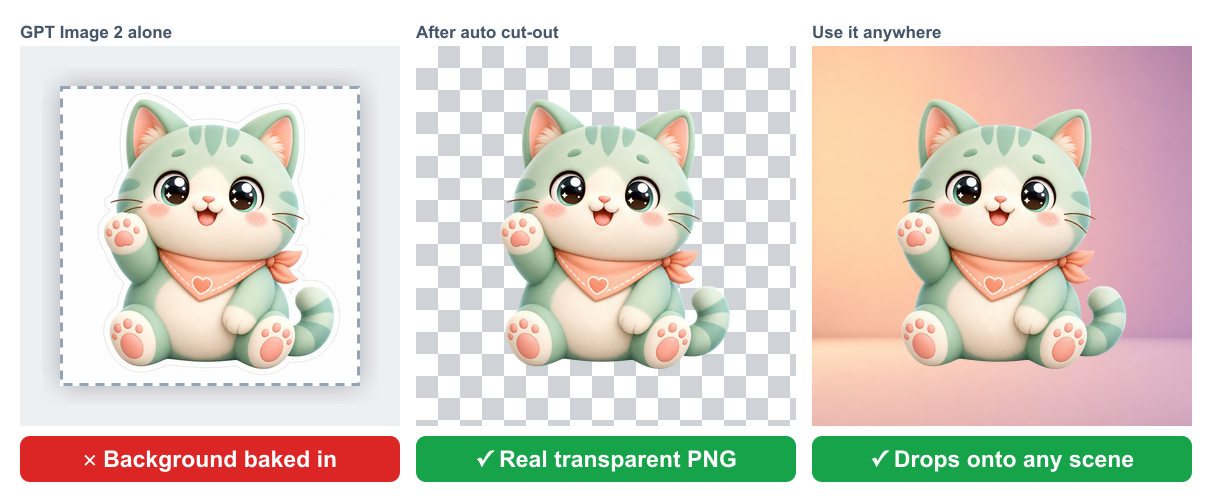
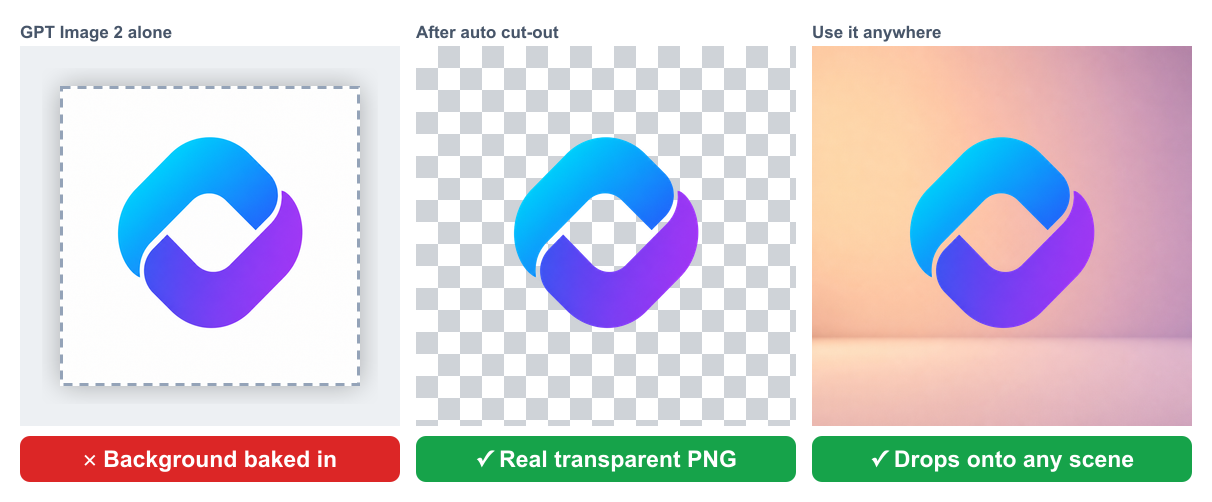
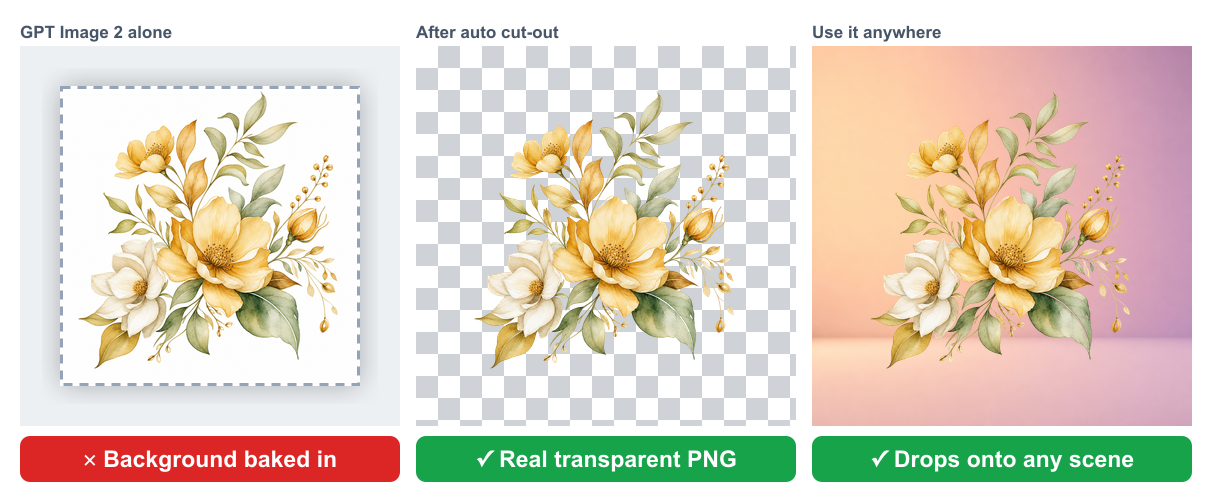
Read each strip left to right: ① what GPT Image 2 gives you on its own — the background baked into a solid tile, ② the same image after our automatic cut-out, shown on a transparency checkerboard so you can see the real alpha channel, ③ that cut-out dropped onto a real scene. Same subject, three steps, one clean PNG.
Product shots
E-commerce shots have to land on any storefront color. A baked-in background forces a manual cutout; a real alpha PNG drops straight onto Shopify, Amazon, or TikTok Shop with clean edges.
Stickers and mascots
A sticker with a hard rectangular edge isn't a sticker. A real alpha channel keeps the soft outline, so it sits on chat bubbles, video, or print with nothing boxed around it.
Logos and marks
A logo has to work on dark mode, light mode, and brand colors. Only a true alpha channel frees it from a background tile — including the see-through gaps inside the mark.
Design elements
Decorative cutouts for posters and slides need to layer over other art. Real transparency lets the gaps between petals and leaves stay see-through, so they composite freely.
The Ultimate Solution: Generate & Remove Background in One Step
imagesv2.ai keeps everything good about GPT Image 2 and adds the step it's missing. You prompt as normal; behind the scenes we generate a clean opaque render and run an automatic soft-alpha cutout, so what you download has a real transparent channel — not a white box you have to erase.
Real RGBA, Not Fake White Background
Genuine alpha channel with feathered edges — drop into Photoshop, Figma, PowerPoint, Keynote, or any tool that respects PNG transparency.
One-Click Default
On this page the generator already has Transparent selected. Just type your prompt and hit Generate — no extra clicks, no second tool, no manual cutout.
Checkerboard Preview
The output area uses a real transparency checkerboard so you can confirm the alpha channel before downloading — no surprises after import.
All GPT Image 2 Quality Preserved
Photorealistic rendering, sharp text, multi-language support — every quality of GPT Image 2 carries through to the transparent PNG.
How to Use Our Transparent AI Image Generator
Three steps to a real transparent PNG — no second tool, no manual cutout.
Step 1 — Enter your prompt and select transparent
Type what you want at the top of this page, then select Transparent background.
Step 2 — Click Generate
GPT Image 2 renders your image, then imagesv2.ai automatically removes the background in the same step. The checkerboard preview confirms the real alpha channel.
Step 3 — Download your RGBA PNG
Download a true transparent PNG, ready to drop into Photoshop, Figma, Canva, your storefront, or a slide deck.
What people make with transparent GPT Image 2 output
Skip the manual cutout step. Skip the second tool. Skip the white-box workaround. Generate ready-to-use transparent assets in one shot.

Product photos for e-commerce
Generate a product on a transparent background and drop it into any storefront template — Shopify, Amazon, TikTok Shop. No background removal step, no rough edges.

Stickers, badges, icons
Mascots, app icons, sticker packs, badges — anything that needs to sit on a colored or photographic background renders cleanly with soft alpha edges.

Logos and design assets
Generate logo concepts directly with transparent background. Drop them onto dark mode, light mode, or arbitrary brand colors — the alpha channel just works.
Slides, posters, layered design
Hero illustrations, decorative elements, cutout subjects for posters and slides — composite freely without fighting a hardcoded background.
Built specifically for transparent-PNG workflows
Everything on this page is tuned for one job: producing GPT Image 2 output that drops straight into a layered design tool with a real alpha channel.
Soft Alpha Edges
Edges aren't just chopped — they're feathered with sub-pixel alpha so hair, fur, and translucent materials still look natural over any background.
PNG Output Locked
Output format is automatically forced to PNG when transparent is selected. JPEG and WebP can't carry alpha; we handle the format choice for you.
Same Credit Pool
Your credits work here exactly like on the rest of imagesv2.ai. Transparent generations cost a few credits more than opaque ones — we show the exact cost before you click.
Multi-Language Prompts
Prompt in English, Chinese, Japanese, Korean, Arabic — GPT Image 2 understands them all and renders any text in the image with high accuracy.
Up to 8 Images per Prompt
Generate 1, 2, 4, or 8 images per prompt. Pick the best one and the alpha channel comes through on every variant.
GPT Image 2 Transparent Background — FAQ
Common questions about transparent-PNG generation with GPT Image 2. More questions? Email support@imagesv2.ai.
No. According to the OpenAI API documentation, gpt-image-2 does not currently support native transparent backgrounds — requests with background:"transparent" return an error, and asking for transparency in the prompt only paints a checkerboard into solid pixels with no alpha channel. imagesv2.ai solves this by combining GPT Image 2 generation with an automatic background-removal step, so you can download a real PNG with a true alpha channel.
Because gpt-image-2 has no transparent-output path, prompt wording can't create one. What usually comes back is a gray-and-white checkerboard painted into solid pixels — it looks transparent in the thumbnail but has no alpha channel. The only reliable fix is to remove the background after generation, which is exactly what this page does for you automatically.
Open it in Photoshop, Figma, or any layered editor and put a colored layer behind it — real transparency lets the color show through, while a baked-in checkerboard stays opaque. You can also drop the file into an online "is this PNG transparent" checker. Every PNG you download from this page is verified RGBA with a real alpha channel.
You can, but you'd trade down. gpt-image-2 has sharper rendering, better in-image text, and stronger prompt-following than gpt-image-1.5. This page keeps you on gpt-image-2 and adds the cutout step, so you get gpt-image-2 quality and a real transparent PNG — no need to fall back to the older model.
Not natively either — Google's Gemini / Nano Banana image models also return opaque images with no real alpha channel. The same fix applies: generate, then remove the background. This page does that step for you on top of gpt-image-2.
There's no announced timeline, and it reads as a deliberate model design choice rather than a temporary bug — so it's best not to count on it returning soon. An automatic cutout is the practical way to get transparent PNGs today, and it keeps working no matter what OpenAI changes later.
The edits/masking endpoint lets you target regions, but gpt-image-2 still won't return a true alpha channel from a text request, so you'd end up post-processing anyway. This page skips that plumbing: it runs the generation and the background removal in one step and hands you a finished RGBA PNG.
Same goal, very different effort. Manual: prompt GPT Image 2 for an opaque image, upload it to a separate background-remover tool or API, check the edges, redo if they're rough, then export and re-import. One-click here: type your prompt and hit Generate — the opaque render and the soft-alpha cutout happen in a single step, and you download one ready-to-use RGBA PNG.
Real RGBA with a real alpha channel. The transparency checkerboard you see in the preview is the actual alpha — open the file in Photoshop, Figma, or any layered editor and the background is transparent, with feathered edges around the subject.
GPT Image 2 is optimized for complete, photorealistic scenes rather than isolated objects, and the native transparent-background option from earlier models (like gpt-image-1.5) isn't exposed for it. That's a model design trade-off, not something a prompt can switch back on — which is exactly why an automatic cutout step is the practical fix.
Transparent generations cost a few credits more than opaque ones — the exact number is shown in the Credits bar above the generator before you click Generate. New users get free credits, so you can try it before paying.
Yes. The Background field on the generation form has both Transparent (default on this page) and Auto. Switch to Auto for a normal opaque GPT Image 2 generation at standard cost.
Yes. Images generated via the OpenAI API are yours to use commercially, subject to OpenAI's usage policies. We recommend reviewing OpenAI's terms for the latest details.
Generate a real transparent PNG with GPT Image 2 now
Free credits for new users. Transparent is preselected — type your prompt, hit Generate, download a real RGBA PNG.
