
- 100% free
- No sign-up
- No upload
Blur Background
Give any photo a portrait-mode look: keep the person or object sharp and soften everything behind it, right in your browser.
Your files are processed in this browser tab and never leave your device.
Use cases
When to blur a photo background
Make a profile photo look professional
Job seekers and remote workersYour best headshot for LinkedIn or a work profile was taken at home with shelves and laundry in the background.
The face stays sharp and the room turns into a soft blur, like a portrait-mode shot.
Hide strangers and clutter in travel photos
TravelersA great photo of you at a landmark also shows crowds, signs and other tourists behind you.
You stay clear while the background crowd becomes unrecognisable.
Make a product stand out
Online sellersYou photographed a product on a table, and the kitchen or desk around it looks distracting.
With a box around the product, it stays sharp in an oval and the surroundings fade.
Highlight a pet or a single object
Pet owners and hobbyistsYour cat, a plant or a handmade piece is lost among other things in the frame.
The subject is in focus and the rest is softened, with optional black and white.
What you get
In the example, a young man standing in front of trees and a white wall stays sharp while the background is softly blurred.

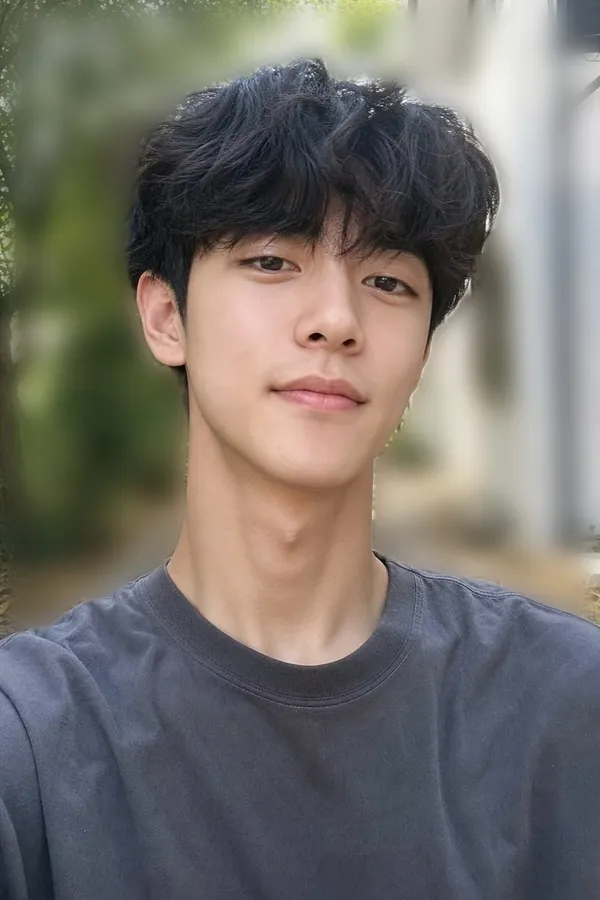
| Original | Background blurred | |
|---|---|---|
| Subject | Sharp | Still sharp |
| Background | Sharp and busy | Softly blurred, optionally black and white |
| Resolution | Original | Same full resolution |
| Format | Your photo | JPG or PNG |
A busy background pulls attention away from the subject. Blurring it, the way a phone's portrait mode or a wide-aperture lens does, makes the person or product stand out and hides clutter such as a messy room, strangers or signs.
Auto mode finds people for you. It uses Google's MediaPipe selfie segmentation model, which runs on your device; the first time you use it the browser downloads the model engine once (about 5 MB) and keeps it cached. Auto mode works on photos with people only. For products, pets or objects, switch to Manual and drag a box around the subject: an oval area inside the box stays sharp with a soft edge, and the rest is blurred.
Set the blur strength from 1 to 40, and choose plain blur or blur plus black and white for a colour-pop effect. The photo is processed in your browser and saved at full resolution as JPG or PNG.
How to use it
- 1
Add a photo
Drop a photo onto the box, or tap to choose one from your device.
- 2
Pick the subject
Use Auto for photos of people, or switch to Manual and drag a box around a product, pet or object.
- 3
Adjust and download
Set the blur strength, choose blur or blur plus black and white, then download the full-resolution result.
Want AI to do more?
Want to remove the background completely?
Generate cut-outs and stickers on a transparent background with GPT Image 2, ready to place on any design.
Frequently asked questions
Does auto mode work on pets and products?
No. The automatic model is trained to find people. For pets, products and other objects, use Manual mode and drag a box around the subject.
Is my photo uploaded to a server?
No. The segmentation model runs in your browser. On first use the page downloads the model engine (about 5 MB) once; after that it is cached, and your photo itself never leaves your device.
Why are the edges around hair not perfect?
Fine hair and see-through areas are hard for any automatic cut-out. A moderate blur strength usually hides small edge errors better than the maximum.
Can I blur the background on my phone?
Yes. The tool works in mobile Chrome and Safari. The first run takes a little longer while the model loads.
Will the result be lower resolution?
No. The blur is applied to the full-size photo, and you download it as JPG or PNG at the original resolution.