
- 100% free
- No sign-up
- No upload
Sharpen Image
Make a slightly soft photo or a fuzzy screenshot crisper, compare the before and after side by side, and save it at full size.
Your files are processed in this browser tab and never leave your device.
Use cases
When to sharpen an image
Rescue a slightly soft portrait
Anyone taking photos on a phoneA portrait is almost right, but the eyes and hair look a little mushy when you zoom in.
Eyes, lashes and hair edges look crisper without changing the photo.
Make screenshot text easier to read
Office workers and teachersA screenshot was scaled down for a document or slide and the small text has gone fuzzy.
The letters have firmer edges and are easier to read.
Crisp up product photos
Online sellersYour product shots look soft on the listing page, and fabric texture or small print on the label doesn't show.
Texture and fine details stand out more in the listing.
Prepare an image for printing
Photographers and designersPrints usually look softer than the screen, so you want a little extra sharpness before sending the file.
A full-resolution file with sharpening tuned by eye.
What you get
In the example, a soft portrait of a young man is sharpened so his eyes and hair look crisper, while the colours and framing stay the same.
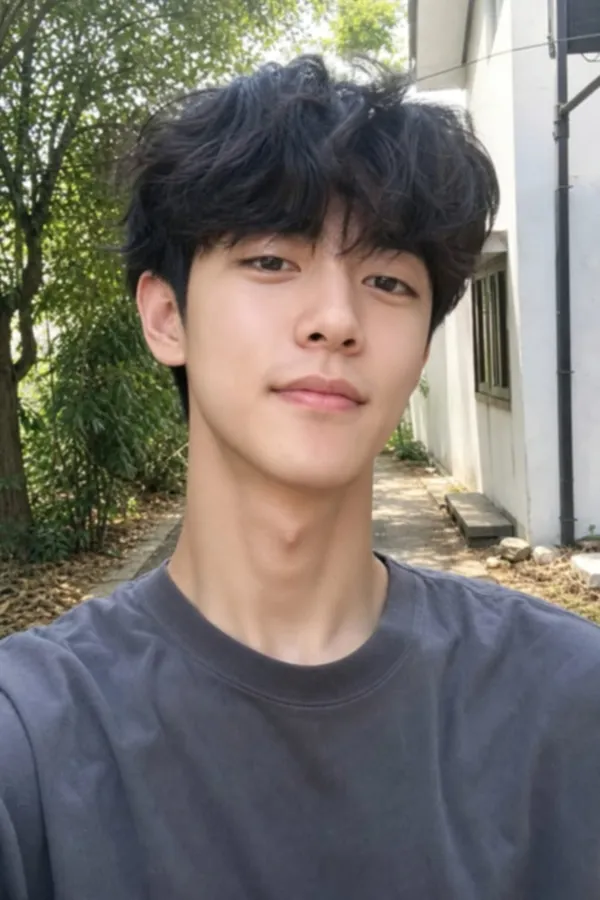
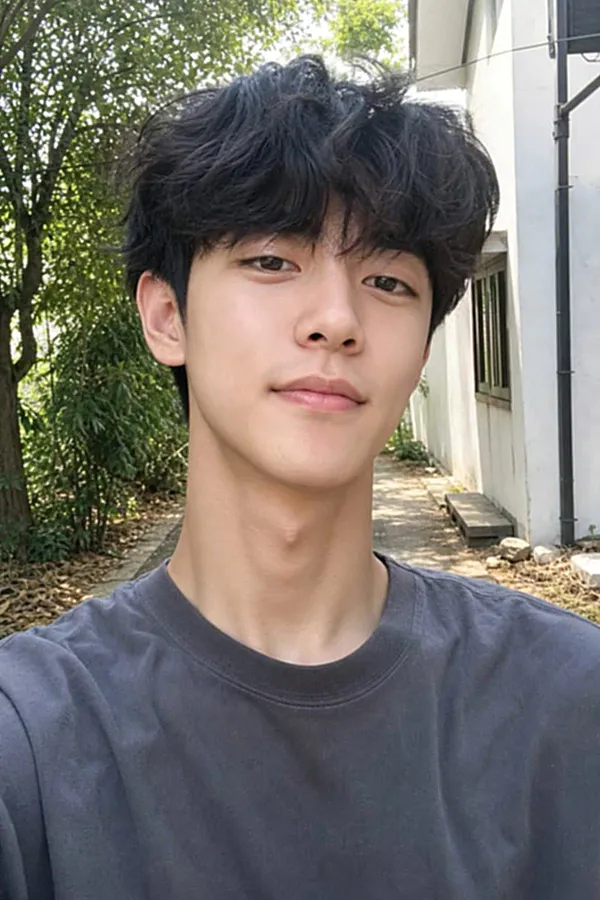
| Original | Sharpened | |
|---|---|---|
| Edges and fine detail | Soft | Crisper |
| Resolution | Original | Same full resolution |
| Format | PNG, JPG or WebP | PNG stays PNG; others save as JPG or WebP |
| Badly blurred photos | Out of focus or shaky | Only slightly improved |
Photos often come out a little soft: the phone focused a touch behind the subject, the picture was resized, or it was compressed by a chat app. Sharpening brings back the crisp edges on eyes, hair, fabric, leaves and text so the image looks clearer at normal viewing size.
This tool uses unsharp masking, the same method photo editors use. Amount (0 to 300%) controls how strong the effect is, and radius (0.5 to 5 px) controls how wide the edges it works on are. Drag the divider on the preview to compare the original and the sharpened version.
Sharpening has limits. It improves soft and slightly blurry photos, but it cannot rebuild detail in a badly out-of-focus or motion-blurred shot. Everything runs in your browser and the photo is not uploaded.
How to use it
- 1
Add a photo
Drop a JPG, PNG or WebP onto the box, or tap to choose one from your device.
- 2
Adjust the sliders
Raise the amount until edges look crisp, and change the radius for fine or broad detail. Drag the compare divider to check the result.
- 3
Download
Save the sharpened image at its original resolution.
Want AI to do more?
Photo too blurry to sharpen?
AI old photo restoration rebuilds faces and detail in blurry, faded or damaged photos, which simple sharpening can't do.
Frequently asked questions
Can this unblur a very blurry photo?
Not really. Sharpening strengthens edges that are already there. If a photo is badly out of focus or blurred by movement, the detail was never captured, and sharpening will mostly add halos and noise. AI restoration works better for those.
What amount and radius should I use?
Start with an amount around 100% and a radius of 1 px for photos. Use a smaller radius for text and fine textures, and a larger one for big soft shapes. If you see bright outlines around edges, turn the amount down.
Does sharpening reduce image quality?
The image is exported at its full original resolution. Too much sharpening can create halos and grainy noise, so compare with the original using the slider before you download.
Is my photo uploaded?
No. The sharpening is done in your browser, so the photo never leaves your device.
Does it work on a phone?
Yes. Open the page in your phone's browser, pick a photo from your gallery, and drag the compare slider with your finger. Very large photos take a little longer to process on older phones.