
- 100% free
- No sign-up
- No upload
Images to Video Maker
Turn a set of photos into a short slideshow video for Reels, TikTok, Shorts, YouTube or a family group chat, made right in your browser.
Your files are processed in this browser tab and never leave your device.
Use cases
When to make a video from photos
Share a trip as one clip
TravelersYou came back with fifty good photos and want friends to see the highlights without swiping through an album.
A short 16:9 or 9:16 slideshow that plays the trip in order.
Turn product photos into a Reel
Online sellers and small brandsYou have still shots of a product but no video, and Reels, TikTok and Shorts favour video in the feed.
A vertical 9:16 MP4 with a slow zoom on each shot, ready to post.
Make a birthday or memorial tribute
Families and friendsYou're collecting old and new photos of someone for a party, a wedding or a farewell and want to play them on a TV or projector.
A 1080p video that plays on any screen, with soft crossfades between photos.
Show a before and after or a timeline
Renovators, gardeners and teachersYou photographed a room renovation, a plant growing or a class project step by step.
A clip where each stage follows the last at the pace you set.
What you get
In the example, four landscape illustrations become one short slideshow video that crossfades from each picture to the next.
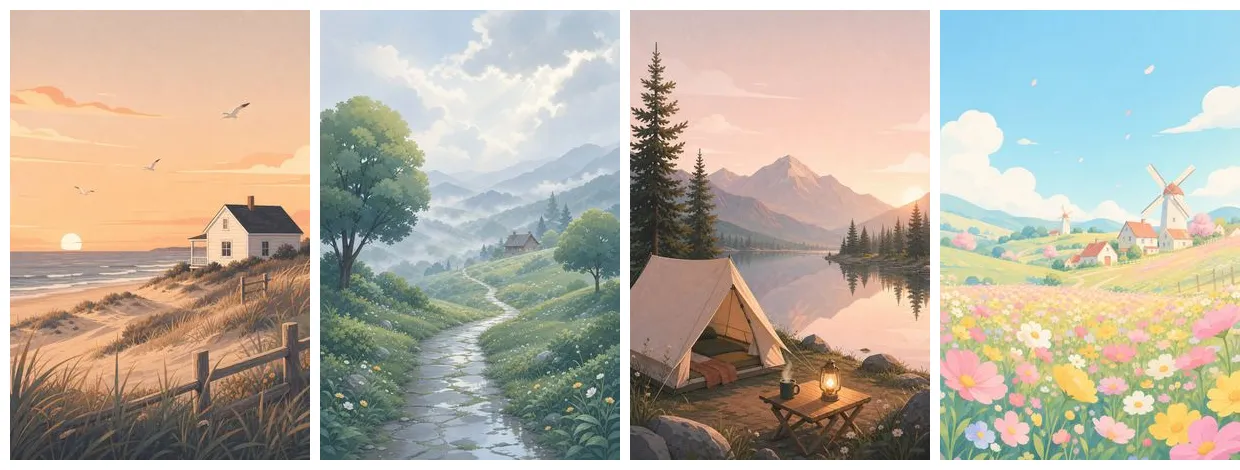
| Your photos | Slideshow video | |
|---|---|---|
| Files | Separate images | One video file |
| Format | JPG, PNG, WebP or HEIC | MP4 (H.264, 30 fps), or WebM in browsers that can't make MP4 |
| Shape | Mixed sizes and orientations | 16:9, 9:16, 1:1 or 4:5, at 720p or 1080p |
| Sound | None | No audio track; add music in any editor |
A folder of photos is hard to share and easy to scroll past. A short video plays on its own, fits the feeds people already watch, and tells the story in the order you choose: a trip day by day, a product from every angle, a year of a child growing up.
Add between 2 and 100 images (JPG, PNG, WebP or iPhone HEIC), put them in order, and choose how long each one stays on screen. Add a crossfade between pictures and a slow zoom so still photos feel alive. Pick 16:9 for YouTube and TVs, 9:16 for Reels, TikTok and Shorts, or 1:1 and 4:5 for feed posts.
The video is encoded on your device, so your photos are never uploaded. You can watch the result on the page before you download it. The file has no soundtrack; add music afterwards in CapCut, iMovie or any editor you like.
How to use it
- 1
Add your photos
Drop 2 to 100 images onto the box. Use the up and down buttons to set the order, and remove any you don't want.
- 2
Choose the look
Set seconds per image, crossfade or no transition, slow zoom on or off, aspect ratio, resolution, and whether to crop to fill or fit with a blurred background.
- 3
Preview and download
Create the video, watch it on the page, and download the file when you're happy with it.
Want AI to do more?
Need more pictures for your slideshow?
Describe the scenes you want and GPT Image 2 generates them, in the same style and ready to drop into your video.
Frequently asked questions
Are my photos uploaded to a server?
No. The video is built and encoded inside your browser, so the photos stay on your device. That also means there is no queue and no watermark.
How many photos can I put in one video?
Between 2 and 100. Each photo stays on screen for 1 to 10 seconds, so you control the total length. Large batches take longer to encode on older phones.
Can I add music to the slideshow?
The video has no audio track. Download it and add music in CapCut, iMovie, Clipchamp or the editor built into Instagram and TikTok.
Why did I get a WebM file instead of MP4?
MP4 output needs the browser's built-in H.264 encoder, which Chrome, Edge and Safari provide. Browsers without it, such as some Firefox versions, save WebM instead. Open the page in Chrome, Edge or Safari if you need MP4.
What happens to photos that don't match the aspect ratio?
Choose Fill to crop each photo so it covers the frame, or Fit to show the whole photo over a blurred copy of itself instead of black bars. Fit works well for mixing portrait and landscape shots.