
- 100% free
- No sign-up
- No upload
Color Palette from Image
Pull the main colours out of a photo, screenshot or artwork, see their HEX, RGB and HSL codes, and copy them straight into your design or code.
Your files are processed in this browser tab and never leave your device.
Use cases
When to extract colours from an image
Build a website theme from a brand photo
Web designers and developersA client sends a hero photo and wants the site colours to match it.
A sorted palette you can paste into your stylesheet as CSS variables or Tailwind colors.
Match a brand colour exactly
Marketers and social media managersYou need the exact HEX of a logo or packaging colour, but all you have is a screenshot.
The eyedropper gives you the HEX of the precise pixel you click.
Plan colours for a room or outfit
Home decorators and stylistsYou love the colours in a photo of a room, a landscape or a painting and want to reuse them.
A palette card you can save and take to a paint or fabric shop.
Pick colours for slides and charts
Students and analystsYour presentation uses a cover photo, and you want the charts and headings to match it.
HEX codes ready to type into PowerPoint, Google Slides or a chart tool.
What you get
In the example, a sunset beach illustration is turned into a row of colour swatches, from the largest area of colour to the smallest.
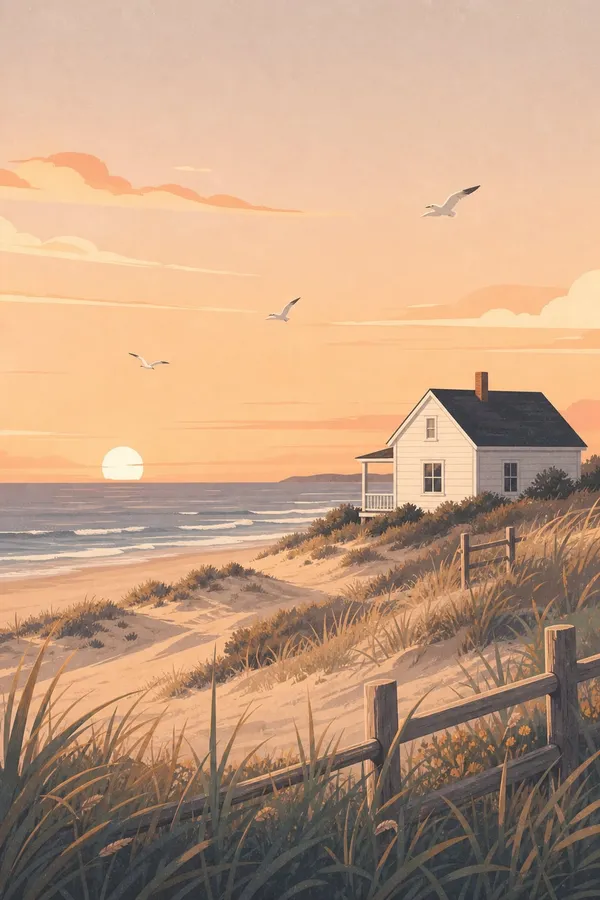
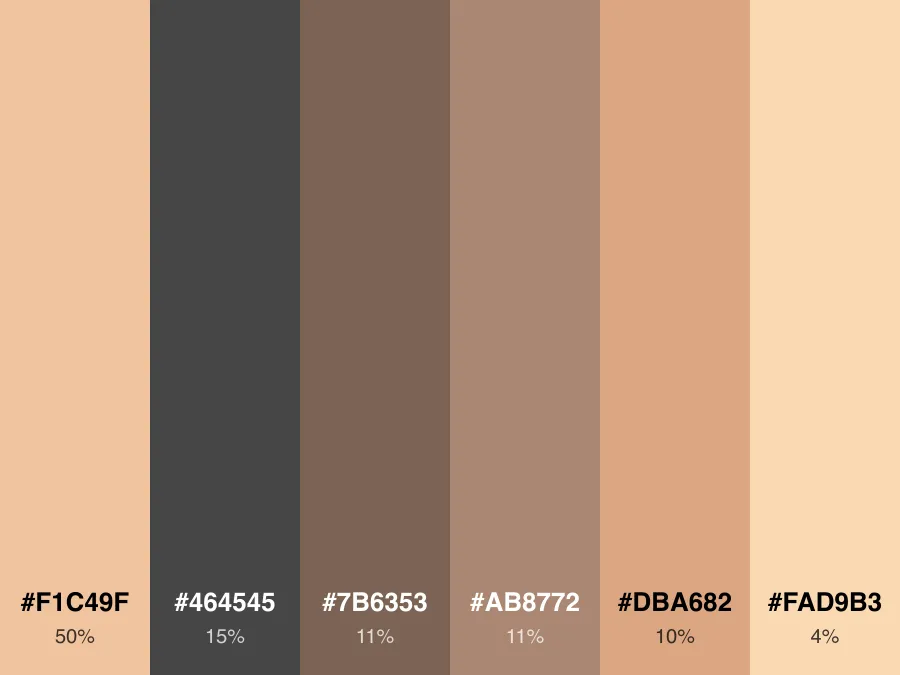
| Your image | Extracted palette | |
|---|---|---|
| Colours | Thousands of mixed shades | 3 to 12 main colours, sorted by share |
| Colour codes | None | HEX, RGB, HSL and percentage per swatch |
| Exact pixel colour | Hard to read off | Click the photo to pick it |
| Export | Image only | CSS variables, Tailwind, JSON or a PNG palette card |
A good photo already has a colour scheme in it. Extracting it gives you a palette that matches a brand photo, a product, a mood board or a painting, instead of guessing colours by eye.
Choose how many colours you want, from 3 to 12. The tool groups similar pixels with k-means clustering and sorts the colours by how much of the image they cover. Each swatch shows HEX, RGB, HSL and its share of the image; click a swatch to copy its HEX. To get one exact colour, click anywhere on the photo to use it as an eyedropper.
Export the palette as CSS variables, a Tailwind colors object or JSON, or download it as a PNG palette card to share. The image is analysed in your browser and is not uploaded.
How to use it
- 1
Add an image
Drop a photo, screenshot or artwork onto the box, or tap to choose one.
- 2
Set the number of colours
Choose 3 to 12 colours. Click a swatch to copy its HEX, or click the photo to pick an exact pixel.
- 3
Export the palette
Copy it as CSS variables, Tailwind colors or JSON, or download a PNG palette card.
Want AI to do more?
Like these colours?
Describe a scene and GPT Image 2 generates new images in this palette for posts, banners and mood boards.
Frequently asked questions
How does the tool decide which colours to show?
It groups similar pixels into the number of colours you choose, using k-means clustering, and sorts them by the share of the image each one covers. Small accents may not appear unless you raise the colour count or pick them with the eyedropper.
Can I get the colour of one exact spot?
Yes. Click anywhere on the photo and the tool reads that pixel's colour and shows its HEX, RGB and HSL values.
How do I use the palette in Tailwind CSS?
Click Copy as Tailwind and paste the colors object into the theme section of your Tailwind config. CSS variables work the same way in plain CSS.
Is my image uploaded?
No. The colours are calculated in your browser, so the image stays on your device.
Why do I get slightly different colours each time I change the count?
Each colour count produces a new grouping of the pixels, so the shades shift a little. Pick the count that best matches what you see, then copy the values you need.