
GPT Image 2.6 can hand you an SVG file instead of a PNG. You describe the image, pick SVG as the output format, and about a minute later you get a real vector: shapes you can recolor, text you can retype, and a file that stays sharp at any size.
This tutorial walks through the whole process on imagesv2, from the settings to the prompt to editing the file afterwards. To make every tip concrete, we ran 20 real prompts across nine common uses — logos, icons, infographics, scientific figures, website illustrations, stickers, maps, seamless patterns and Cricut cut files — and show you what each one produced, unedited. You'll see what works straight out of the box, what needs a one-minute touch-up, and when another format is simply the better choice.
The short version:
- GPT Image 2.6 SVG is a true vector, not a picture wrapped in an SVG file. Headings and labels usually come back as editable
<text>. - One SVG took 11–90 seconds in our tests.
- It is strong at icons, diagrams, flat illustrations and scientific workflow figures.
- Stylized wordmarks, long sentences in small boxes and print-ready sticker sheets need a quick touch-up, and detailed maps look best as PNG.
- Photorealistic images should stay PNG.
How GPT Image 2.6 creates an SVG
Knowing what happens behind the button explains most of the results in this guide.
An SVG request first renders a reference image with the image model, then an authoring model writes the SVG code from it. The returned file contains static vector content only: no scripts, no external resources and no embedded raster images.
That is different from the older approach of generating a PNG and running it through a tracing tool. Tracing turns every color blob into a path; GPT Image 2.6 writes the file the way a designer would, with grouped shapes and real text.
Native GPT Image 2.6 SVG vs. a traced PNG
| GPT Image 2.6 native SVG | PNG + auto-trace | |
|---|---|---|
| Text | Usually editable <text> elements | Turned into outline shapes |
| Structure | Named groups such as icon-home, step-1, kanban-board | Unnamed color paths, one per traced region |
| File size | 1–20 KB in our tests | Grows with the detail of the picture |
| Can start from an uploaded image | No, text-to-image only | Yes |
| Best for | Icons, diagrams, flat illustrations, posters | Converting an existing picture |
What you need before you start
Everything below happens in the browser on imagesv2.
- An imagesv2 account. New accounts get free credits, no card required.
- Credits. A 1024 × 1024 SVG costs 180, 200 or 210 credits at low, medium or high quality. Flare and Sunburst cost the same. The Generate button always shows the exact cost before you click.
- A paid purchase to download the source file. Anyone can generate and preview; the
.svgfile itself unlocks after any subscription or credit-pack purchase. - Optional: Figma, Illustrator, Inkscape or any code editor, if you plan to change the file afterwards.
Step-by-step: generate your first SVG with GPT Image 2.6
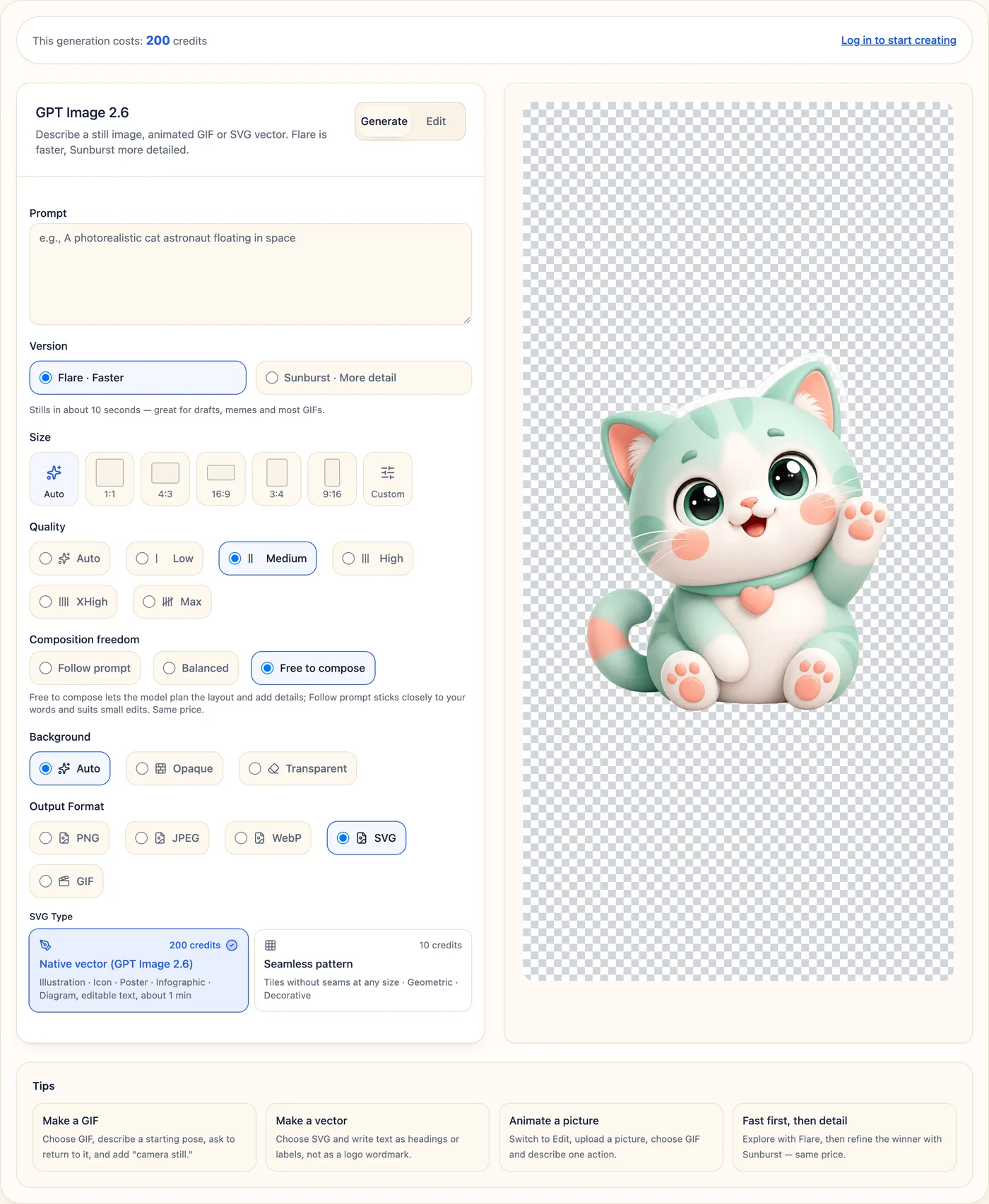
Step 1. Open the GPT Image 2.6 generator and stay on the Generate tab. Native SVG works from a text prompt only; the Edit tab can't return a native vector.
Step 2. Choose a version. Flare is faster; Sunburst adds more detail. Both cost the same. Every example in this guide used Flare.
Step 3. Under Output Format, choose SVG.
Step 4. Under SVG Type, choose Native vector (GPT Image 2.6) for illustrations, icons, posters, infographics and diagrams. Seamless pattern is for geometric tiles that must repeat exactly; the pattern section below compares the two.
Step 5. Write your prompt. The next section gives a formula.
Step 6. Set Size (1:1 for logos and icons, 16:9 or 4:3 for diagrams and hero illustrations, 3:4 or 9:16 for posters and flowcharts) and Quality (medium is enough for flat vector work). If you need a transparent background for a logo, icon or sticker, set Background to Transparent.
Step 7. Click Generate and wait. Most SVGs arrive in under a minute. If a run can't be completed as a native vector, imagesv2 retries for you and still delivers a vector file, refunding the price difference.
Step 8. Click Download SVG to save the file, or View Code to copy the SVG markup straight into Figma, Illustrator, your code editor or a web page.
How to write a GPT Image 2.6 SVG prompt
A good SVG prompt reads like a brief to a designer. Five things matter, in this order:
- What it is for — "line icon set for a SaaS dashboard", "decision flowchart", "sticker sheet".
- Structure — grid size, number of items, panel order, steps and branches.
- The exact text — every heading and label, written out word for word, and the phrase "as editable text".
- Colors and line weight — hex codes and stroke width make the file consistent and easy to recolor later.
- Background — white, or transparent for anything you will place on other designs.
A weak prompt and a stronger rewrite:
Weak: a refund flowchart
Stronger: Vertical decision flowchart titled "Should we refund this order?". Start: Refund request received. Diamond: Within 30 days? No → Offer store credit. Yes → Diamond: Item unused? … Arrows labeled Yes / No. Navy #1E3A5F lines, light blue diamonds, green end nodes, white background, editable text.
The second version produced the flowchart in the infographics section below on the first try, with every branch in the right place.
Four habits that came out of our tests:
- Keep text short. SVG text does not wrap on its own. One-line labels are safe; full sentences inside narrow boxes overflow.
- Say "no gradients" if you need flat color. Several icon and illustration results added soft gradients we didn't ask for.
- Ask for names as plain text in a normal font. Stylized lettering gets drawn as shapes and can break.
- Keep photorealism for PNG. Realistic lighting and texture don't translate into clean, editable vector shapes.
What you can make with GPT Image 2.6 SVG: 9 tested use cases
Every prompt below is the exact prompt we used. All examples were generated with GPT Image 2.6 Flare at medium quality.
Results at a glance
| Use case | Result | Text editable? | Use as-is? |
|---|---|---|---|
| Logo — symbol only | Clean, two colors | No text | Yes |
| Logo — symbol + name as plain text | Name correct, Chinese included | Yes | Yes |
| Logo — symbol + name in a badge | Name correct, minor spacing | Yes | After a small fix |
| Logo — stylized wordmark | Lettering broke | No (drawn as shapes) | No |
| Line icon set (12 icons) | Consistent stroke, each icon its own group | No text | Yes |
| Duotone icon set (9 icons) | Good, added light gradients | No text | Yes, after removing gradients if needed |
| Decision flowchart | Every branch correct | Yes | Yes |
| Step infographic | Layout good, long descriptions overflowed | Yes | After shortening text |
| Scientific workflow figure | Clean A–D panels, transparent | Yes | Yes |
| Website hero illustration | Polished, faces simplified | Yes (board labels) | Yes |
| Empty-state illustration | Clean | No text | Yes |
| Sticker sheet (6 animals) | Cute faces, broken bodies and borders | No text | No, not for print |
| Sticker with text | Text editable, sparkles overlapped letters | Yes | After a small fix |
| Illustrated tourist map | Best as PNG: sharp labels, legend and compass | — | Yes, as PNG |
| Art Deco repeat pattern (native) | Tiles cleanly, rich detail | No text | Yes |
| Scattered lemon pattern (native) | Seams show when tiled | No text | Check 2 × 2 first |
| Cricut mandala | One black compound path | No text | After deleting the white background |
| Cricut phrase | Clean letter outlines | Outlined (good for cutting) | After deleting the white background |
1. SVG logos
Logos are where people most want a vector, and where you need to be most careful with text.
This café logo was generated with GPT Image 2.6 on imagesv2. The artwork is excellent and well organized: the cup, latte art, beans, steam, badge and ribbon are separate named groups, and ten gradients control the colors. But the word "Café" was drawn as shapes, and it came out garbled — the "é" is lost.

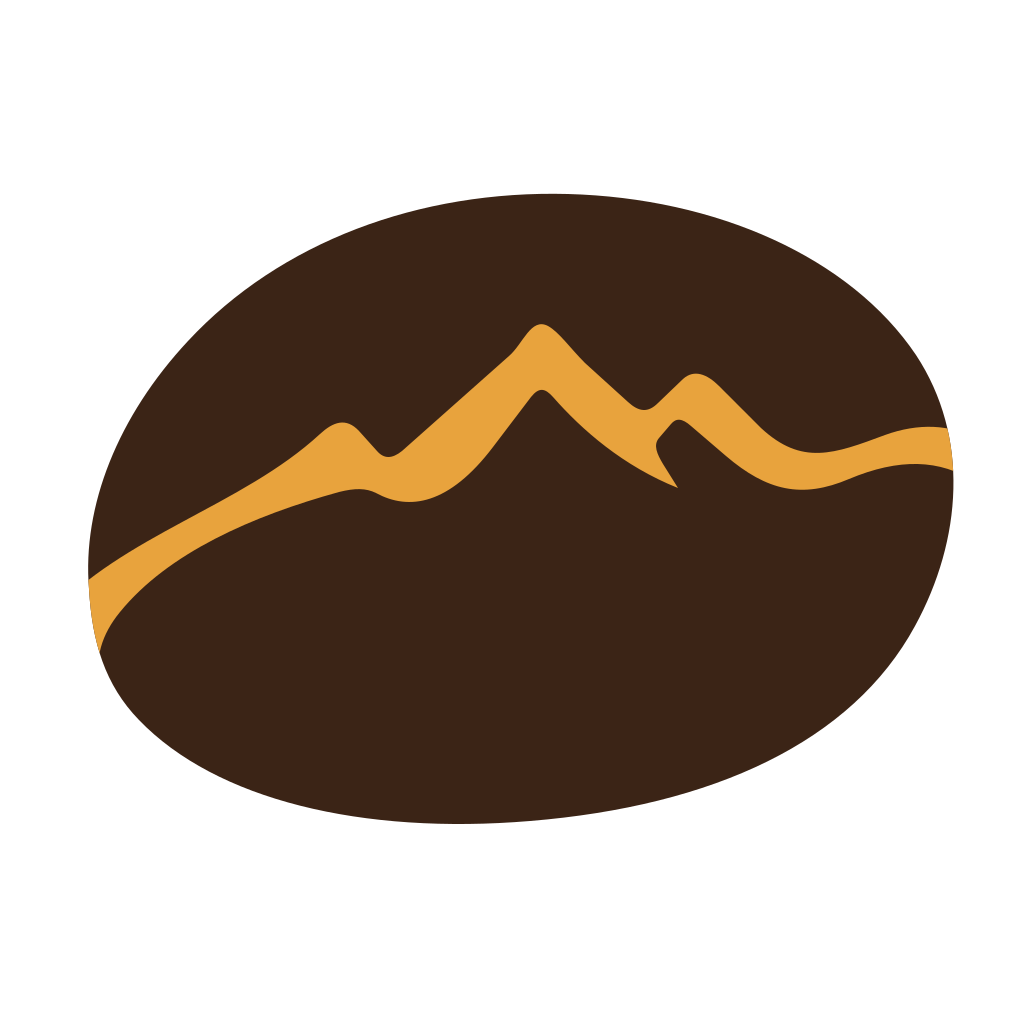
The fix is to treat the symbol and the name as two jobs. Generate the symbol on its own:
Minimal flat vector logo symbol for a specialty coffee roaster: a single coffee bean whose center line turns into a mountain ridge. Two colors only: dark brown #3B2416 and amber #E8A33D. Geometric, bold, balanced negative space, no text, no letters, centered with generous padding, transparent background.
Or ask for the name as plain, editable text in a normal font. This worked even for a Chinese brand name:
茶馆品牌标志:左侧是一片由两笔弧线组成的极简茶叶图形,右侧横排品牌名「青禾茶舍」,品牌名用普通无衬线字体作为可编辑文字,不要书法、不要描边成路径。配色:墨绿 #2F4F3E、米白 #F3EEDF。扁平矢量,留白充足,透明背景。
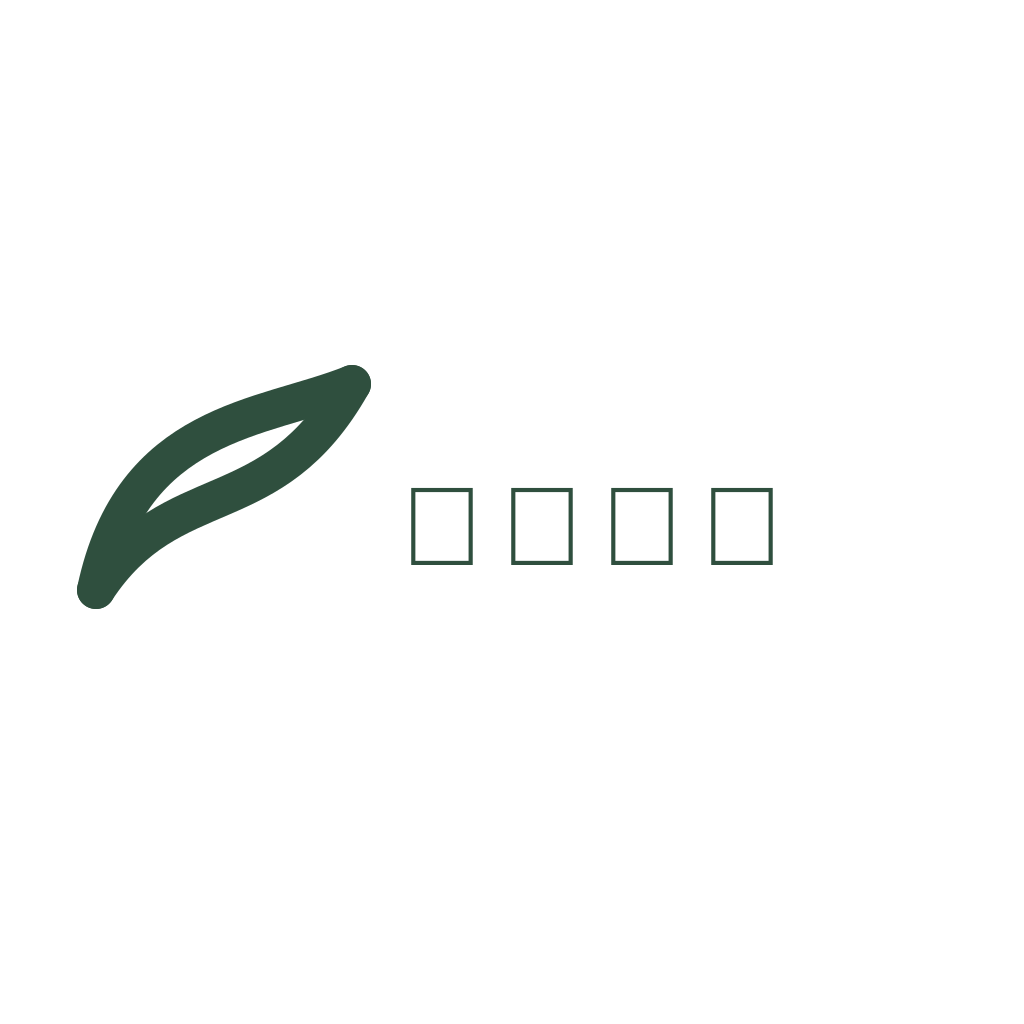
The file is under 1 KB, and 青禾茶舍 is a single <text> element you can retype or switch to your brand font in Figma.
The same approach works for a full badge with a Latin name:
Circular badge logo for a bakery named "Maple & Rye": a wheat stalk crossed with a maple leaf inside a thin double ring. Below the icon, the name "Maple & Rye" set as plain editable text in a clean serif font (not hand-lettered, not traced), and a small line "EST. 2026" underneath. Palette: deep green #1F3B2D, warm tan #C8935A, cream #F6EBD9. Flat vector, no gradients, transparent background.
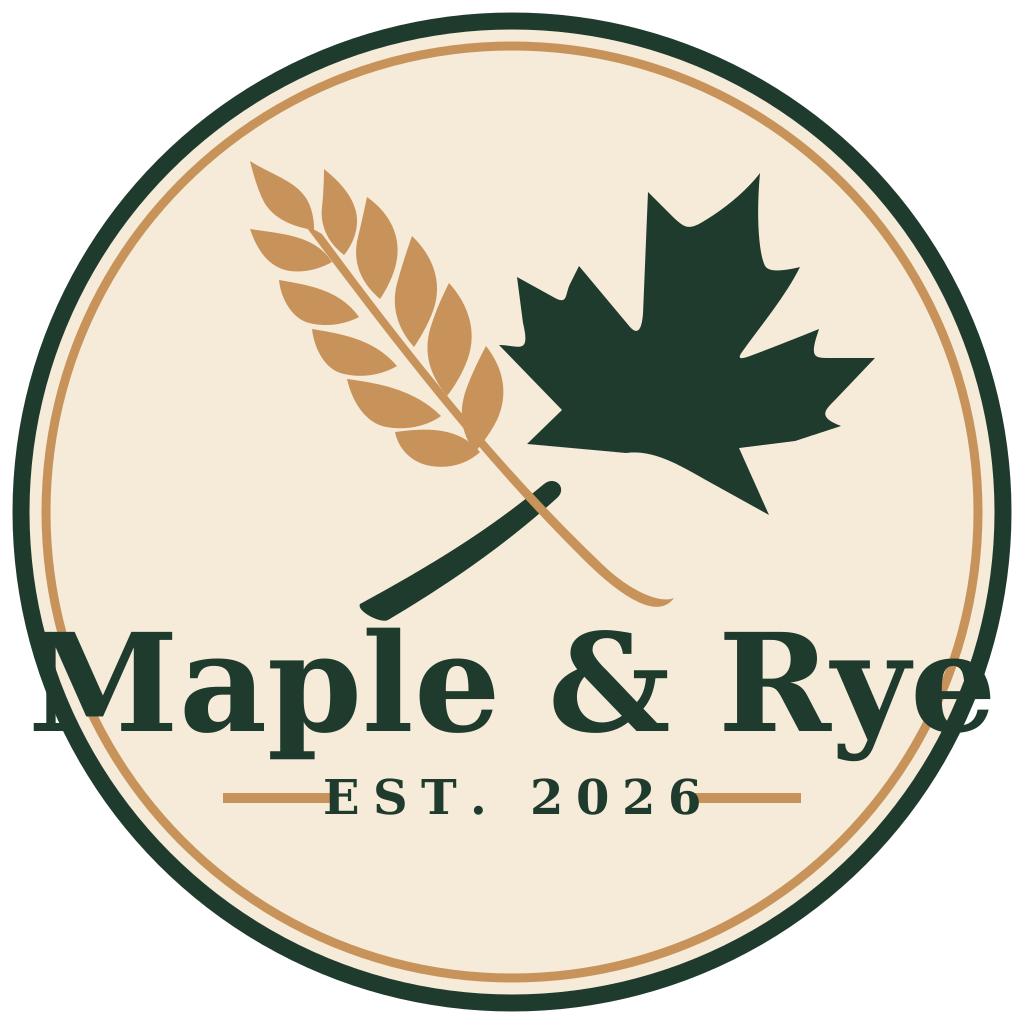
"Maple & Rye" and "EST. 2026" are both editable text, and the file is split into badge, icon and wordmark groups. It still needs a designer's eye: the name sits almost on the inner ring, and the maple stem is a stray stroke rather than a real crossing. Those are two-minute fixes in Figma, not reasons to regenerate.
Logo checklist
- Symbol first, name second.
- Ask for the name "as editable text in a plain font" — never "hand-lettered" or "calligraphy". Short, bold lettering sometimes survives being drawn as shapes (see the Cricut phrase below), but you can't count on it.
- Once the font is final, convert the text to outlines in your design tool before sending the logo to print.
- Gradient-heavy logos need a separate one-color version for stamps, embroidery and cutting.
2. SVG icons
Icon sets were one of the strongest results. The prompt:
A set of 12 line icons for a SaaS analytics dashboard arranged in a 4 x 3 grid: home, dashboard chart, users, settings gear, bell notification, search, calendar, folder, credit card, shield security, upload cloud, logout. Consistent 2px stroke, rounded line caps and joins, 24px grid style, single color #1F2937, no fills, no labels, even spacing, transparent background.
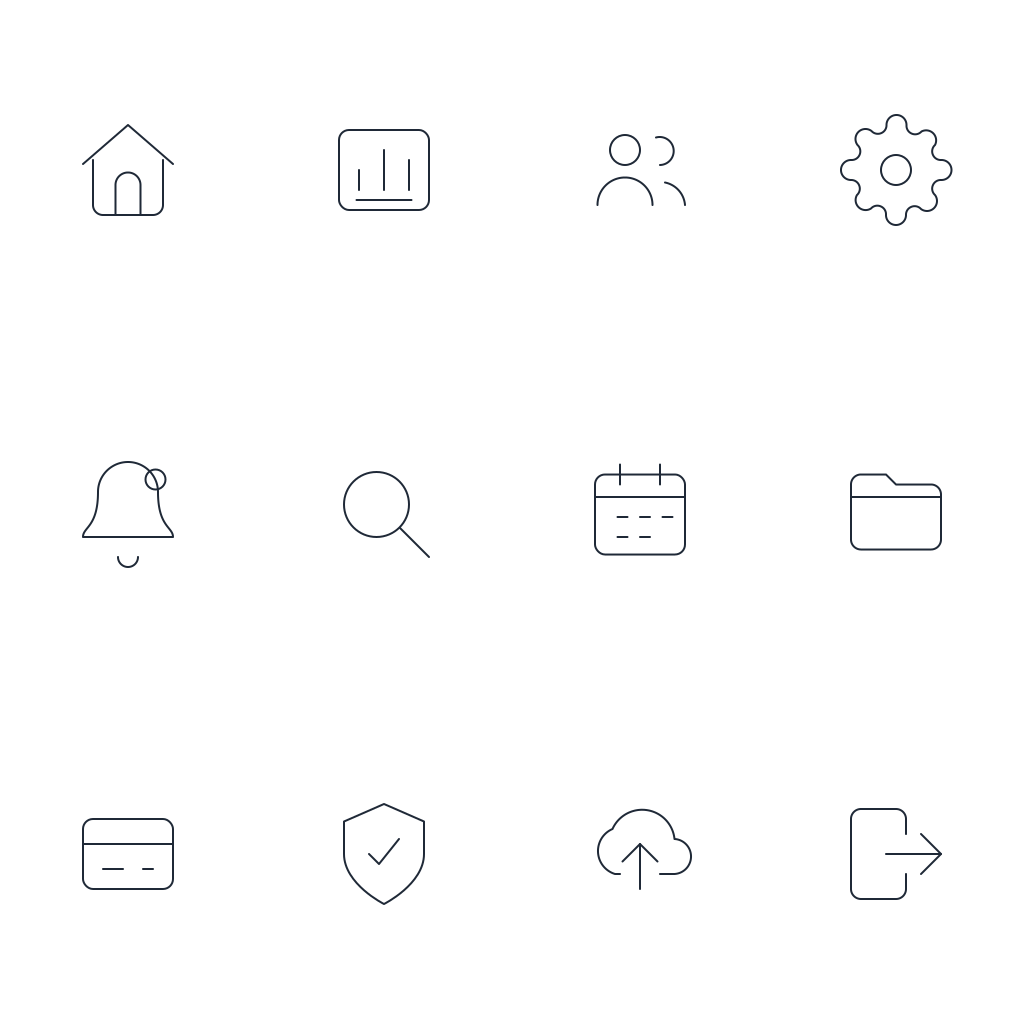
The whole set is 3.5 KB, and every icon sits in its own group named after it — icon-home, icon-search, icon-logout and so on — so a developer can lift a single icon out of the file without hunting through paths.
A duotone set for an online store also came out well, though the model added soft gradients we didn't request:

Icon checklist
- Name the grid (4 × 3), stroke width, corner style and one color.
- Add "no gradients" for strictly flat icons.
- Before shipping, set each icon to a square
viewBox(for example 24 × 24) in your editor, since the generated file places all icons on one canvas.
3. SVG infographics and flowcharts
Diagrams are where editable text pays off: you can fix a label without regenerating the picture.
Vertical decision flowchart titled "Should we refund this order?". Start: Refund request received. Diamond: Within 30 days? No -> Offer store credit. Yes -> Diamond: Item unused? No -> Partial refund 50%. Yes -> Diamond: Original payment method available? Yes -> Full refund to card. No -> Refund to store credit. End nodes as rounded rectangles. Arrows labeled Yes / No. Flat vector, navy #1E3A5F lines, light blue decision diamonds, green end nodes, white background, editable text.
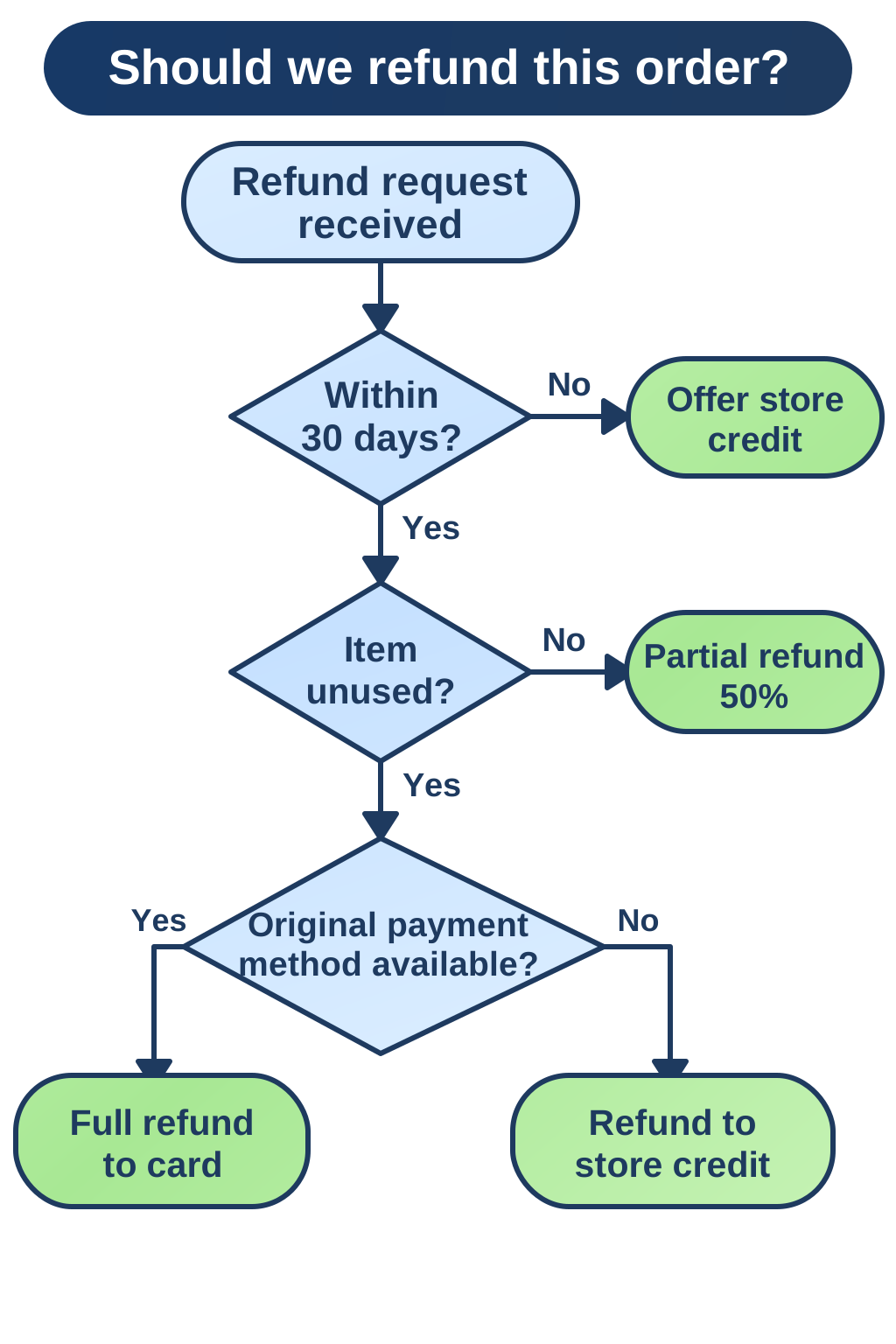
All 15 text labels are editable, and every branch matches the prompt.
The step infographic was less clean. The layout, numbered circles and icons were good, but the one-line descriptions were longer than the cards, so the text spilled over the edges:
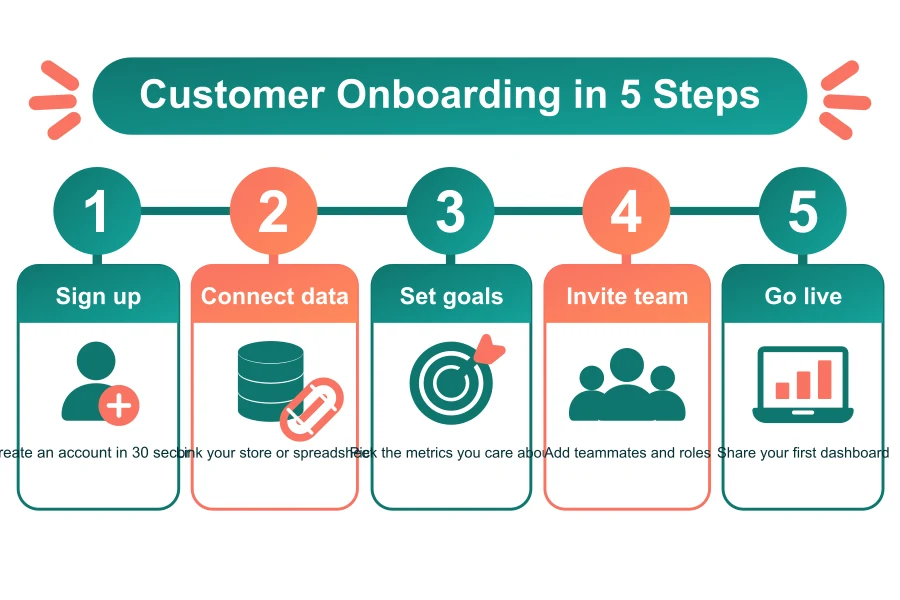
Because the text is real <text>, this takes a minute to fix by hand: shorten the sentences or split them into two <tspan> lines. In the prompt, keep descriptions to three or four words, or ask for "two-line descriptions".
Need a sequence diagram or a mind map? The AI SVG diagram tool is built for exactly those.
4. Scientific and research figures
Paper figures are a natural fit for SVG: journals want vectors, and labels often need small corrections after review.
Publication-style experimental workflow figure with four panels labeled A, B, C, D from left to right: A Sample collection (test tubes in a rack), B Cell culture (petri dish with cells), C Treatment (pipette adding drug to well plate), D Imaging and analysis (microscope next to a simple bar chart without numbers). Thin arrows between panels, short labels under each panel in clean sans-serif, muted blue, teal and gray academic palette, flat vector, no shadows, transparent background.
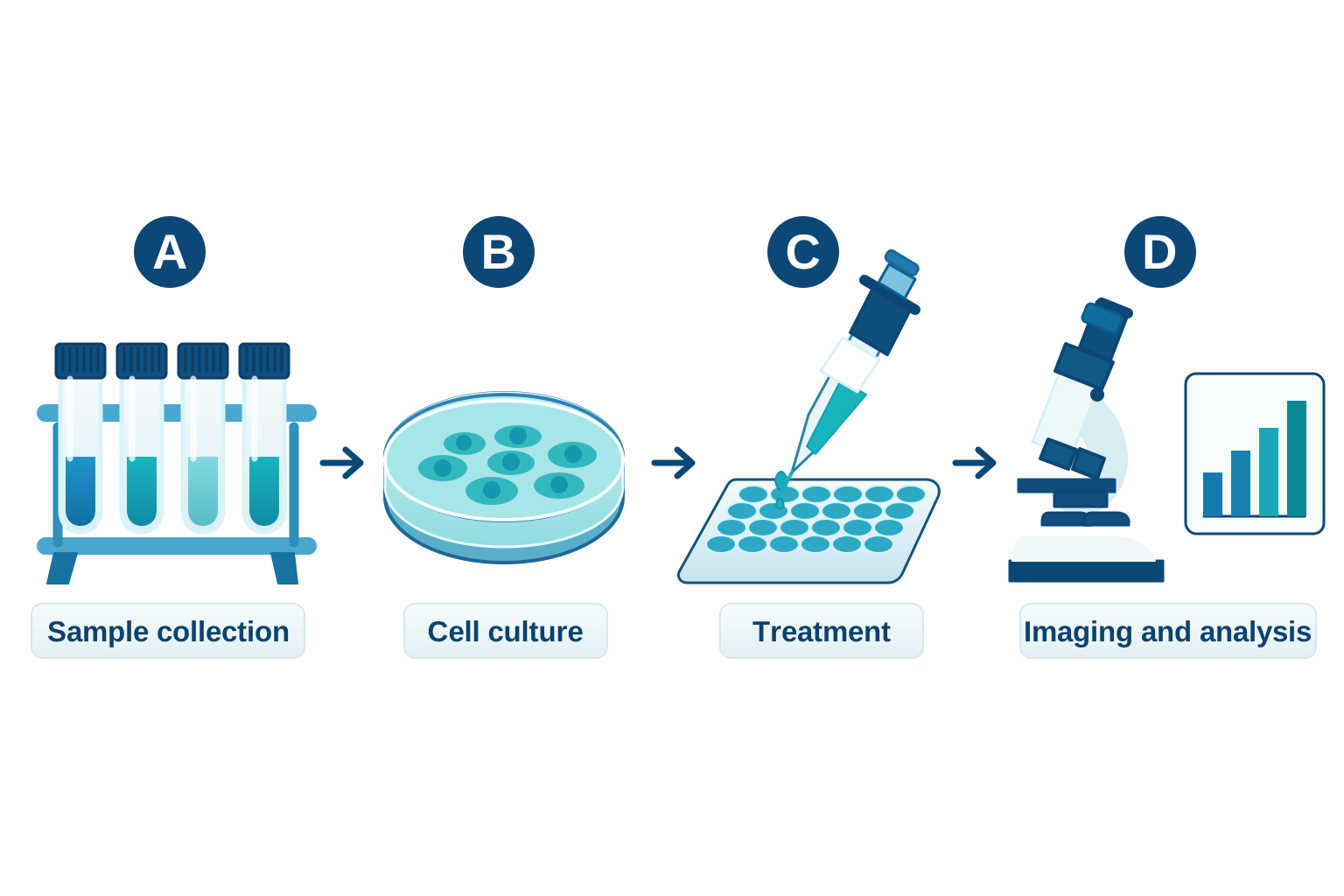
The panel letters and labels are editable text, every object sits in a named group (tube-rack, petri-dish and so on), and the background is transparent, so it drops straight into a figure layout.
Two cautions: ask for charts "without numbers" so the model doesn't invent data, and check any biological detail against your own protocol — the figure illustrates a workflow, it is not evidence.
5. Website illustrations
Flat vector hero illustration for a project management SaaS website: a person standing next to a large kanban board, moving a card from "In progress" to "Done", a potted plant and a floating chat bubble nearby. Soft indigo #6366F1, peach #FDBA8C and slate #334155 palette, simple shapes, minimal detail, no background scene, transparent background.
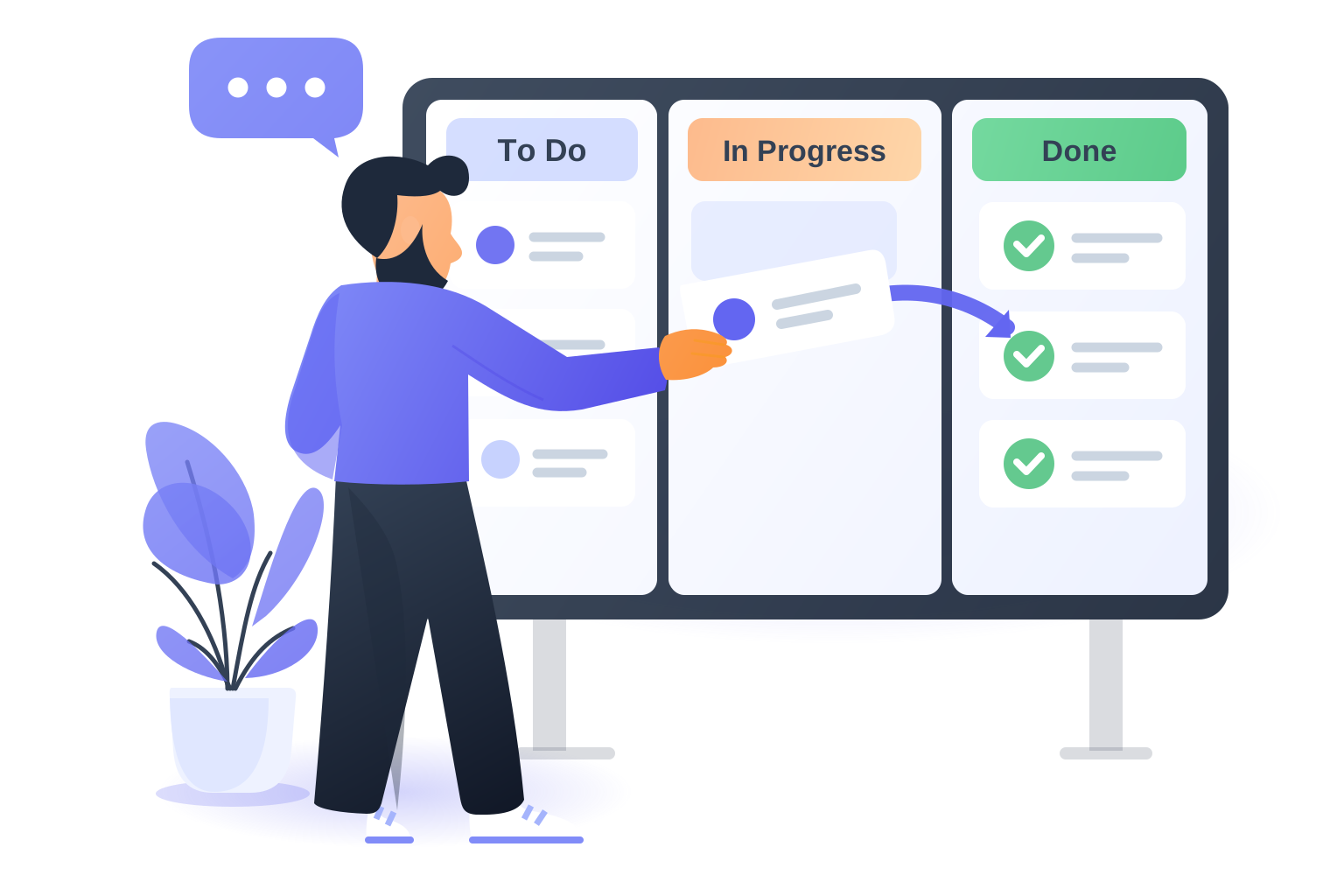
It is polished enough for a landing page, at 12 KB. The column titles are editable text. Faces are kept simple in this flat style, so reach for PNG when you need a detailed portrait.
Small empty-state graphics are even easier:

6. Stickers and clipart
Stickers are the category to check most closely before printing.
Printable sticker sheet with 6 cute kawaii animals in a 3 x 2 grid: bunny, corgi, piglet, gray cat, panda, frog. Each sticker has a thick white die-cut border around its outline and a subtle gray outer edge so the border is visible. Flat vector, soft pastel colors, simple shapes, no text, transparent background.
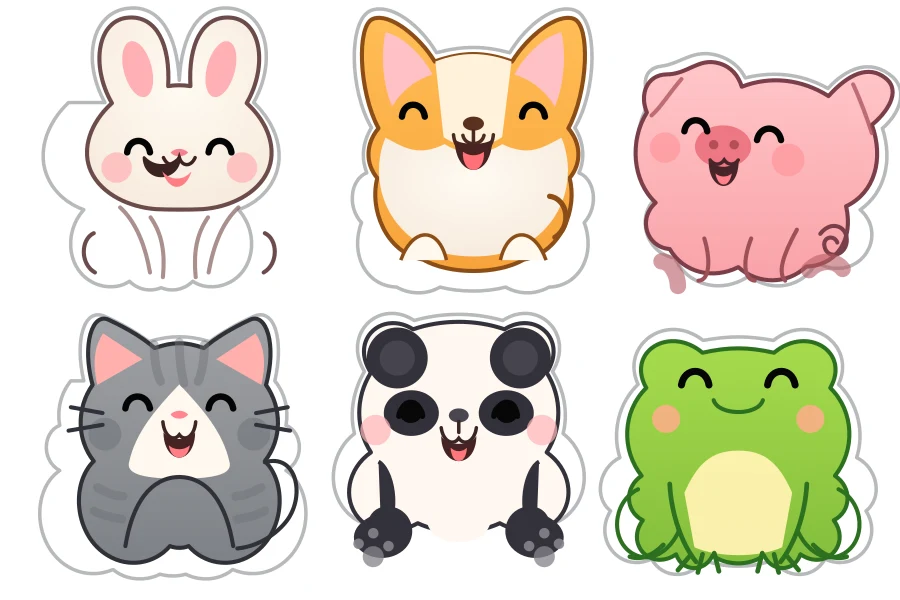
The six faces are charming and each sticker is its own group, which makes them easy to separate. But the bunny's and panda's bodies are reduced to loose strokes, the die-cut borders are lumpy shapes that don't follow the outlines, and the canvas edge clips some of them. Use a sheet like this for digital clipart, or generate one animal per image and draw the cut line with an offset path in your design tool.
A sticker with a slogan worked better, with one flaw worth knowing about:
Retro sticker with the words "Good Vibes Only" in a bold rounded font as editable text, inside a sunburst badge with a smiling sun. Thick white die-cut border around the whole badge. Colors: mustard #F2B134, orange #E8743B, teal #2A9D8F, cream #FFF4DC. Flat vector, transparent background.
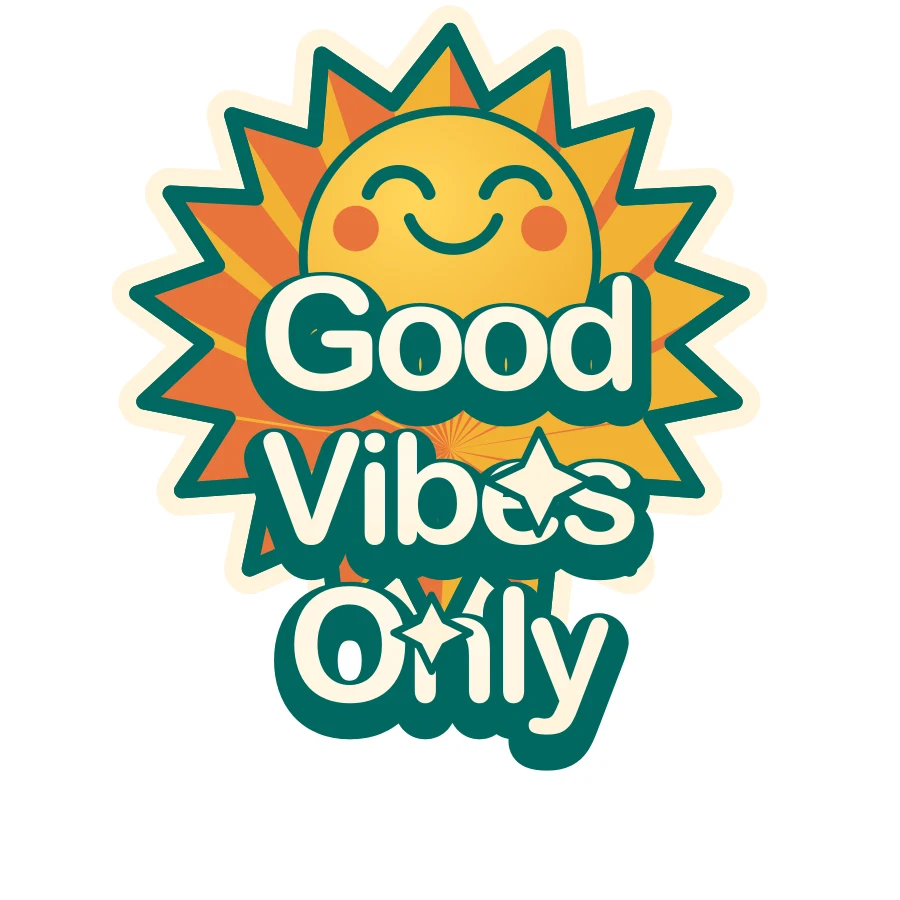
The words are editable text with a separate shadow layer, which is great for reuse. But two decorative sparkles sit on top of the letters, and the die-cut border only wraps the sun, not the words. Both are quick fixes in an editor (delete the sparkle group, add an offset path around everything), but check before you send a sticker to print.
7. Maps and floor plans
Detailed maps pack terrain, buildings, labels and routes into one image. That is where PNG shines, so for maps we recommend switching Output Format to PNG and keeping the same prompt:
Illustrated tourist map of a fictional seaside town called "Port Lumen": coastline with sea on the right, labeled landmarks Lighthouse, Old Market, Harbor, Museum, Sunset Beach and Train Station, small building icons, trees, a dashed walking route connecting the landmarks, a compass rose and a small legend. Flat vector, sea blue, sand beige and green palette, clean sans-serif labels as editable text.
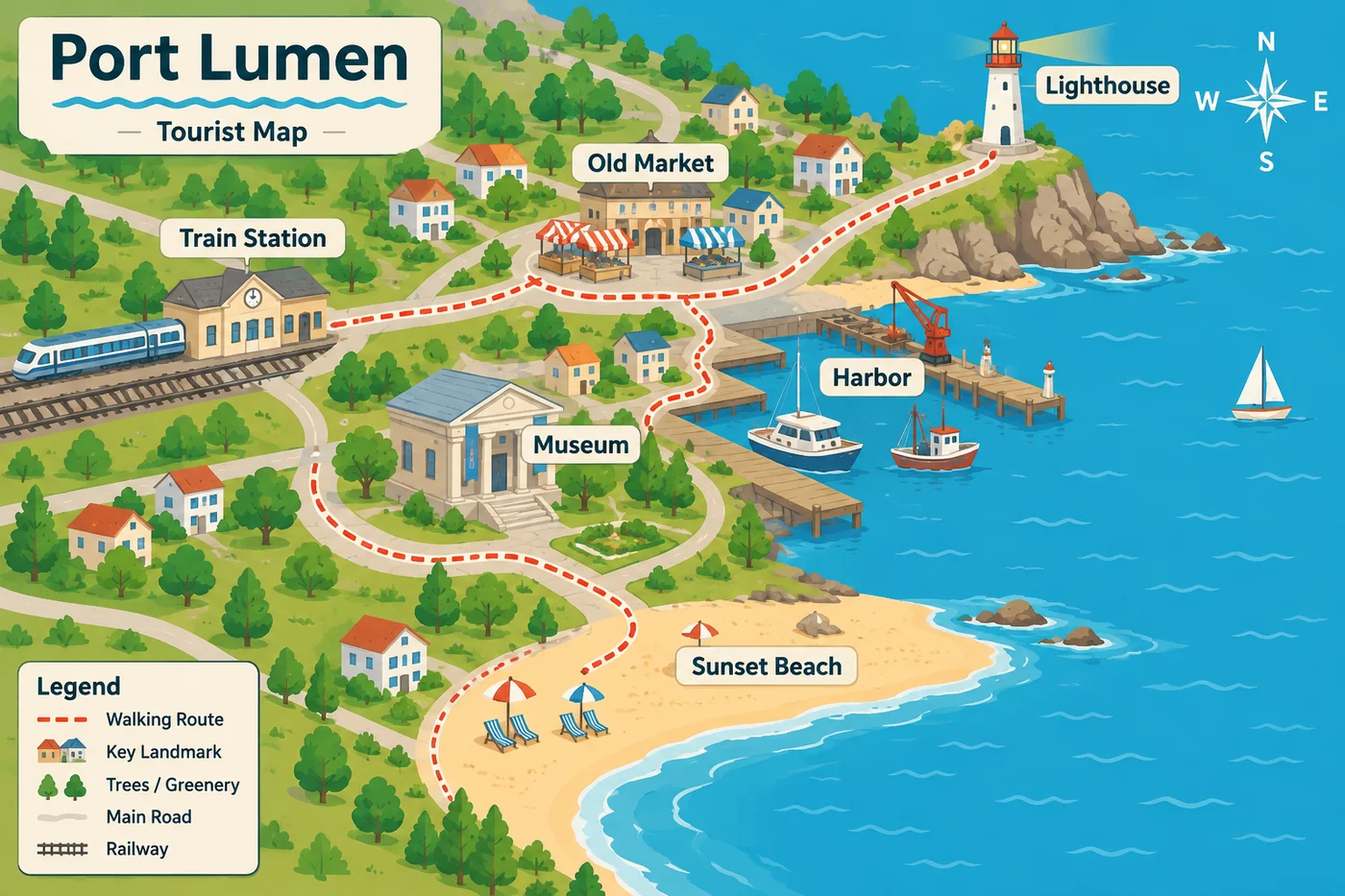
GPT Image 2.6 returned this in 12 seconds: every label spelled correctly, a legend, a compass rose and a walking route that actually links the landmarks. It's ready for a brochure, a travel blog or an event page.
Want vector elements to go with it? Generate the map pins, landmark icons or a matching icon set as SVG (see the icon section above) and lay them over your map in Figma or on your page.
One reminder: an AI-drawn map is an illustration, not geographic data, so don't use it for real directions or distances.
8. Seamless patterns
Repeating patterns are great for wrapping paper, fabric, packaging and website backgrounds. The test is simple: tile the result 2 × 2 and look for seams. We compared three results side by side:
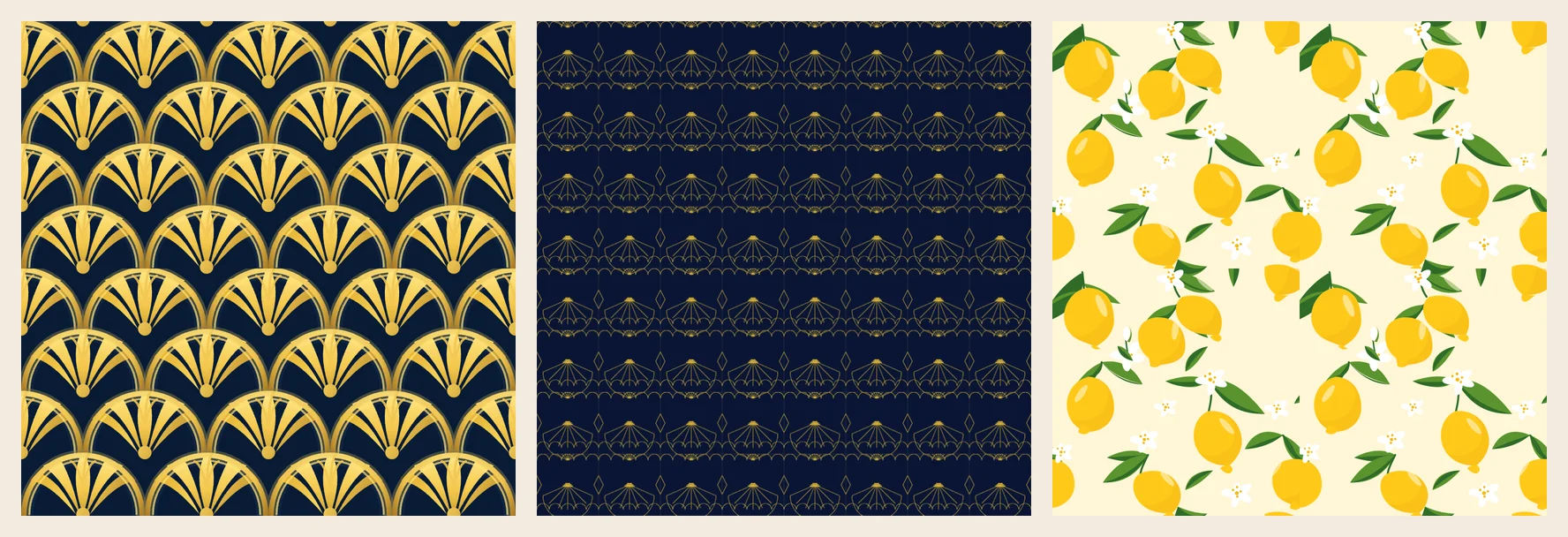
- Left — GPT Image 2.6 native, Art Deco fans. Rich gold fans on navy that tile cleanly. Continuous geometric motifs like scallops, waves and stripes are where native SVG patterns look their best.
- Middle — the Seamless pattern option, same prompt. A lighter line-art style built to repeat exactly at any size. Choose it when a perfect, mathematically even repeat matters more than richness.
- Right — GPT Image 2.6 native, scattered lemons. The single tile is lovely, but the lemons cut off at the edges don't line up on the other side. For scattered motifs like fruit and flowers, always check the 2 × 2 tile before printing.
The prompt we used for the Art Deco pattern:
Seamless repeating SVG pattern tile: Art Deco gold fan and scallop motifs on deep navy, perfectly symmetrical, edges must tile without seams, flat vector, no text.
You can pick Seamless pattern under SVG Type in the generator, or start from the pattern templates in the AI SVG Illustration generator. It costs 10 credits a run. It is designed for geometric styles (Art Deco, Islamic tessellation, Op-Art and similar), so for fruit, flowers and other illustrated motifs, use native SVG and check the tile.
9. SVG for Cricut and laser cutting
Cutting machines need closed, single-color outlines. GPT Image 2.6 can produce them if you ask explicitly:
Single-color cut file for a Cricut cutting machine: a round floral mandala stencil. Solid black #000000 fills only on a white background, no gradients, no strokes, no transparency, no overlapping shapes, every shape a closed path, all black parts connected into one piece so it can be cut and weeded, minimum line thickness about 2 mm at 6 inch size.
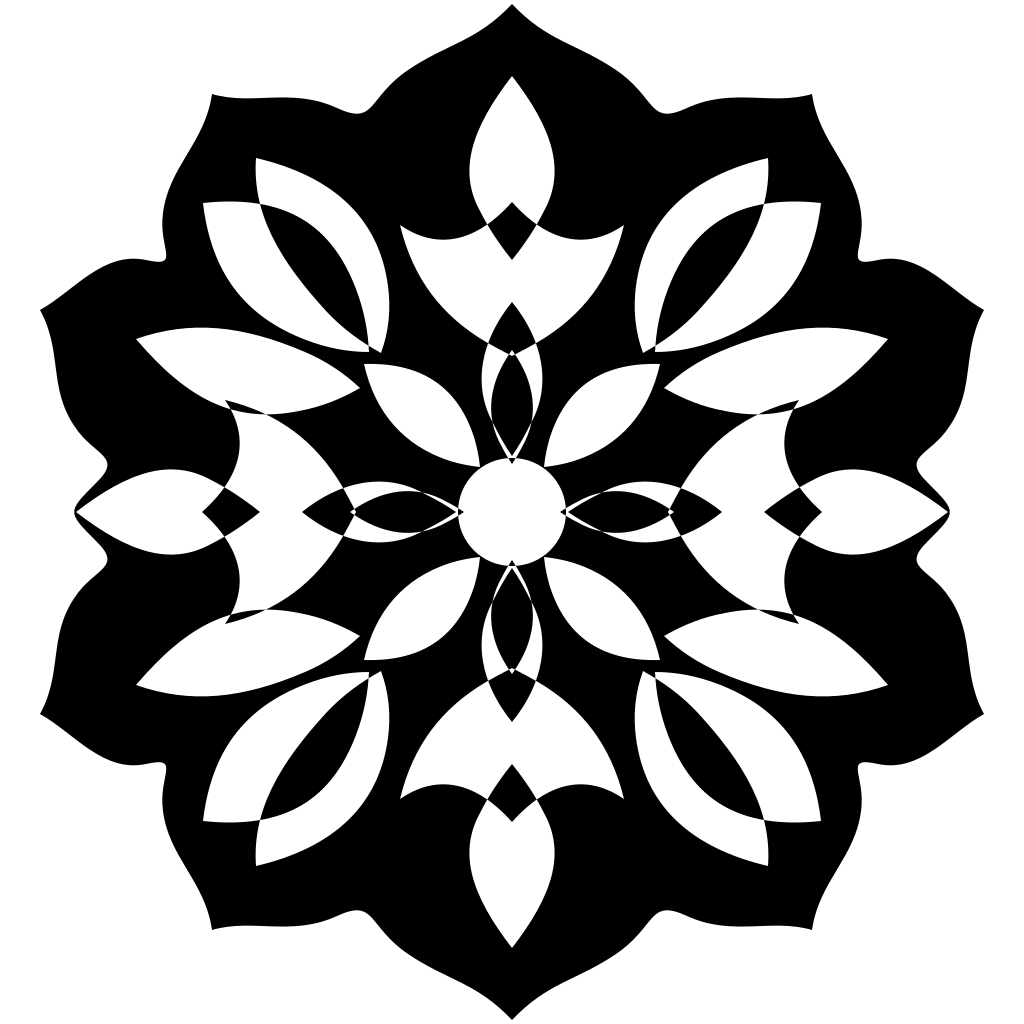
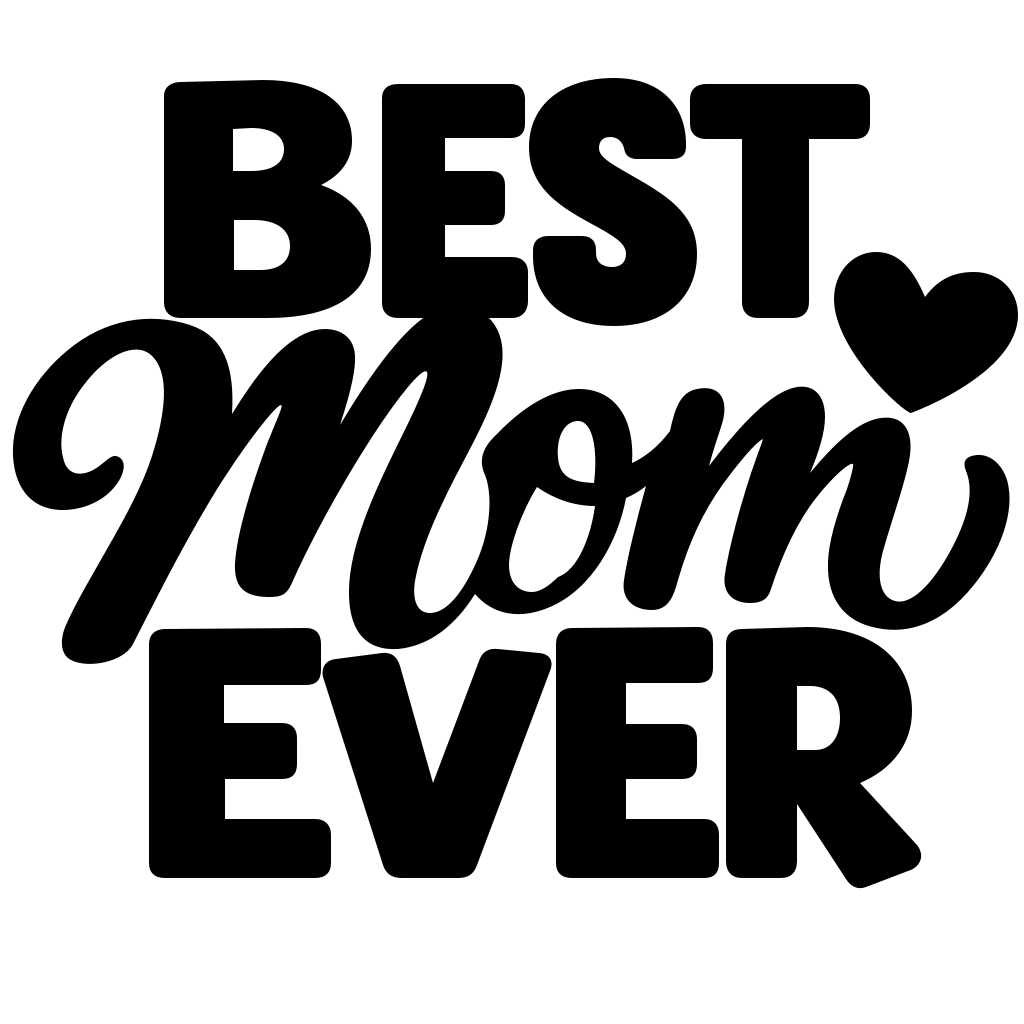
The mandala came back as one black compound path with 34 closed sub-paths, no gradients, no strokes. A phrase cut file worked too, with the lettering drawn as clean outlines (which is what a cutter needs):
Before cutting, do three things:
- Delete the white background rectangle. Both files include one, and a cutter would treat it as a square to cut.
- Check the thinnest points. A few joins in the mandala are very narrow; at small sizes they may tear during weeding.
- Do a test cut. As with any new cut file, try a small piece of scrap material first.
How to edit a GPT Image 2.6 SVG after download
The point of a vector is that the first result is not the final one.
In a code editor. Open the .svg file and search for the text you want to change. To show how quick this is, we took the refund flowchart, changed "30 days?" to "14 days?" and replaced the navy color #1E3A5F with rust #9A3412 using one find-and-replace. One search changed 24 lines:
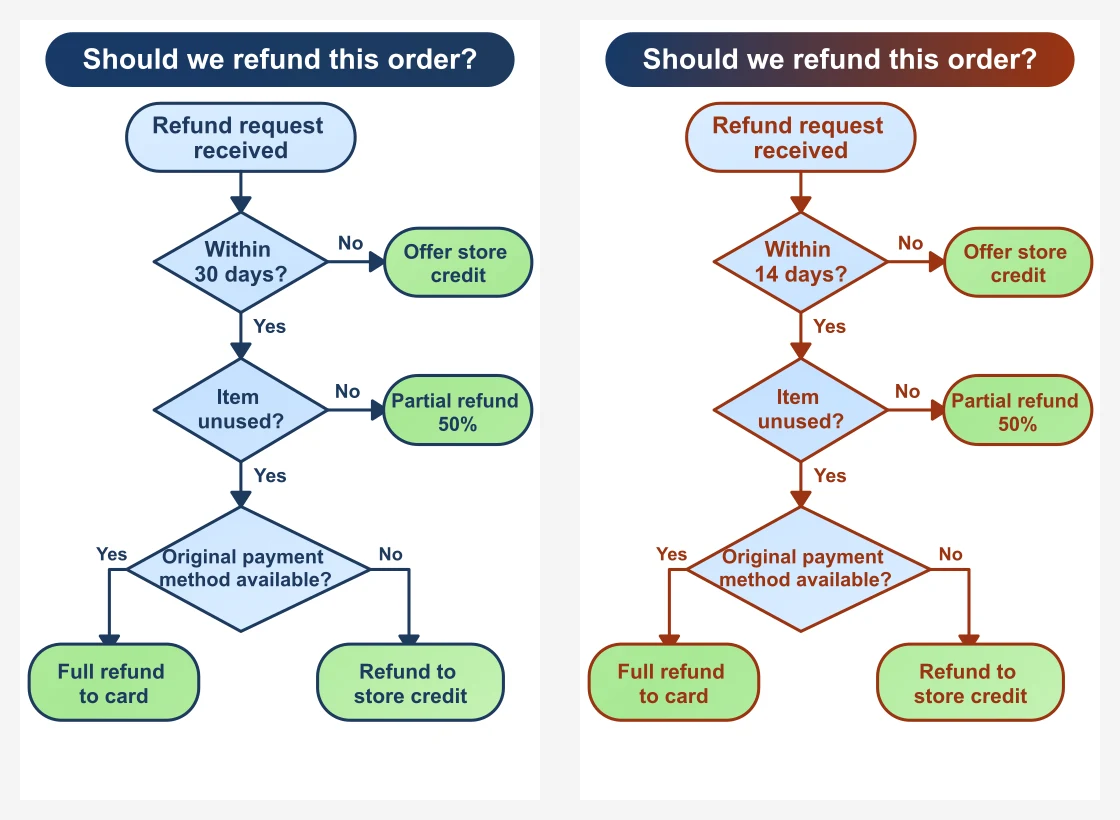
Notice the title bar only half changed. Its color lives in a gradient, and gradient colors are stored in separate <stop> elements, so change those too.
In Figma, Illustrator or Inkscape. Drag the file in. Groups arrive as layers, and <text> arrives as live text you can retype or switch to your brand font.
On a web page. Paste the markup inline or reference the file in an <img> tag. Text uses the reader's system font (Arial, Helvetica or similar), so it can look slightly different across devices. If exact typography matters, convert the text to outlines once your wording is final.
Troubleshooting GPT Image 2.6 SVG problems
| Problem | Why it happens | What to do |
|---|---|---|
| Brand name looks distorted | Stylized lettering is drawn as artwork | Generate the symbol only, or ask for the name "as editable text in a plain font" |
| Text runs past a box | SVG text doesn't wrap automatically | Keep labels short or ask for two-line descriptions; you can also edit the text after download |
| Colors have gradients you didn't want | The model adds shading for depth | Add "flat colors, no gradients" to the prompt |
| Seams show when the pattern repeats | Scattered motifs don't always meet at the edges | Tile 2 × 2 to check; for exact geometric repeats, choose Seamless pattern |
| You need a detailed map | Maps carry a lot of fine detail | Switch Output Format to PNG; add SVG icons on top if you need vectors |
| You want to vectorize an existing image | Native vectors are created from text | Upload the image in Edit mode and choose SVG output |
| An SVG takes longer than a PNG | It is drawn first, then written out as a vector | Usually under a minute |
| A run doesn't come back as a native vector | Occasional hiccups happen | imagesv2 retries for you, delivers a vector anyway and refunds the price difference |
GPT Image 2.6 SVG FAQ
Is a GPT Image 2.6 SVG a real vector?
Yes. The file contains shapes, groups and usually <text> elements — no embedded bitmap. You can scale it to any size and edit it in any vector tool.
Can I convert a GPT-generated PNG into an SVG?
Not with the native GPT Image 2.6 vector, which only works from a text prompt. On imagesv2, upload the image in Edit mode and choose SVG; that route traces the picture into paths. Text in a traced file becomes shapes rather than editable text.
Which software can open and edit the SVG?
Any browser can display it. For editing, Figma, Adobe Illustrator, Inkscape (free) and Affinity Designer all work, and so does a plain code editor for changing text and colors.
Can GPT Image 2.6 make a logo in SVG?
Yes for the symbol, and yes for a name set in a plain font as editable text. Stylized wordmarks, scripts and calligraphy often break, so add those in a design tool.
Why does an SVG cost more and take longer than a PNG?
An SVG is drawn first and then written out as clean vector code. That extra step adds a little time (usually under a minute) and cost (180–210 credits for 1024 × 1024, versus 30–60 for a still).
Is it different from the GPT Image 2 SVG option?
Yes. With GPT Image 2, imagesv2 generates a PNG and traces it, so text becomes shapes. GPT Image 2.6 writes the SVG directly, which keeps text editable and the file organized into named groups. See our GPT Image 2 SVG guide for the older workflow.
Conclusion
Generating SVG images with GPT Image 2.6 comes down to three settings — Generate, SVG, Native vector — and a prompt that spells out structure, exact text, colors and background. Icon sets, flowcharts, scientific workflow figures, website illustrations, simple logos and geometric patterns are ready to use as they come; stickers, infographics and cut files need only a small edit. For detailed maps, switch to PNG.
Ready to try it? Open the GPT Image 2.6 generator, choose SVG, and paste any prompt from this guide. The same generator also turns a prompt into an animated GIF: choose GIF instead of SVG under Output Format.