
Image to Layers — Turn a Flat Image into an Editable PSD
Upload a poster, flyer, banner or AI image. It comes back as separate layers — a filled-in background, every object and every block of text — that you can move, hide or replace.
Download the layers as PNGs or as one layered Photoshop file. No more rebuilding a design from a flat JPG.



Drag any element: the background is already filled in, so nothing leaves a hole
Billed per layer returned: a typical poster costs about 380 credits. Up to 580 credits are held while it runs and the unused part is refunded right after.
Try a sample
Layers · 11
- Yellow maple print shopping bag275×260Element
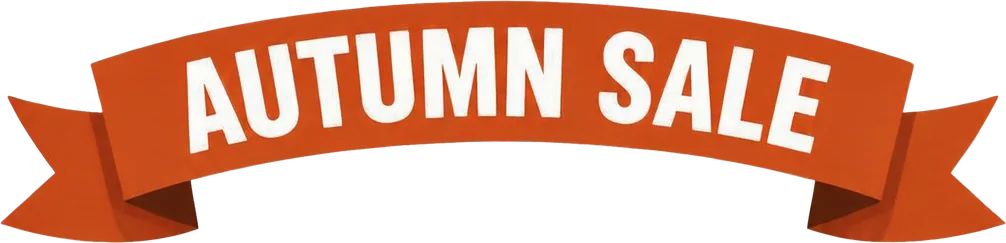
- AUTUMN SALE top ribbon banner805×194Text
- UP TO text label178×47Text
- Orange shopping bag229×217Element
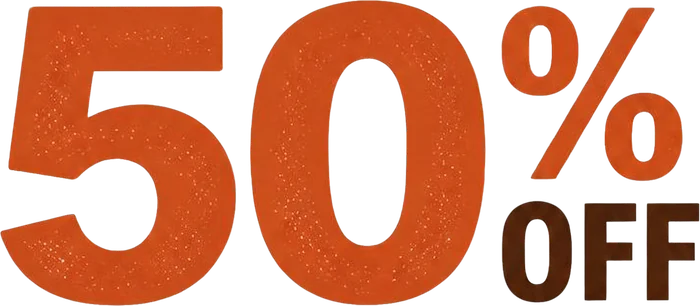
- 50% OFF discount text560×245Text
- Red shopping bag225×220Element
- New season description text371×74Text
- Floating maple leaf decorations679×446Element
- Beige shopping bag192×181Element
- Bottom call to action banner723×98Text
- Background (filled)900×1200Background
Download
11/11 layers selected · hidden layers are left outSample files are free to download: check the split quality before you split your own image. Moved and hidden layers export as you see them.
What one split gives you
- 6–11
- layers from a typical poster, background included
- ~2 min
- typical time for one split
- Filled
- background repainted wherever an element was
- Text
- detected text exported as Photoshop type layers
- Per layer
- pay only for layers returned; the rest of the hold is refunded
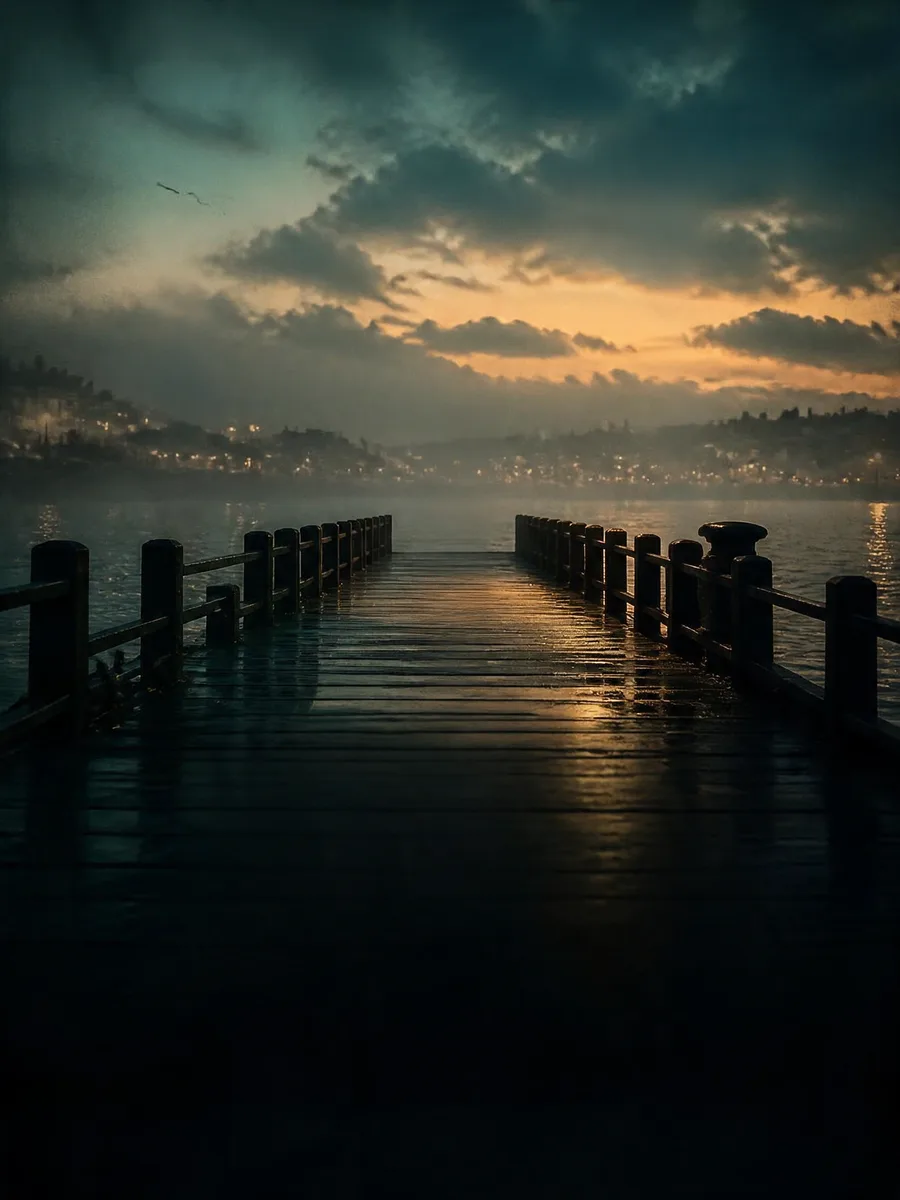
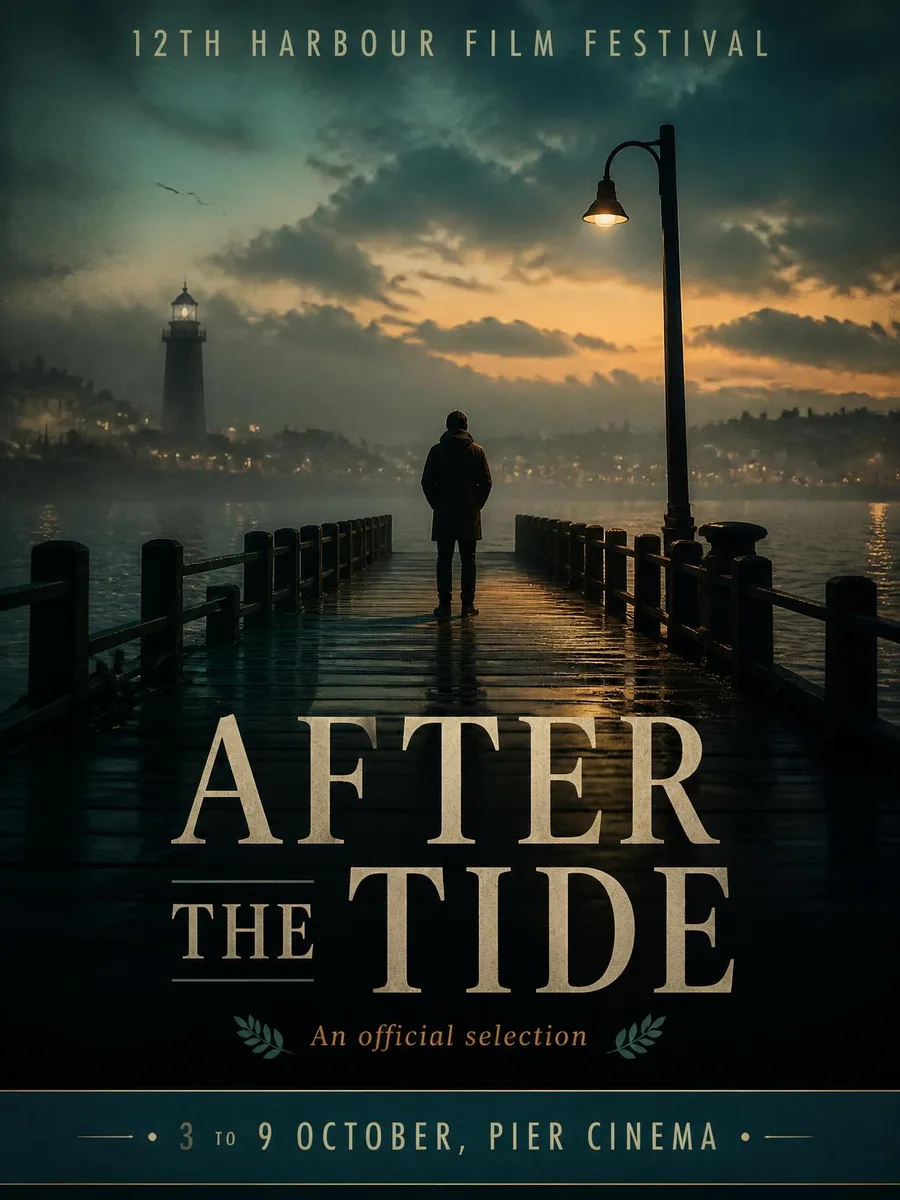 OriginalFilled background
Move anything. The background is still there.
Every split includes a filled-in background layer: once text, people or products are lifted out, AI repaints what was hidden behind them. Drag the divider to compare the original with the clean plate.
- Move or delete any element without leaving a hole
- Swap headlines and copy without retouching the background
- The background exports as its own layer, ready to reuse as a base
Drag the divider to compare



Text comes out editable
The split reads the text in your image and adds editable type layers to the PSD. Change a price, update a date or translate the whole poster without redesigning it. Try it below:
Switch language in one click
In the exported PSD, type layers sit in a hidden “editable text” group and use the closest matching font. To retype, hide the matching image layer and turn on its type layer.
Image to layers examples
Each example is a real result: the original image on the left, the layers it was split into on the right. Nothing was cut out by hand.
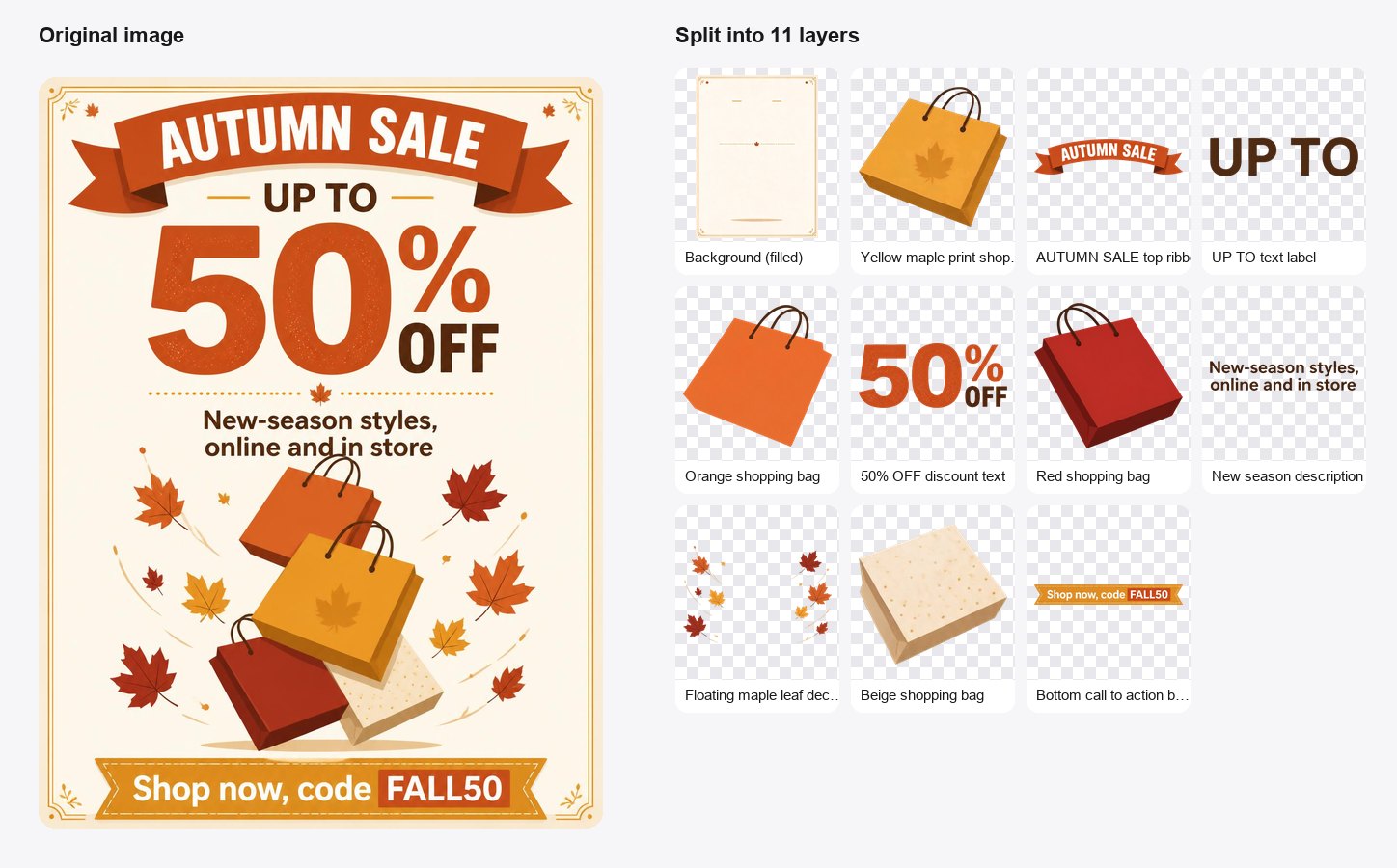
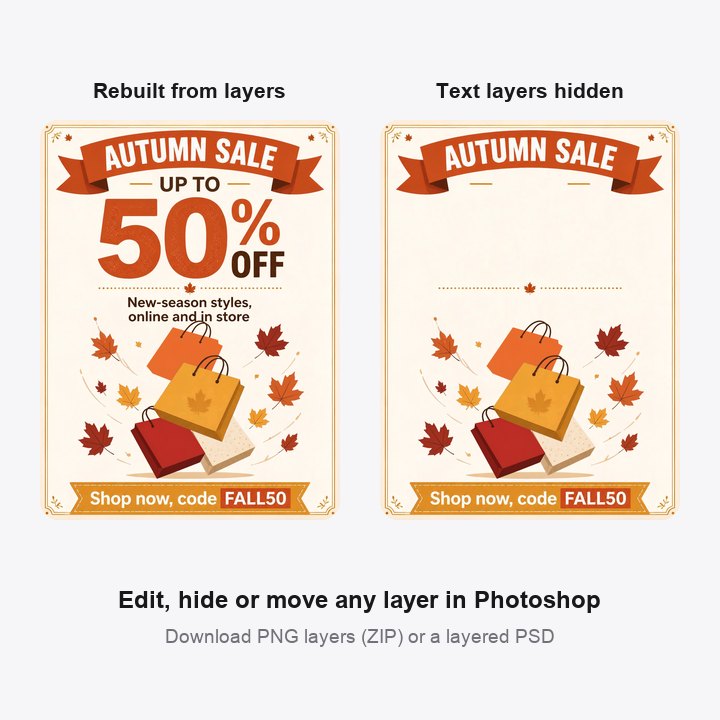
A sale poster you can reuse every season
11 layers: a filled-in cream background, the ribbon, the 50% OFF block, the tagline, four separate shopping bags, the falling leaves and the call-to-action bar. Change the discount or the season and the rest of the poster stays exactly as it was.
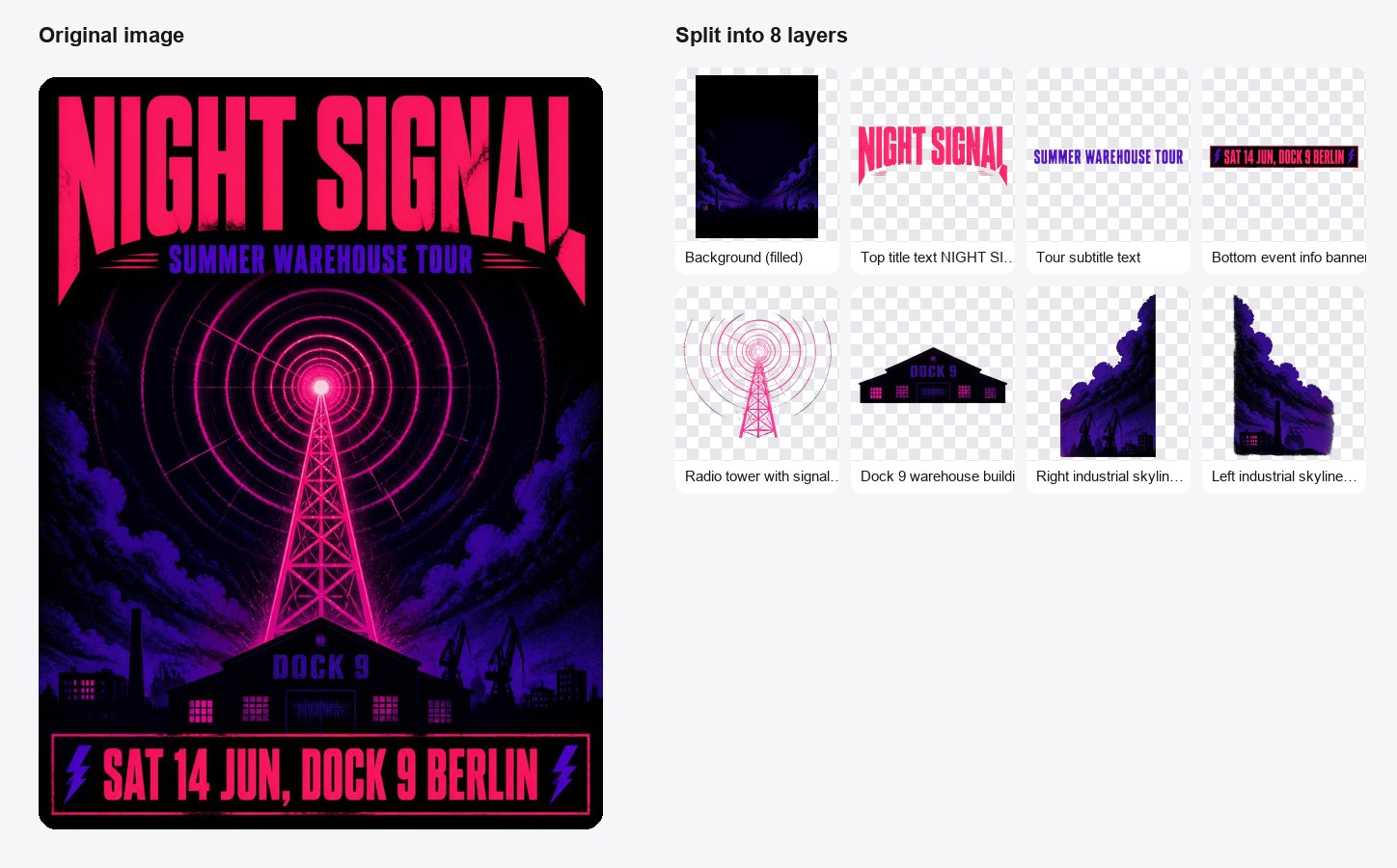
A gig poster ready for the next date
8 layers: the title, the subtitle and the date bar are lifted off on their own, and the radio tower, the warehouse and both skylines come out as separate artwork. Update the venue and date for the next show in a minute.
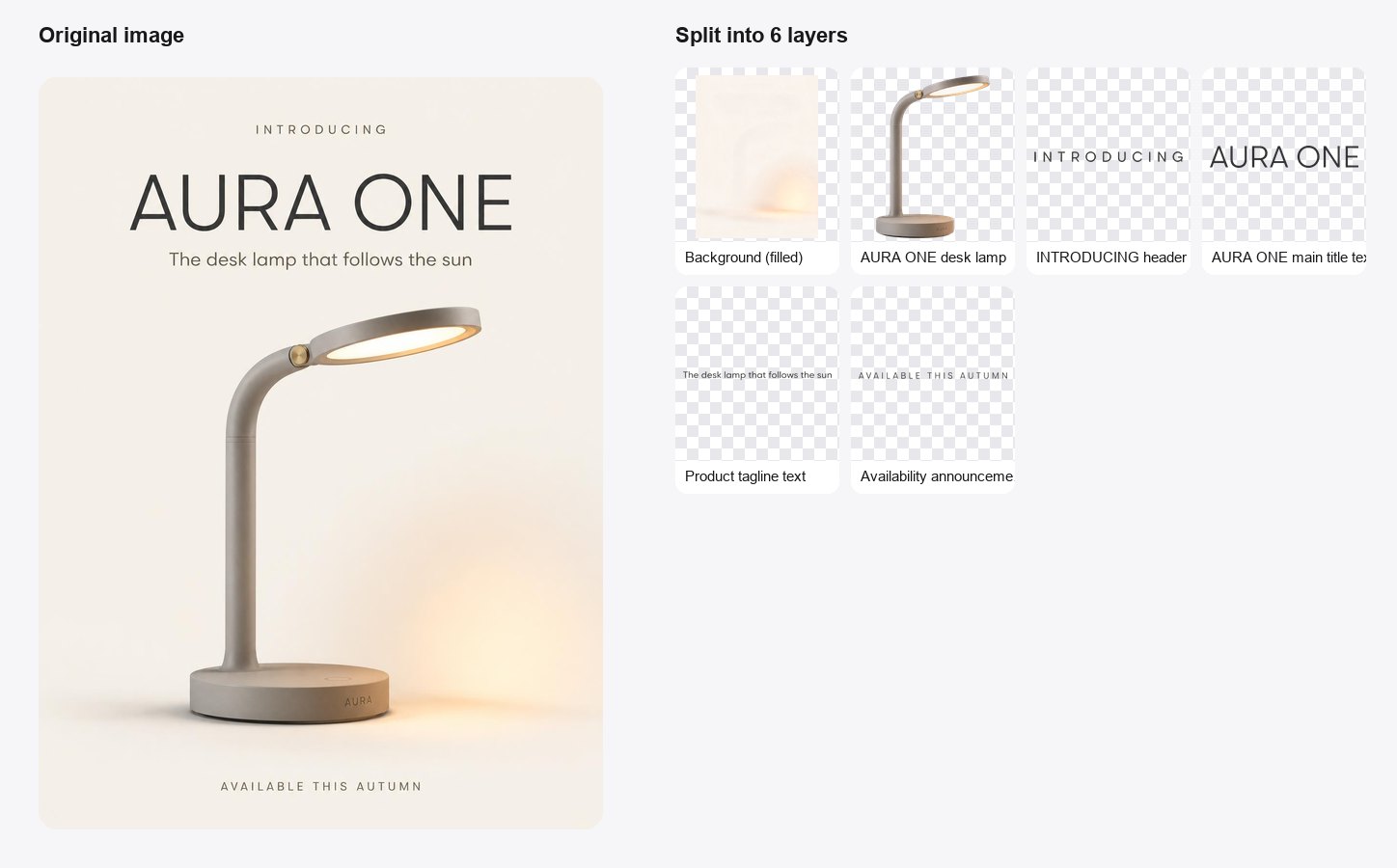
A product launch you can rewrite for any market
6 layers: four text blocks and the lamp itself, over a clean gradient background. Hide the text, retype it in another language, or place a different product on the same backdrop.
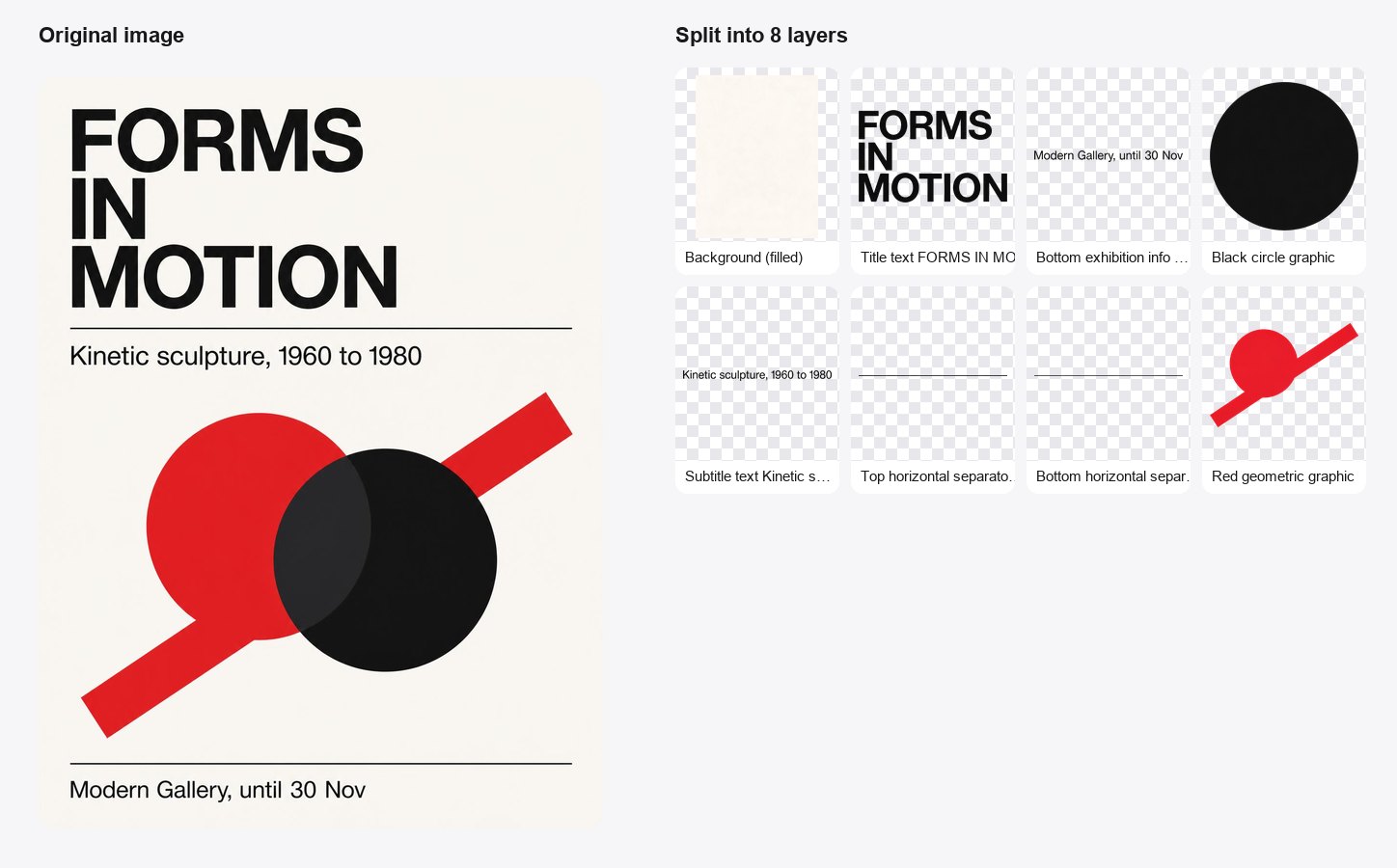
An exhibition poster with its grid intact
8 layers: the shapes, the rules and every line of type are separated, so a Swiss-style layout can be re-dated or resized without redrawing a single shape.
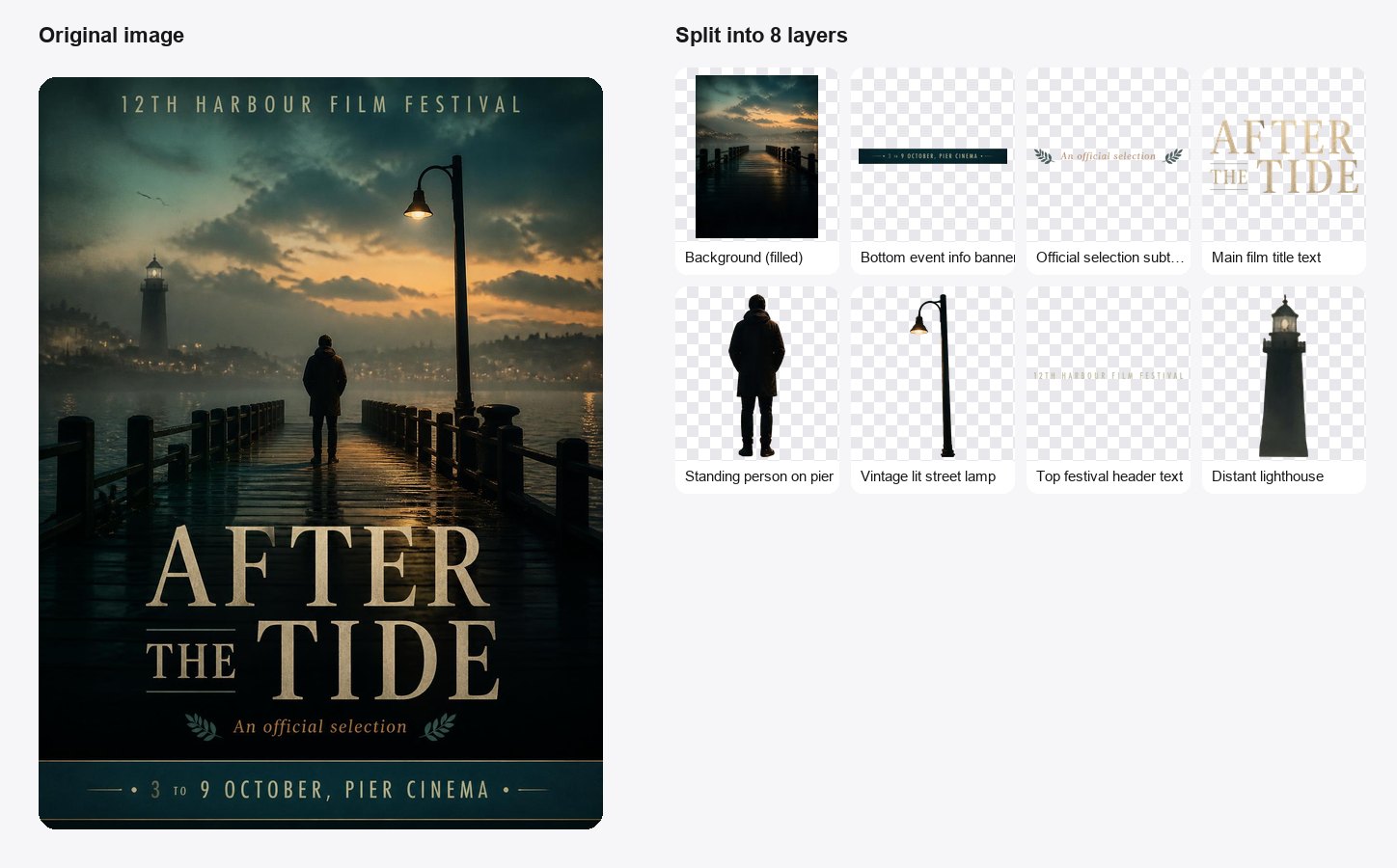
A film poster with the photo and the type pulled apart
8 layers: the person, the lighthouse and the street lamp come out of the photo, and the festival header, title and credits sit on their own layers. Swap the title, or move the person without leaving a hole behind.
How to split an image into layers
Three steps, about two minutes:
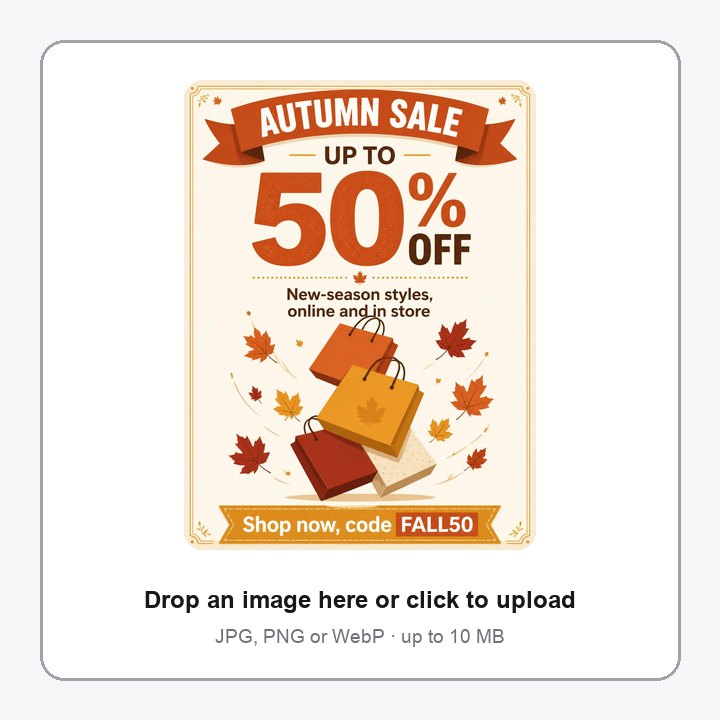
1Upload your image
Drop in a JPG, PNG or WebP up to 10 MB — a poster, flyer, ad, social post, product banner or an image you made with AI. Flat designs with clear objects and text split best.
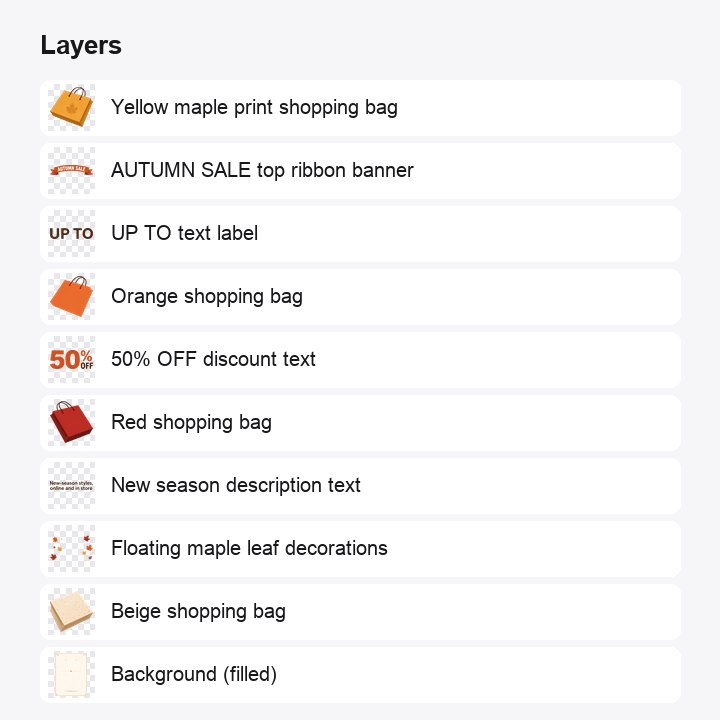
2Click “Split into layers”
In 1–2 minutes you get a named list of layers: a filled-in background plus each object and text block. Toggle the eye icon to check every layer, or download any one of them as a transparent PNG.
3Download PNGs or a layered PSD
Get every layer in one ZIP, or click “Export layered PSD” — free, built in your browser. Open it in Photoshop, Photopea or Affinity and edit, hide or move any layer.
What is image to layers?
A JPG or PNG is one flat sheet of pixels: the headline, the product and the background are fused together, so changing one thing means redrawing everything around it. Image to layers pulls each element out onto its own transparent layer and paints in what was hidden behind it. You get back what a designer’s source file would have given you:
A filled-in background
Objects and text are lifted off and the area behind them is painted in, so the background is a clean plate you can reuse.
One layer per element
Products, people, shapes, logos and text blocks each land on their own transparent layer, cropped to the element and placed exactly where it was.
Named layers
Every layer gets a readable name such as “Red shopping bag” or “Headline text”, so the PSD is easy to find your way around.
Editable text layers
Text we can read is also added as real Photoshop type layers (hidden by default), so you can retype copy instead of painting over it.
PNG layers or a PSD
Download each layer, all layers as a ZIP, or a single layered PSD that opens in Photoshop, Photopea, Affinity and GIMP.
Pay per layer
You pay for the layers you get back. A typical poster costs about 380 credits; the most that is ever held is 580, and the unused part is refunded as soon as the split finishes.
What people use image to layers for
Any time you have the picture but not the source file.
Update a sale poster
Swap the price, the date or the product on last season’s promo without redrawing the background.
Translate and localise designs
Hide the text layers, keep the artwork, and retype the copy in another language for each market.
Recover a lost PSD
The designer left and only the exported JPG survived? Split it and you have an editable file again.
Fix one thing in an AI image
Generated a poster you almost love? Move the product, delete a stray object or replace the headline without regenerating.
Turn one design into many sizes
With every element on its own layer, re-arranging a portrait poster into a square post or a wide banner takes minutes.
Animate a still image
Bring the layers into After Effects, CapCut or a slide deck to add parallax and motion to a flat picture.
Image to Layers — FAQ
More questions? Email support@imagesv2.ai.
Upload the image in the “Split an image into layers” tab, click “Split into layers” and wait 1–2 minutes. You then get a list of layers you can preview, download as PNGs, or export as a layered PSD.
Yes. Upload the JPG (or PNG/WebP), split it, then click “Export layered PSD”. The PSD has the filled-in background and every element on its own layer, plus the original image as a hidden reference layer.
It depends on the image — usually between 5 and 16 layers plus the background. A typical poster comes back as about 10 layers.
You pay per layer returned. A typical poster costs about 380 credits. Up to 580 credits are held while the split runs, and whatever is not used is refunded right after. If the split fails, the held credits are refunded. Exporting the PSD or ZIP is free.
Each block of text comes out as its own image layer, so you can move or hide it. Text we can read is also added as hidden Photoshop type layers you can switch on and retype. Very decorative lettering may not be recognised — then you keep the image layer only.
Posters, flyers, banners, social posts, product ads and illustrations with clear objects and text. Busy photos with lots of overlapping detail, such as crowds or foliage, split into fewer, larger layers.
Yes. Use the “Generate a poster” tab, and when the image is ready click “Split into layers” under the result. It moves straight to the first tab, ready to split — generating and splitting are billed separately.
Adobe Photoshop, Photopea (free, in the browser), Affinity Photo and GIMP. The PNG layers work in any editor, including Figma, Canva and Keynote.
Split your first image into layers
Free credits for new users. Upload an image, click split, and download an editable PSD.
