
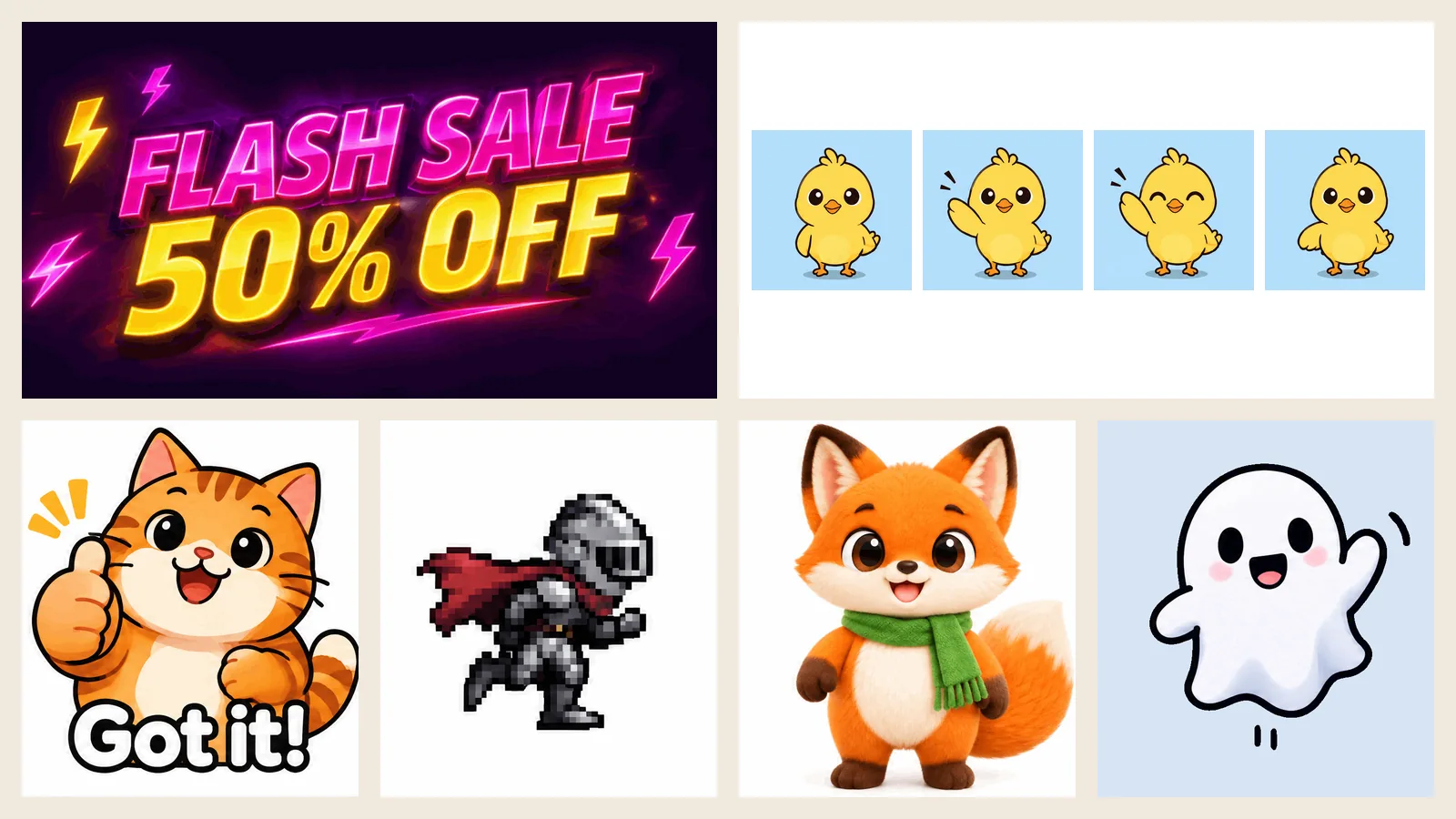
GPT Image 2.6 can return an animated GIF instead of a still image. Describe a short motion, pick GIF as the output format, and about 15 seconds later you have a looping animation: a reaction sticker, a product loop, a promo banner, a pixel-art run cycle, or your own mascot waving hello.
This tutorial covers both ways to do it on imagesv2: from a text prompt and from a picture you upload. Every tip comes from a real result. We ran each scenario in this guide with the same settings you will see in the generator, and every animation on this page is the unedited output.
The short version:
- Choose GIF under Output Format, then pick 4, 6, 9, 12 or 16 frames and a Slow, Normal or Fast playback speed.
- Most GIFs arrived in 13–20 seconds.
- A good GIF prompt describes one motion that returns to the starting pose, and ends with "camera still".
- For stickers and reaction GIFs, don't leave Background on Auto. Choose Opaque for a clean white background or Transparent for a cut-out sticker.
- Captions such as "Got it!", "FLASH SALE 50% OFF" and "Happy Birthday!" stay sharp and identical in every frame.
What you need before you start
- An imagesv2 account. New accounts get free credits, no card required.
- Credits. Price depends on frame count and quality. Speed and version (Flare or Sunburst) don't change the price, and the Generate button always shows the exact cost before you click.
- A picture to animate (optional). A character, mascot or product photo, if you want to bring your own image to life.
GIFs made before your first purchase carry a light imagesv2.ai watermark. Any subscription or credit pack removes it from new GIFs.
GPT Image 2.6 GIF prices
Prices for a 1:1 GIF:
| Frames | Size per frame | From a text prompt (low / medium / high) | From your picture (low / medium / high) |
|---|---|---|---|
| 4 | 768 × 768 | 30 / 50 / 60 | 50 / 70 / 80 |
| 6 | 768 × 768 | 50 / 80 / 90 | 70 / 100 / 110 |
| 9 | 768 × 768 | 70 / 120 / 140 | 90 / 140 / 160 |
| 12 | 640 × 640 | 60 / 110 / 130 | 80 / 130 / 150 |
| 16 | 512 × 512 | 50 / 90 / 110 | 70 / 110 / 130 |
Medium quality is the sweet spot for GIFs. Every example below used medium unless noted.
GPT Image 2.6 GIF settings explained
Four settings shape your animation.
Animation frames. More frames mean smoother motion. Up to 9 frames render at 768 px per frame, 12 frames at 640 px and 16 frames at 512 px, so longer animations trade a little size for smoothness. Each run makes one GIF.
Playback speed. Slow, Normal and Fast hold each frame for 400, 200 and 100 milliseconds. Speed only changes how fast the GIF plays, not what is drawn, and it is free to change.
Background. Auto, Opaque or Transparent. This matters more for GIFs than for stills; see the sticker section below.
Composition freedom. Free to compose (the default) lets the model add props, lighting and layout details; Follow prompt sticks closely to your words. Same price either way.
Here is the same "chick waves hello" prompt at 4, 9 and 16 frames:
| 4 frames | 9 frames | 16 frames |
|---|---|---|
 |  |  |
| Raise, wave, smile. Reads as a quick gesture. | The full wave, a blink and a clean return to the start. | A wave out and back, a blink and a wink. The smoothest. |

Which frame count to pick:
| Animation | Frames | Speed |
|---|---|---|
| Reaction GIF, sticker, simple gesture | 6 | Normal |
| Wave + blink, character idle, product shimmer, promo banner | 9 | Normal |
| Walk or run cycle, bouncing, loading animation | 12–16 | Fast |
| Slow, dreamy motion (rain, breathing, glow) | 9 | Slow |
Method 1: create a GIF from a text prompt
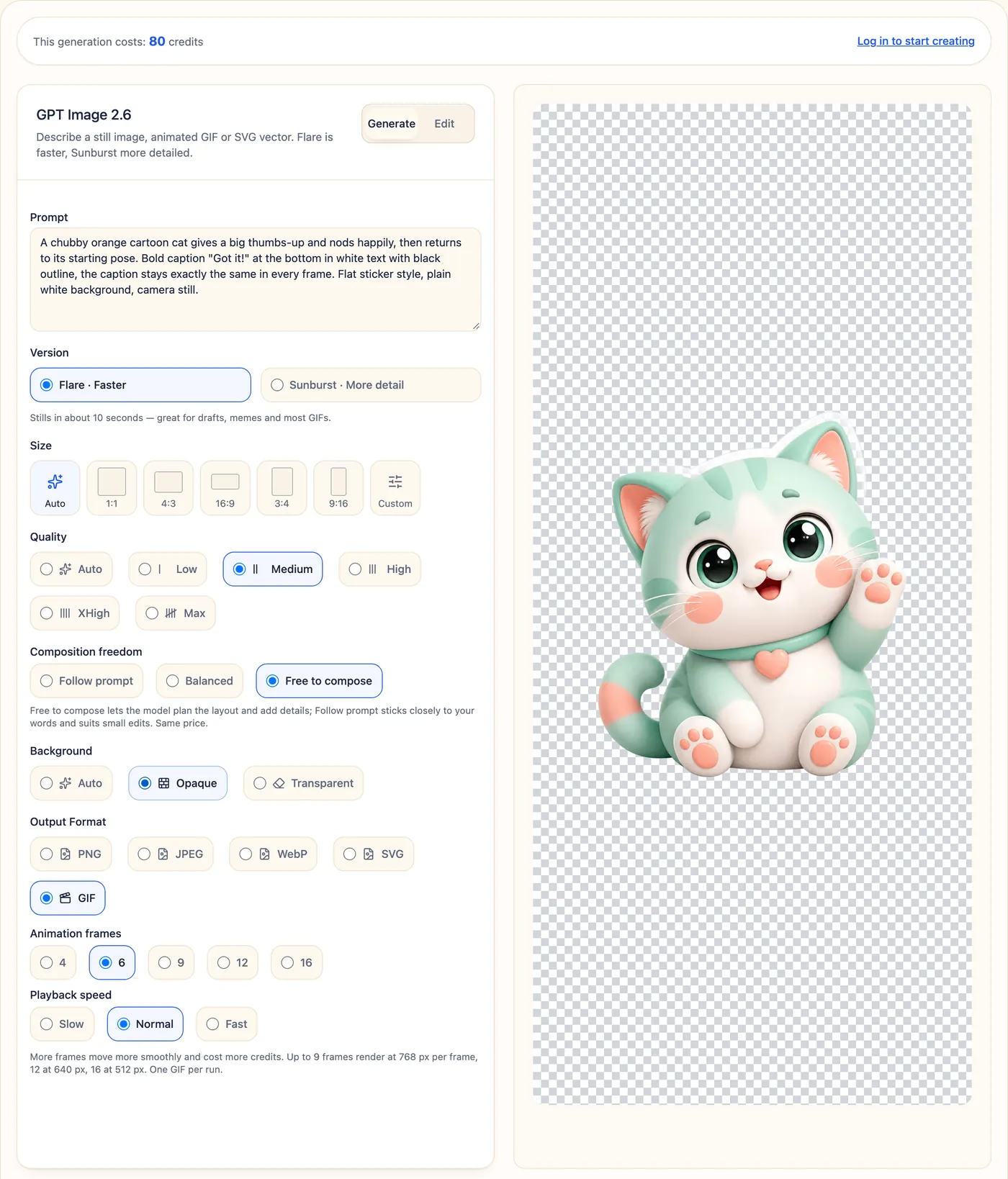
Step 1. Open the GPT Image 2.6 generator and stay on the Generate tab.
Step 2. Write your prompt. Describe a starting pose, one motion, a return to the starting pose, and "camera still" (the next section has the formula).
Step 3. Choose a version. Flare is faster and handles most GIFs well; Sunburst adds detail to cinematic scenes and characters. Both cost the same.
Step 4. Pick a Size. 1:1 works for stickers and social posts, 16:9 for banners, and 3:4 or 9:16 for characters and stories.
Step 5. Set Quality to Medium, and set Background: Opaque for a solid background, Transparent for a sticker.
Step 6. Under Output Format, choose GIF. Then pick Animation frames and Playback speed.
Step 7. Click Generate. When the GIF appears, click Download.
The result of the prompt in the screenshot (6 frames, Normal, Opaque):

A chubby orange cartoon cat gives a big thumbs-up and nods happily, then
returns to its starting pose. Bold caption "Got it!" at the bottom in white
text with black outline, the caption stays exactly the same in every frame.
Flat sticker style, plain white background, camera still. Make the motion
loop smoothly.
Method 2: animate your own picture
Already have a character, a mascot or a product shot? Upload it, and GPT Image 2.6 animates it while keeping its look.
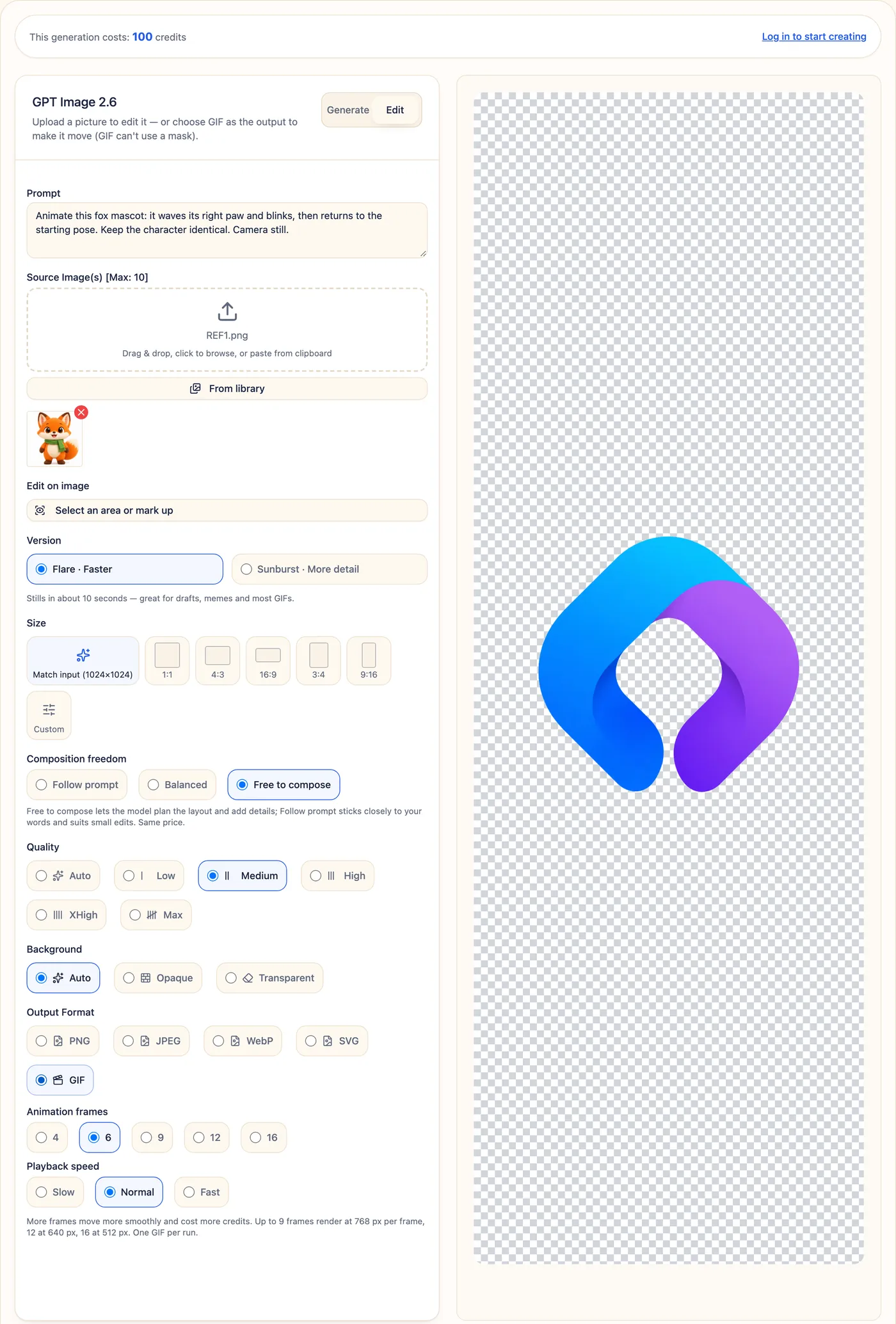
Step 1. Open the GPT Image 2.6 generator and switch to the Edit tab.
Step 2. Upload your picture (drag and drop, click to browse, or paste). A character on a plain background gives the cleanest result.
Step 3. Describe the motion and ask to keep the subject identical, for example "Animate this fox mascot: it waves its right paw and blinks, then returns to the starting pose. Keep the character identical. Camera still."
Step 4. Under Output Format, choose GIF, then set frames and speed. Size defaults to Match input.
Step 5. If your picture is a transparent PNG, set Background to Transparent (see below).
Step 6. Click Edit Image and download.
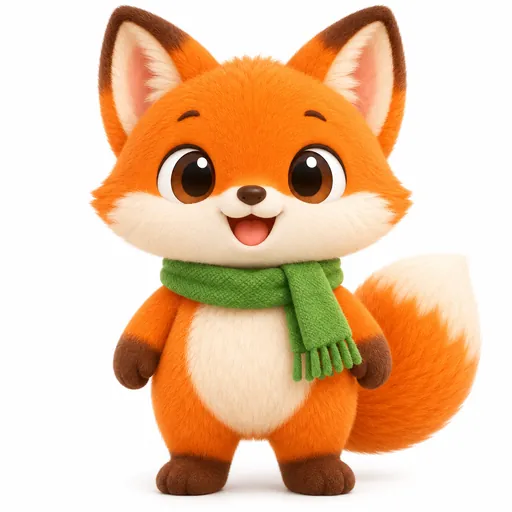
| Your picture | The GIF |
|---|---|
 |  |
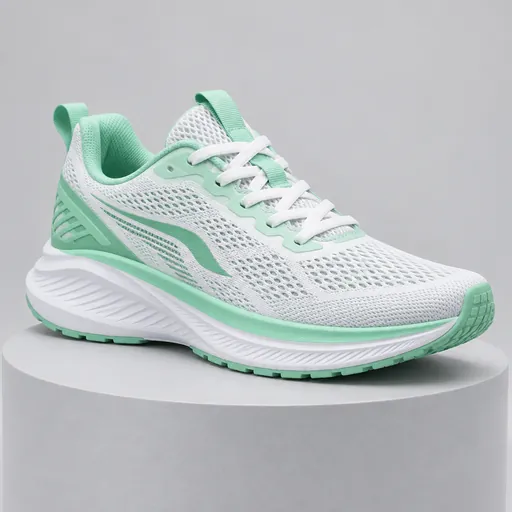 |  |
The fox keeps its face, scarf and proportions in every frame. The sneaker keeps its exact design and a light sweep glides across it, which makes an easy product loop for a store page or an ad.
Animating a transparent PNG
If you upload a cut-out PNG and leave Background on Auto, the empty area gets filled with a dark, glowing backdrop. Set Background to Transparent and you get a clean transparent GIF instead:
| Background: Auto | Background: Transparent |
|---|---|
 |  |
Want a solid background instead? Place your PNG on white before uploading, as with the fox above.
The Select an area or mark up tool can't be combined with GIF output. If you saved a selection earlier, remove it before choosing GIF.
How to write a GPT Image 2.6 GIF prompt
A GIF prompt is a tiny storyboard. Use this formula:
Subject + starting pose → one motion → back to the starting pose + style + background + "camera still" + "make the motion loop smoothly"
Five rules make the difference:
- One motion per GIF. "Waves and blinks" works. "Dances, jumps, spins and runs" doesn't.
- Return to the starting pose. That is what makes the last frame flow into the first, so the loop has no visible jump.
- Say "camera still". Without it, the background can drift and the whole frame wobbles.
- Lock your text. Write the caption word for word, in quotes, and add "stays exactly the same in every frame".
- Keep the scene simple. A plain or soft background keeps the attention, and the motion, on your subject.
A weak prompt and a stronger rewrite:
| Weak prompt | Stronger prompt |
|---|---|
| A dog dancing, jumping, spinning and running around a park with balloons. | A happy beagle sits in the center and does one little hop with its ears flapping, then lands back in exactly the same sitting pose. Flat cartoon style, plain light green background, camera still. Make the motion loop smoothly. |
 |  |
| Four actions at once: the dog jumps, turns and runs off, so the last frame never meets the first. | One action and a return to the start: a seamless loop that works as a sticker. |
GPT Image 2.6 GIF examples you can copy
Each example shows the prompt, the settings and the unedited result. To try one, copy the prompt into the generator.
Reaction GIFs and stickers
Reaction GIF with a caption (6 frames, Normal, Background: Opaque): see the "Got it!" cat in Method 1.
Transparent sticker (6 frames, Normal, Background: Transparent)
A cute white ghost sticker floating up and down and waving one hand, soft
outline, flat sticker style, transparent background, camera still. Make the
motion loop smoothly.
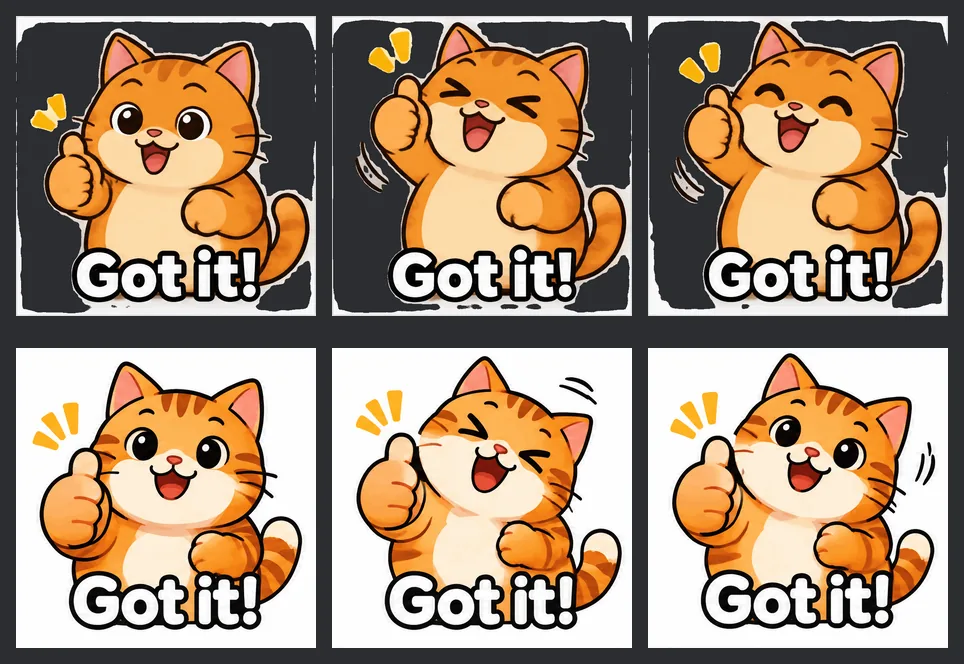
Stickers: always set the background
Reaction GIFs and stickers are where the Background setting matters most. With "sticker style" in the prompt and Background on Auto, the model may cut the sticker out on its own, leaving a ragged, half-transparent edge that shows up as dark patches in a dark-mode chat. Choosing Opaque gives the same cat on a clean white square, and Transparent gives a proper cut-out:
Product loops
Perfume shimmer (9 frames, Normal). Here Composition freedom makes a visible difference:
| Free to compose (default) | Follow prompt |
|---|---|
 |  |
| Adds a label, roses and window light. Reads like a finished ad. | Exactly what was asked. A clean base for your own branding. |
A luxury glass perfume bottle on a soft pink pedestal, a light sweep glides
across the glass, tiny sparkles twinkle and a few petals drift down, the
bottle stays perfectly still. Premium product photography, soft studio
light, camera still. Make the motion loop smoothly.
To animate your own product, use Method 2. The sneaker above is an example.
Promo banners
FLASH SALE banner (9 frames, Normal, 16:9)
Animated e-commerce banner: the text "FLASH SALE" and "50% OFF" pulse and
glow in neon pink and yellow, small lightning bolts flicker around them,
dark purple background, the text stays exactly the same in every frame.
Camera still. Make the motion loop smoothly.
Greeting card (9 frames, Normal, 1:1)
A birthday cake with five candles: flames flicker, confetti falls slowly,
the text "Happy Birthday!" in playful lettering stays exactly the same above
the cake in every frame. Warm pastel colors, flat illustration, camera
still. Make the motion loop smoothly.
Characters and games
Character idle loop (Sunburst, 9 frames, Normal, 3:4)
Semi-realistic anime style young woman with a short black bob and a beige
trench coat, standing by a rainy window at night, upper body. She blinks
slowly and her hair moves slightly, rain streaks run down the glass, then
everything returns to the starting pose. Cinematic soft light, camera still.
Make the motion loop smoothly.
Pixel-art run cycle (12 frames, Fast)
16-bit pixel art side-view run cycle of a small knight with a red cape,
crisp pixels, consistent character size and position, plain light
background, camera still. Make the run cycle loop seamlessly.
UI animations
Loading dots (9 frames, Normal, Background: Transparent)
A flat UI loading icon: three rounded blue dots bounce up one after another
in a smooth wave, simple flat style, centered, transparent background,
camera still. Make the motion loop seamlessly.
Playback speed: Fast vs. Slow
The same 9-frame hamster prompt at two speeds. The frames are identical; only the timing changes.
| Fast (100 ms per frame) | Slow (400 ms per frame) |
|---|---|
 |  |
Fast suits running, bouncing and loading animations; Normal suits gestures and reactions; Slow suits calm, atmospheric loops.
How to make your GIF smaller
GIFs at 768 px are crisp but can be large: 0.1–1.7 MB for the examples above, with detailed product scenes at the top of that range. Shrinking the frame size is what makes the real difference:
| Example | Original | Resized to 480 px | Resized to 240 px | Animated WebP |
|---|---|---|---|---|
| "Got it!" reaction GIF | 678 KB | 315 KB | 126 KB | 201 KB |
| Perfume product loop | 1.67 MB | 673 KB | 230 KB | 251 KB |
| Transparent ghost sticker | 266 KB | 138 KB | 64 KB | 52 KB |
- For chat apps and stickers: resize to 240–480 px. Reducing colors alone saves only about 10%.
- For websites: convert to animated WebP. It plays everywhere GIF does in modern browsers, keeps transparency, and is 70–85% smaller.
- Free tools we used: gifsicle for resizing (
gifsicle -O3 --resize-fit 480x480 in.gif -o out.gif) andgif2webpfrom Google's WebP tools for WebP (gif2webp -q 75 -mixed in.gif -o out.webp).
Troubleshooting GPT Image 2.6 GIFs
| You see | Do this |
|---|---|
| The loop "jumps" at the end | Add "then returns to the starting pose" and "make the motion loop smoothly". |
| The whole picture wobbles or drifts | Add "camera still" and use a plain background. |
| Motion looks choppy | Go up to 9 frames, or 12–16 for runs and bounces. |
| Too much happens at once | Keep one motion per GIF. Make a second GIF for the next action. |
| Caption letters change between frames | Put the text in quotes, keep it short, and add "stays exactly the same in every frame". |
| Sticker edges look patchy on dark backgrounds | Set Background to Opaque or Transparent instead of Auto. |
| Your transparent PNG gets a dark background | Set Background to Transparent, or place the image on white before uploading. |
| The model added things you didn't ask for | Switch Composition freedom to Follow prompt. |
| GIF isn't available in Edit mode | Remove any saved area selection; GIF can't use one. |
| The file is too big to send | Resize to 480 px or convert to animated WebP (see above). |
GPT Image 2.6 GIF FAQ
Can I turn my own photo or character into a GIF?
Yes. Switch to the Edit tab, upload the picture, choose GIF and describe one motion. The subject keeps its look across frames. Characters and products on a plain background work best.
How many frames can a GPT Image 2.6 GIF have?
4, 6, 9, 12 or 16. Up to 9 frames render at 768 px per frame, 12 frames at 640 px and 16 frames at 512 px.
Can a GPT Image 2.6 GIF have a transparent background?
Yes. Set Background to Transparent. Transparent GIFs come out clean on both light and dark backgrounds, which makes them a good fit for stickers, emoji and UI icons.
Can I change the GIF speed?
Yes, with Playback speed: Slow, Normal or Fast (400, 200 or 100 ms per frame). Speed doesn't change the price.
Flare or Sunburst for GIFs?
Flare for most GIFs: reactions, stickers, banners, pixel art and UI loops. Sunburst for cinematic characters and detailed scenes. They cost the same, so you can draft in Flare and redo your favorite in Sunburst.
Is this a video generator?
No. You get a short, silent, looping GIF of up to 16 frames — perfect for stickers, product loops, banners and reactions. For longer clips with sound, use a video model.
Conclusion
Creating a GIF with GPT Image 2.6 takes three choices — GIF output, a frame count and a speed — plus a prompt that describes one motion, returns to the starting pose and keeps the camera still. Start from text for stickers, banners and game sprites, or upload your own character or product to bring it to life. Set the background deliberately, and resize or convert to WebP before sharing.
Ready to try it? Open the GPT Image 2.6 generator, choose GIF, and paste any prompt from this guide. The same generator also creates editable vector files; see How to Generate SVG Images with GPT Image 2.6.