
AI SVG Converter — Turn Any Image into an Editable SVG
Upload a chart, diagram, infographic or poster and get an SVG back.
Unlike auto-tracing, the text stays real text, so you can fix a label, translate a caption or change a number in Figma, Illustrator or any code editor.
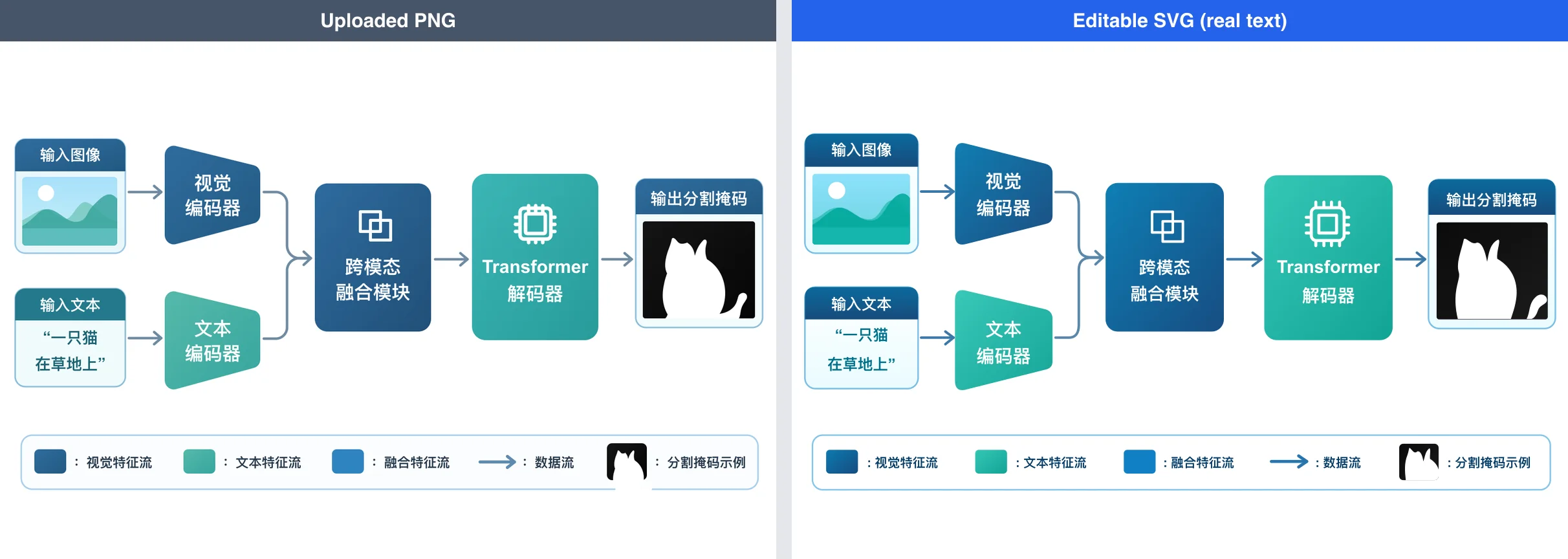
What is the AI SVG Converter?
Most PNG to SVG converters trace the outline of every color area. That works for a logo, but on a chart or diagram every letter turns into a little shape you can no longer type into. The AI SVG Converter looks at your image the way a designer would and redraws it as vector boxes, lines, arrows and text. You get a light, organized SVG with labels you can edit.
Text Stays Text
Titles, labels, legends and numbers come back as real text elements. Fix a typo, translate a label or update a value without redrawing anything.
Clean, Light Files
A typical diagram comes back as tens of kilobytes of grouped shapes instead of thousands of traced paths, so it opens fast and is easy to edit.
Built for Charts and Diagrams
Flowcharts, architecture diagrams, infographics, research figures, slides and text-heavy posters are where this converter beats tracing.
Nothing to Set Up
Upload the image and press convert. The instructions are built in; add a note only if you want something changed.
How to Convert an Image to an Editable SVG
The converter above is already set up. Four steps:
Upload your image
Drop in a PNG, JPG or WebP. Clear, high-resolution images with readable text give the best results.
Keep Editable Vector selected
Editable Vector is selected for you. Pick Visual Asset instead if you only need a cheaper traced outline of a logo or icon.
Convert
The credit cost shows on the button before you start. Conversion usually takes one to two minutes; complex figures can take longer.
Check, download and edit
Compare the result with your original, especially numbers and small labels, then download the SVG and open it in Figma, Illustrator, Inkscape or a code editor.
What you get with the AI SVG Converter
Everything you need to turn a flat image into a working vector file.
SVG and PNG preview
Download the SVG, or grab a PNG preview of the same result.
Transparent background
Choose a transparent background in the options when the SVG needs to sit on top of other designs.
A cheaper tracing option
For logos and icons without much text, the Visual Asset card traces your image into shapes for far fewer credits.
Automatic fallback
If editable conversion fails, you still get a traced SVG and the price difference goes back to your credits.
View and edit online
Open the result in our free SVG Viewer to inspect the code, change text and colors, and export again.
AI SVG Converter — FAQ
Common questions about converting images to editable SVG.
Free converters trace the colors of your image into outlines, so text turns into shapes and a chart becomes thousands of paths. This converter redraws the image with AI, so text stays as editable text and the file stays small. For a simple logo, tracing is cheaper and works fine; pick the Visual Asset card for that.
Flowcharts, architecture diagrams, infographics, slides, research figures and posters with clear text. Photos and detailed paintings are not a good fit for any SVG converter; keep them as PNG or JPG.
It is a redraw, not a pixel copy. Layout, colors and most text come back faithfully, but small labels, subscripts, chemical structures or numbers can change, and detailed textures get simplified. Check the result against your original before you publish it, especially for data and scientific figures.
Yes. Labels come back as real SVG text elements. Change them in Figma, Illustrator, Inkscape, our SVG Viewer or any code editor. Text uses common system fonts, so swap in your own font if you need an exact match.
Usually one to two minutes. Dense figures with many panels can take longer.
The converter uses credits, and the exact cost shows on the button before you start. Editable conversion costs more than tracing because the AI rebuilds the whole figure. New users get free credits to try it.
The converter retries automatically. If it still can't produce an editable SVG, you get a traced SVG instead and the price difference is refunded to your credits. If nothing can be delivered, all credits are refunded.
Yes. Generate a PNG first, then use Send to edit on the result, choose SVG output and pick Editable Vector. This lets you settle the design cheaply in PNG before paying for the vector.
Turn your next chart into an editable SVG
Upload an image, get an SVG with real text, and edit it anywhere. Free credits for new users.
