
Remove Tattoo from Photo with AI
Need a version of the photo without the ink — for a job application, a family album or a casting? Upload it and the AI removes the tattoo and rebuilds the skin underneath to match its tone, texture and light.
Nothing else in the photo changes.
New accounts get 3 free credits — exactly enough for your first generation.

Tattoo removal examples
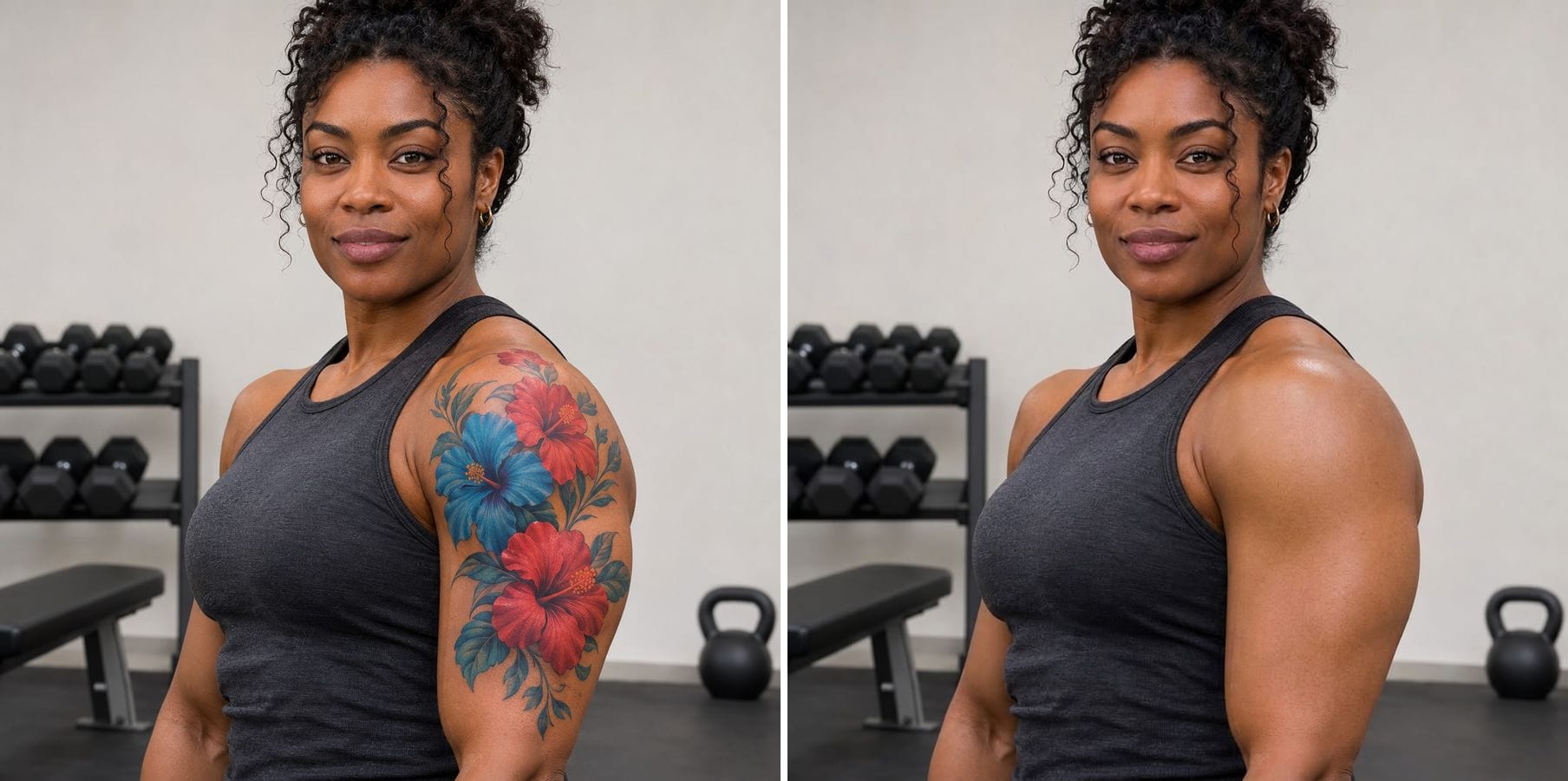
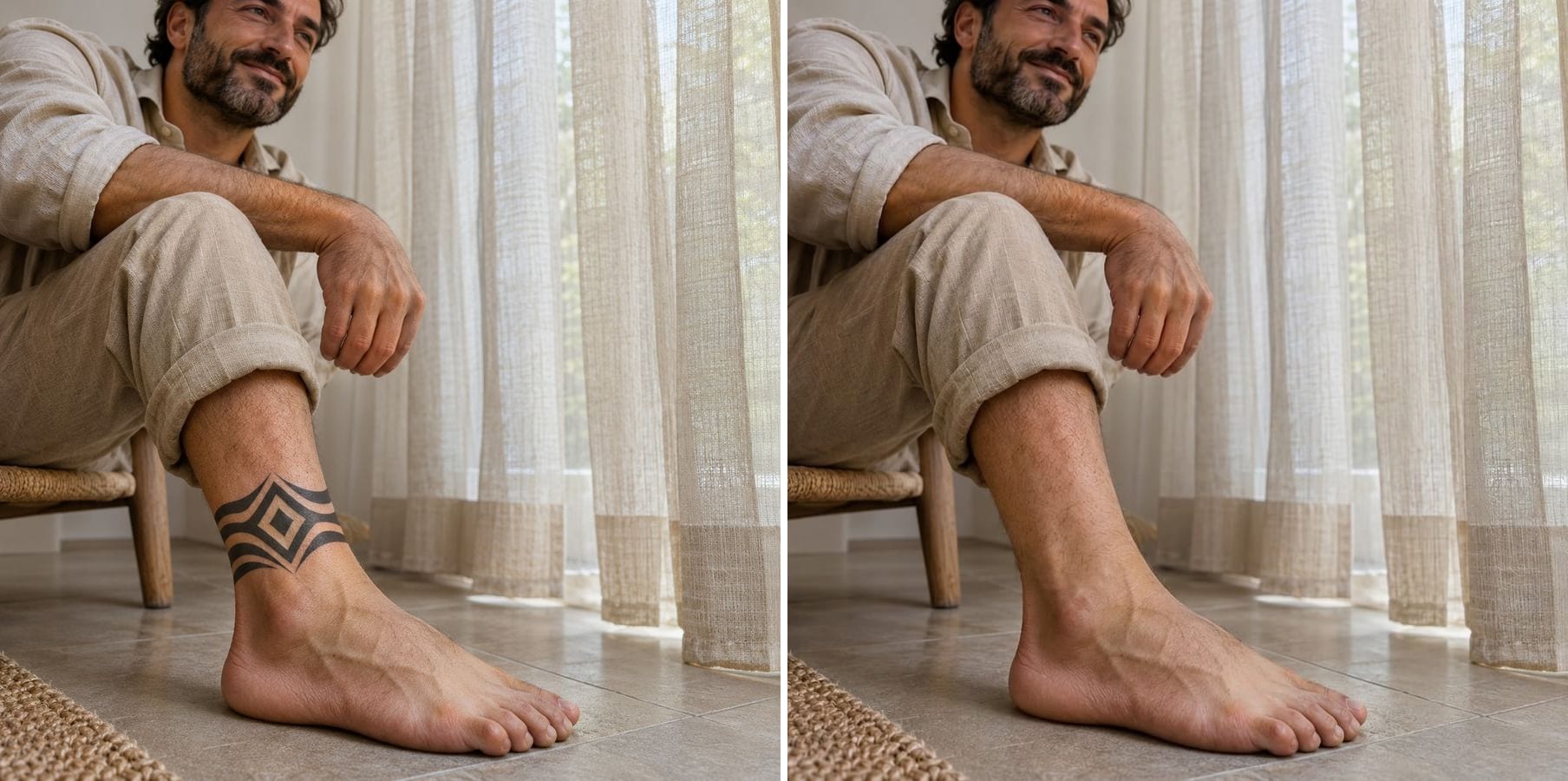
Each pair is the same photo before and after one pass with the built-in instruction: tattooed skin on the left, result on the right.

A black fern tattoo off a potter's forearm
The black-ink fern ran along the whole forearm. After one pass the skin is continuous, with the same side light and fine arm hair, and the hands, the clay bowl and the workbench are untouched.
A colour flower tattoo off an upper arm
Colour tattoos are harder than black ink because the pigment can leave a tint. Here the red and blue flowers are gone and the upper arm has even dark skin and its muscle shading, while her face and the gym stay the same.
A geometric ankle tattoo erased
Small tattoos on curved skin need the shading to wrap around correctly. The band is removed, the ankle keeps its shape and shadow, and the trousers, floor and curtains are unchanged.
How does removing a tattoo from a photo work?
A tattoo covers the skin you want to see, so there is nothing underneath to reveal. The AI looks at the skin around the tattoo — its tone, texture, hair and how the light falls — and paints a believable continuation across the whole area. What it takes care of:
Matching skin tone
The rebuilt skin follows the colour of the surrounding skin, light or dark.
Texture and body hair
Pores, fine hair and small marks continue across the area instead of a smooth patch.
Light and shadow
Muscle shading and the direction of the light stay consistent.
Black and colour ink
Both are removed; colour tattoos are checked for leftover tint.
Any body part
Arms, shoulders, hands, legs, ankles, neck and back.
Everything else kept
Face, pose, clothes and background are not touched.
How to remove a tattoo from a photo
The tattoo-removal instruction is already built in. Three steps:
Upload the photo
Any photo where the tattoo is visible. JPG, PNG or WebP.
Click generate
The built-in instruction removes every tattoo in the photo. To remove only one, click Customize and say which.
Check the skin and download
Look at the edges of the old tattoo and the skin tone, then download.
Who removes tattoos from photos
People who need a photo without the ink, for a day or for good.
Job seekers
A clean version of a photo for a CV, an application or a corporate profile.
Actors and models
Show casting directors what you look like without tattoos.
People thinking about removal
See how the arm or ankle would look before you book laser sessions.
Families and weddings
Photos for relatives who would rather not see the ink.
Powered by Nano Banana 2.1
The tattoo remover runs on Nano Banana 2.1, an image model that is especially good at keeping a person's identity while changing only what you ask for.
Related photo tools
Other one-click fixes for the same photo.

Remove Person
Describe the tourist or photobomber to remove and the background is filled in naturally.
Object Remover
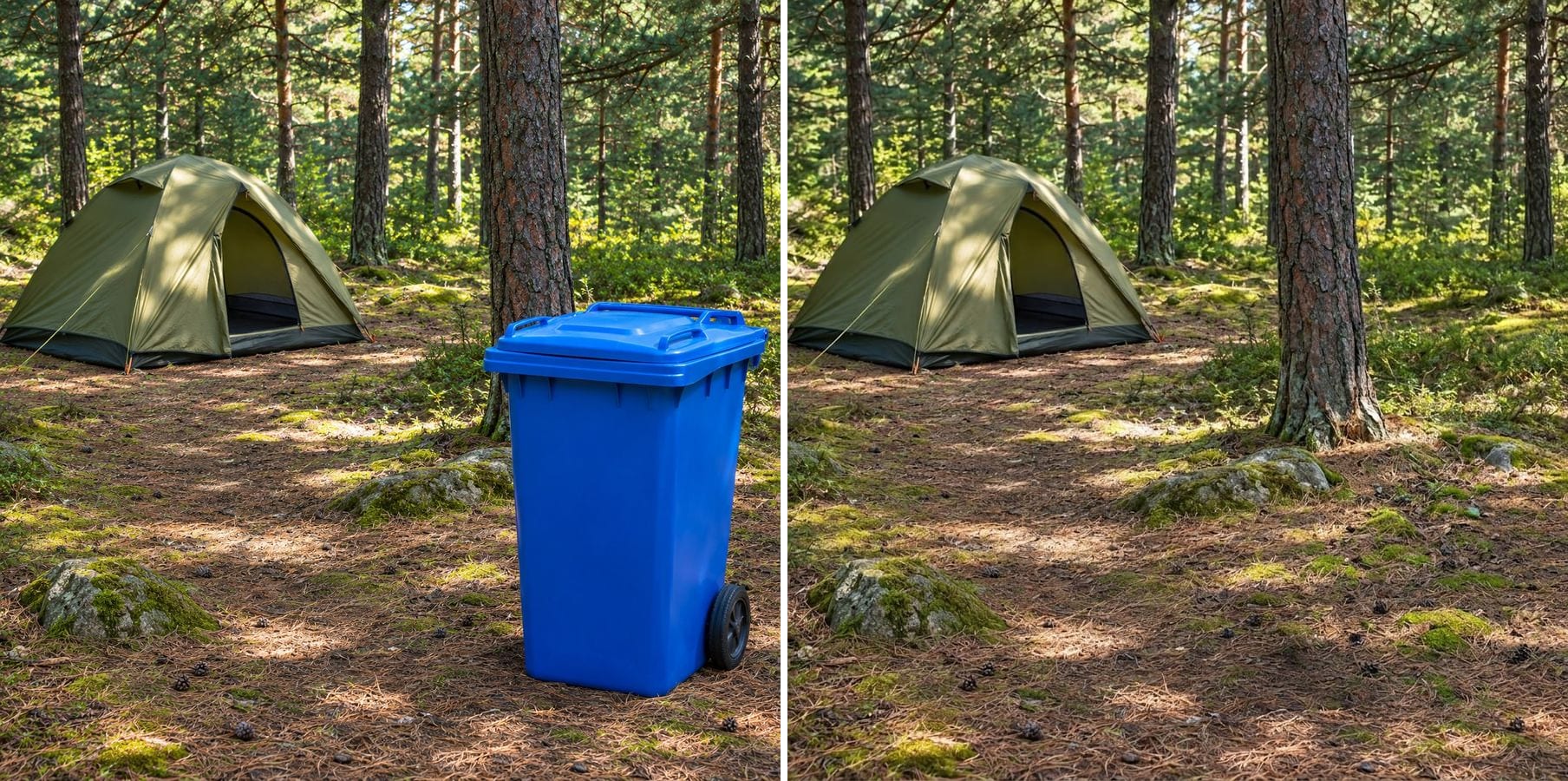
Type what to remove — a cable, a bottle, a bin — and the scene is filled in without masking.

Remove Filter
Take Snapchat stickers, beauty smoothing and colour filters off a saved photo.

Remove Text
Erase captions, overlaid words, subtitles and date stamps and rebuild what was behind them.
Remove Tattoo from Photo — FAQ
More questions? Email support@imagesv2.ai.
Upload the photo above and click generate. The AI removes the tattoo and rebuilds the skin to match the surrounding tone, texture and light.
Yes. Click Customize and describe the one to remove — for example 'remove only the flower tattoo on her left shoulder'.
Yes. Colour ink is removed the same way as black ink. Check the area for a faint tint, and run it again with a note like 'no red tint left' if needed.
They can be removed, but a big area means a lot of skin to rebuild. Look closely at the shading and the skin tone along the whole arm before you use the result.
No. The skin under a tattoo is not in the photo, so the AI paints a realistic continuation of the skin around it. It looks natural, but it is not a picture of the actual skin.
The instruction tells the model to keep the same person, face, pose, clothing, background and framing. The model keeps identity well, but it can change small details, so compare the result with your photo before you use it.
Results come back at about 1K resolution, which is plenty for profiles, social media and messages. For prints or a bigger file, run the result through the AI Image Upscaler to take it to 2K or 4K.
A standard edit uses 60 credits. New users receive free credits on sign-up, and a brand-new account's first generation costs just 3 credits, so the bonus covers your first try. After that, each image uses credits from any credit pack or subscription.
Results made with the free sign-up credits carry a watermark. After any credit purchase, new results come without one.
Remove a tattoo from your photo
Free credits for new users. Upload a photo and click generate — the tattoo-removal instruction is already built in.