
Unpixelate Image — Fix Pixelated Photos with AI
Blocky pixels, staircase edges and JPEG mush from an image that was saved too small. Upload it and the AI removes the blocks and artifacts, rebuilds smooth edges and enlarges it to 2K or 4K.
It works on photos, graphics and screenshots.
Image type
Output size
3 credits per image
New accounts get 3 free credits — exactly enough for your first generation.
Results made with the free sign-up credits carry a watermark. Any credit purchase removes it from new results.
Have many images? Upscale up to 20 at once →Unpixelate image examples
Close-up crops of the same image before and after one pass in Pixelated mode: pixelated original on the left, result on the right.
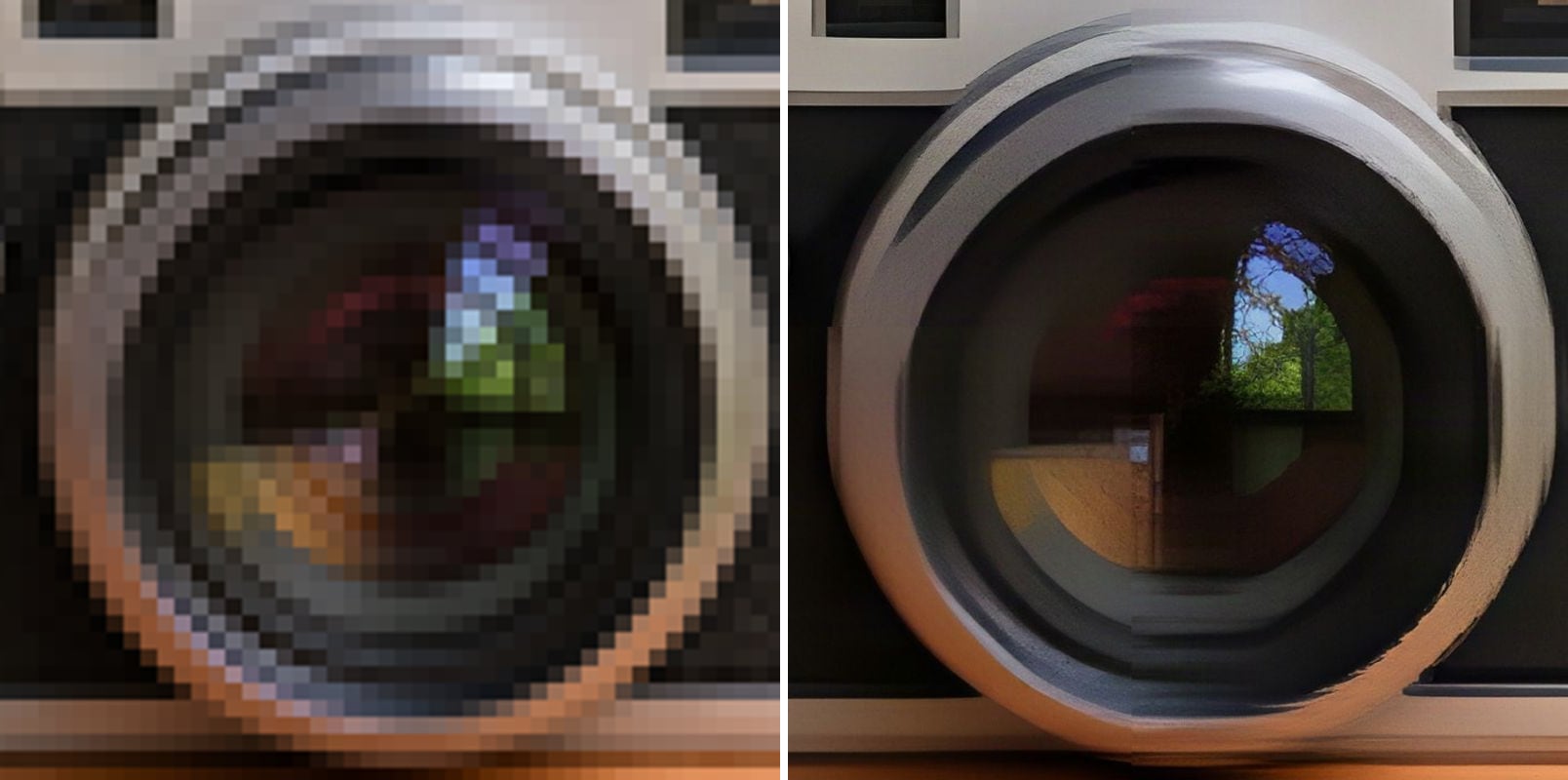
- Before
- Large square pixel blocks; the round lens is a staircase.
- After
- Smooth, round lens rings and clean metal edges.
Big pixel blocks turned back into a lens
Every 4×4 block was a single colour, so the camera lens was a staircase of squares. After one pass the lens rings are smooth circles and the metal and glass read clearly again.
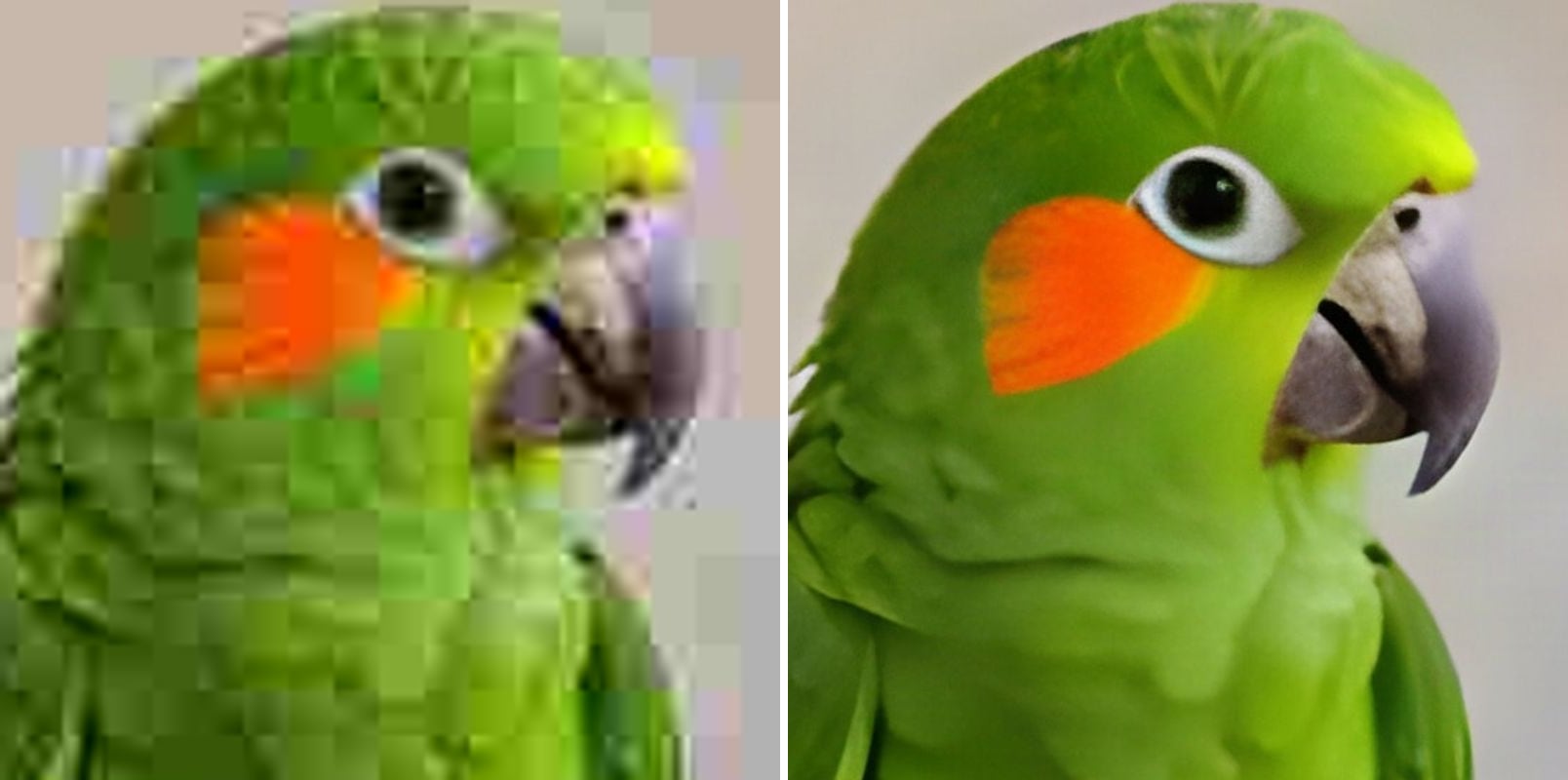
- Before
- Blocky JPEG artifacts and colour halos around the beak.
- After
- Clean feathers, a sharp beak and a smooth background.
Heavy JPEG artifacts cleaned up
A low-quality JPEG covered the parrot in colour blocks and halos. The result has clean green feathers, a sharp beak and a smooth background, without the blotches.
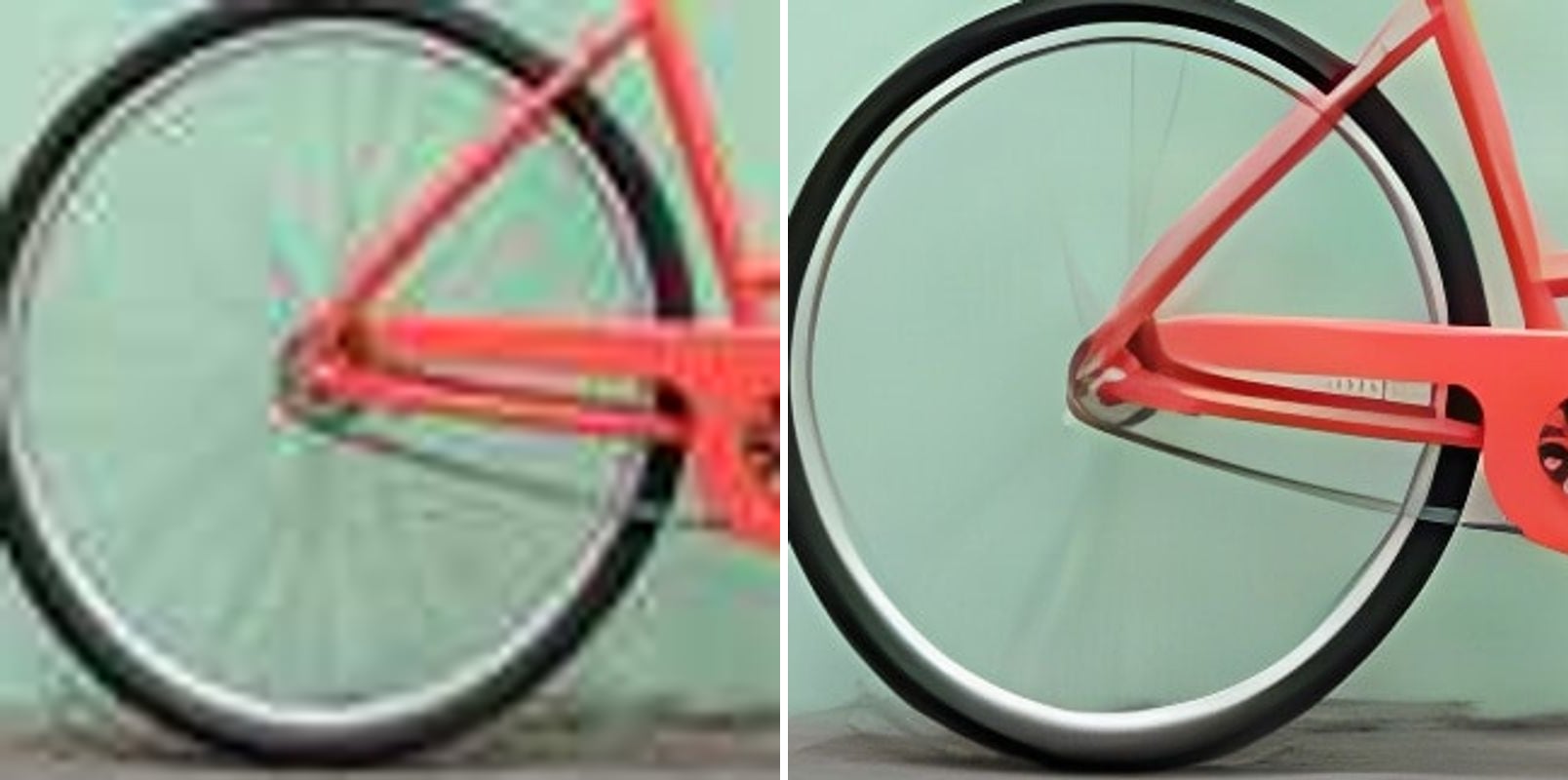
- Before
- Tiny and compressed: the frame and wheel edges are jagged.
- After
- Clean frame lines and a round, smooth wheel rim.
A tiny image enlarged without jaggies
At 192 pixels wide the bicycle had soft, broken lines. Enlarged four times, the frame is a clean line and the wheel rim is round, with the spokes and colour where they were.
What does it mean to unpixelate an image?
An image looks pixelated when it has too few pixels for the size you view it at, or when compression has turned it into blocks. Resizing makes the blocks bigger. An AI unpixelator recognises the blocks and artifacts as damage, removes them and redraws clean edges and smooth areas. It fixes:
Pixel blocks
Square blocks from images that were enlarged with no smoothing.
JPEG artifacts
Blotches, ringing and colour halos from heavy compression.
Jagged edges
Staircase lines on curves and diagonals become smooth.
Small images
Enlarged up to 4× in Pixelated mode, to 2K or 4K.
Graphics and screenshots
Logos, icons and UI captures get clean edges back.
Two modes
Pixelated for blocks and artifacts; Photo for soft photos that only need more detail.
How to unpixelate an image
Three steps, no software to install:
Upload the pixelated image
Drop, paste or choose a JPG, PNG or WebP up to 10 MB.
Keep Pixelated selected
Pixelated mode is made for blocks and JPEG artifacts. Choose 2K or 4K; the output size is shown before you start.
Compare and download
Drag the slider to check the edges, then download.
Who fixes pixelated images
Anyone stuck with the only copy of an image — and it is tiny.
Online sellers
Supplier photos that were compressed to a few hundred pixels.
Designers
Logos and graphics that only exist as small, blocky files.
Social media users
Photos that lost quality after being shared many times.
Gamers and streamers
Low-resolution screenshots and emotes, cleaned up for reuse.
Everyone with old downloads
Saved images from the early web that look terrible on today's screens.
Related photo tools
Other one-click fixes for the same photo.
AI Image Upscaler
Upscale blurry or low-resolution images to 2K or 4K with AI — real detail restored, same face.
Unblur Image
Fix blurry photos and faces with AI.
Upscale to 8K
Upscale photos to 8K (7680×4320) with AI-restored detail for large prints and 8K screens.

Remove Text
Erase captions, overlaid words, subtitles and date stamps and rebuild what was behind them.
Unpixelate Image — FAQ
More questions? Email support@imagesv2.ai.
Upload it above, keep Pixelated selected, choose 2K or 4K and click Upscale. The AI removes the pixel blocks and JPEG artifacts and redraws clean edges at the larger size.
No. It removes blocks and artifacts and draws believable edges, but it cannot bring back information the image never had. Unreadable text stays unreadable, and tiny faces will not become recognisable.
No. Pixelation used to hide faces, plates or text has destroyed the original detail, and the tool does not attempt to un-censor it. Anything it drew there would be invented, not revealed.
Pixelated is for visible blocks and heavy JPEG artifacts; it is the only mode here that removes mosaic blocks. Photo is for soft or blurry photos without blocks, and it keeps faces closer to the original.
Choose 2K (1440 pixels on the short side) or 4K (2160). Pixelated mode enlarges up to 4×, so a very small image gets as close to the target as that allows.
It will smooth the pixels away, which is usually not what pixel art needs. Use it for images that were meant to be smooth.
A 2K upscale uses 10 credits, 4K uses 20 credits and 8K uses 40 credits. New users get free credits on sign-up, and your first upscale (2K or 4K) costs just 3 credits. 8K is available after any credit purchase. If an upscale fails, the credits are refunded automatically.
Results made with the free sign-up credits carry a watermark. After any credit purchase, new results come without one.
Fix your pixelated image
Free credits for new users. Upload an image and download the clean version in seconds.